
Creating Sessions Sign Up Schedule
With the Session Fees add-on, you can make photo shoot time slots available for your customers to select and pay for. You can also include additional products as part of your session fees to be included for a single cost. For example: Session + 4 digital downloads.
Here is how to setup Session Fees:
Create a Session Fee Product
- Create a new product like you would any other
- Select "Session Fee" as the Product Type
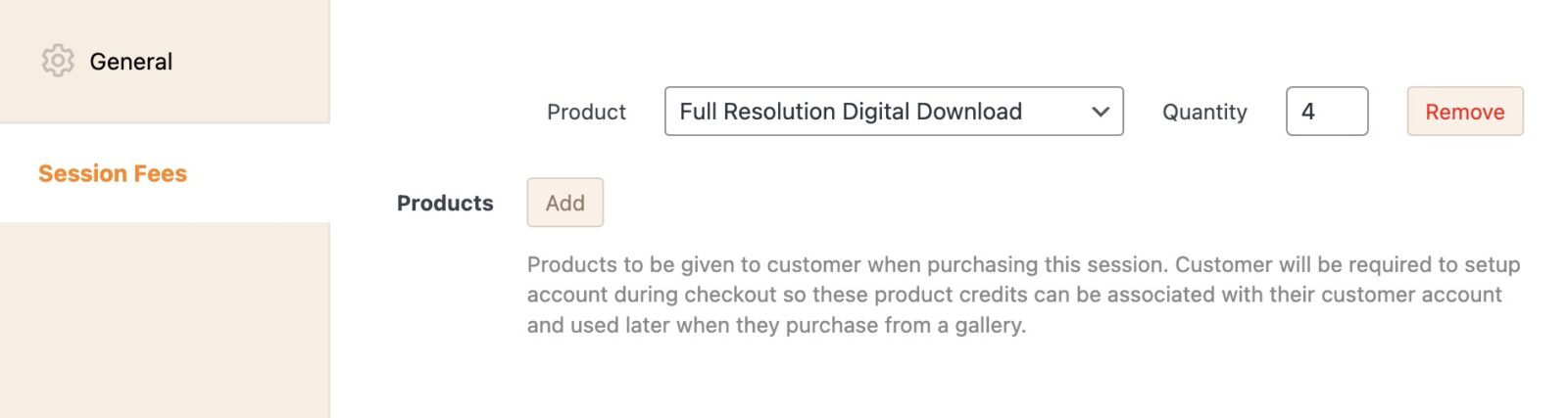
- (Optionally) Click the "Session Fee" tab and add any included products
Included Products
Under the Session Fee tab, you can bundle products and credits that the customer receives when they purchase the session:
- Products — Any of your existing products. The customer gets these for free when they order from a gallery later.
- Credits — Dollar credits applied toward future purchases at checkout.
- Download Credits — Per-image download credits (requires the Digital Downloads add-on). Each credit lets the customer download one image from a gallery without purchasing it.

Create Session Schedule
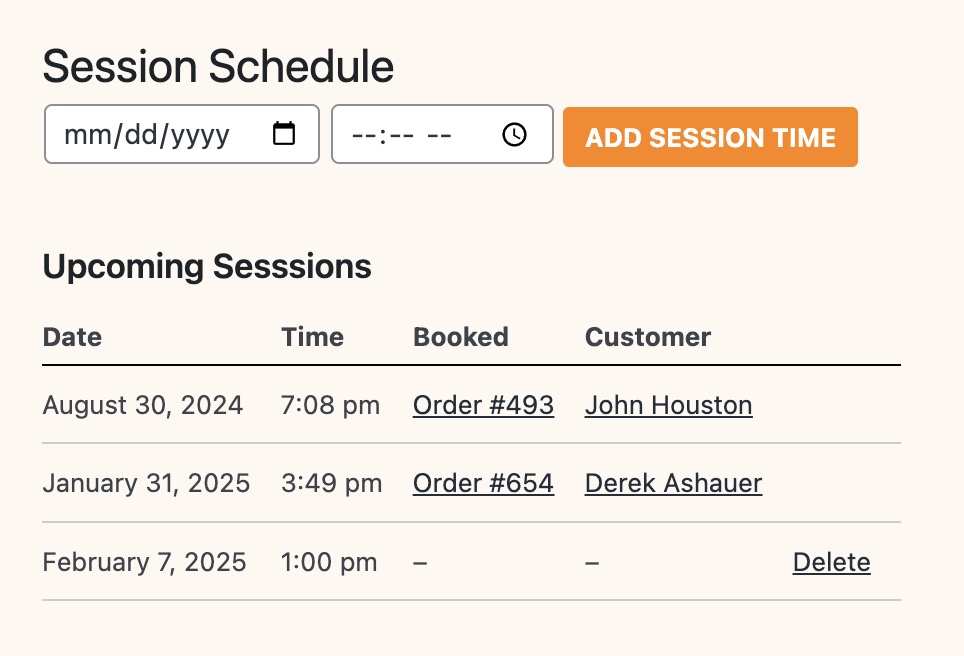
- Go to Sunshine > Session Schedule
- Enter in a date and time for each available session
- Optionally assign a location to each session entry
As sessions get booked, you will see the order associated with it for more information.
Session Locations
You can organize sessions by location using Sunshine > Session Locations. Create locations for your studios, parks, or other venues, then assign them to individual session schedule entries. Locations help clients understand where each session takes place.
iCal Calendar Attachments
When a client books a session, both you and the client receive an iCal (.ics) calendar attachment with the booking confirmation email. You can also download the iCal file from the order details page in the admin, and clients can download it from their receipt page. This makes it easy for everyone to add the session to their calendar app.
Make Session Schedule Available
You can then learn how to set up a Session Schedule page for your customers to select dates/times and then checkout and pay.
Still need help?
If you have not yet found your answer in the documentation articles, please contact support