
Gift Cards
The Gift Cards addon lets you sell gift cards that customers can redeem at checkout. You can offer preset amounts or let customers choose their own, and gift cards can be delivered immediately or scheduled for a specific date.
How to Set It Up
- Install and activate the Gift Cards addon.
- On activation, the addon automatically creates two things:
- A Gift Card product with default preset amounts ($25, $50, $100, $200, $500)
- A Gift Cards page with a purchase form where customers can buy gift cards
- Go to Sunshine > Products and edit the Gift Card product to customize the available amounts.
Customize the Gift Card Product
The gift card product has three settings:
- Preset Amounts -- A comma-separated list of amounts customers can choose from (e.g.,
25,50,100,200,500). - Allow Custom Amounts -- When enabled, customers can enter any amount they want instead of choosing a preset.
- Maximum Amount -- The highest custom amount a customer can enter. Only applies when custom amounts are allowed.

How Customers Purchase Gift Cards
There are two ways customers can buy gift cards.
From the Gift Cards Page
The auto-created Gift Cards page uses the [sunshine_buy_gift_card] shortcode. This displays a standalone purchase form where customers can:
- Select a preset amount or enter a custom amount
- Choose Immediate or Scheduled delivery
- Enter the recipient's name and email address
- Write an optional personal message
- Pick a delivery date (if scheduled)
- Add the gift card to their cart

From Your Store
If you use the Sell Anything addon, gift cards appear as a product in your store with "Custom" shown in place of a price. Clicking the gift card tile takes the customer directly to the Gift Cards page where they fill in the recipient details and amount.
Shortcode Options
The [sunshine_buy_gift_card] shortcode accepts these optional attributes:
product_id- The ID of a specific gift card product to use (defaults to the one created on activation).price_level- A price level ID if you use the Price Levels addon.
Gift Card Delivery
When a customer purchases a gift card, the recipient receives an email with the gift card code and amount. You control when that email gets sent:
- Immediate delivery -- The email is sent as soon as the order is placed.
- Scheduled delivery -- The email is sent on the date the customer chose. Scheduled emails are sent starting at 8:00 AM (your site's local time) and are checked hourly.
The email includes the gift card code, the amount, and any personal message the buyer wrote.
Customize the Gift Card Email
- Go to Sunshine > Settings > Emails
- Find the Gift Card email
- Edit the subject line and message body as needed
You can use these placeholders in the email template:
| Placeholder | Description |
|---|---|
[gift_card_code] |
The gift card code |
[gift_card_amount] |
The gift card amount (formatted with currency) |
[gift_card_balance] |
The current balance |
[gift_card_recipient_name] |
The recipient's name |
[recipient_name] |
Same as above |
[gift_card_message] |
The personal message from the buyer |
[sitename] |
Your site name |
[sunshine_url] |
Link to your galleries |
How Customers Redeem Gift Cards
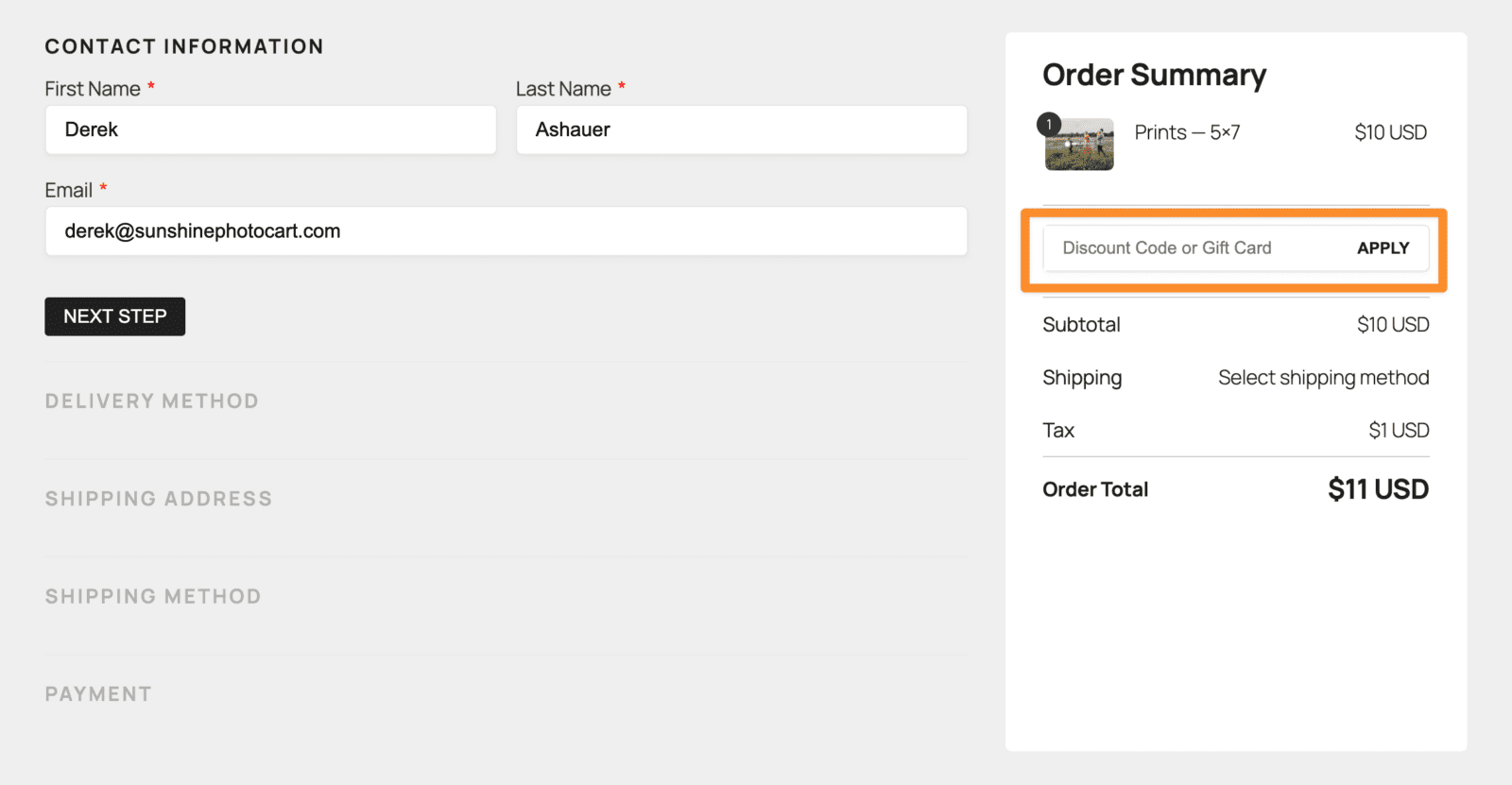
- During checkout, the customer enters their gift card code in the discount code field and clicks Apply.
- The gift card balance appears as a discount on the order total.
- If the gift card covers the full amount, no additional payment is needed.
- If the gift card only partially covers the total, the customer pays the remaining balance with their chosen payment method.
- Multiple gift cards can be applied to a single order.
Balance Lookup
Customers can check their gift card balance using the [sunshine_gift_card_balance] shortcode. This displays a simple form where they enter their code and see their current and original balance.
You can add this shortcode to any page on your site.

Managing Gift Cards in the Admin
Viewing All Gift Cards
Go to Sunshine > Gift Cards to see a list of all gift cards. The list shows:
- Gift card code
- Current balance
- Original amount
- The order it was purchased from (or "Manual" if created by hand)
Editing a Gift Card
Click on any gift card to view its full details:
- Code -- The unique gift card code. You can regenerate it if needed.
- Original Amount -- The initial value of the card.
- Balance -- The current remaining balance. You can adjust this manually.
- Recipient Email -- Where the gift card email was sent.
- Usage History -- A table showing every order that used this card, including the date, amount used, and remaining balance after each use.
You can also see it from the other direction. When a gift card is applied to an order, the redemption is recorded in that order's Log tab, showing the card used, how much was applied, and what was left on the card afterwards. That means you can answer "what did they pay with?" from the order itself without going and finding the gift card.
Creating Gift Cards Manually
You can create gift cards directly from the admin without a customer purchase:
- Go to Sunshine > Gift Cards and click Add New
- Enter the original amount and balance
- A unique code is generated automatically (or click the regenerate button for a new one)
- Optionally fill in a recipient email
- Publish the gift card
This is useful for promotions, giveaways, or replacing a lost card.
Refunds
When an order that used a gift card is refunded, the gift card balance is automatically restored. The usage entry is removed from the card's history and the deducted amount is added back to the balance.
Notes
- Gift cards are not taxable. No tax is calculated on gift card purchases.
- Gift cards do not require shipping or delivery method selection at checkout.
- Gift card codes are 12 characters long using uppercase letters and numbers, excluding ambiguous characters (0, O, 1, I, L) to avoid confusion.
- If a customer's cart contains only gift cards (and/or other digital products), the delivery method step is automatically skipped at checkout.
- Scheduled gift card emails are checked hourly and sent starting at 8:00 AM in your site's local time zone.
Hooks and Filters
sunshine_get_gift_cards_args
Filter the query arguments when retrieving gift cards.
add_filter( 'sunshine_get_gift_cards_args', function( $args ) {
    // Modify the gift card query
    return $args;
});
Learn how to add this custom code to your WordPress website
Still need help?
If you have not yet found your answer in the documentation articles, please contact support