
Crop & Wall Preview
Let clients pick the exact crop for every print and see it hanging on a wall at real size before they buy
A photo that looks great on screen doesn't always fit the print a client picks. An 8x10 trims more off the sides than a 4x6 does, and a canvas that wraps around its frame loses even more to the edges. When Sunshine has to guess, the guess is a centered crop, and that's how you end up with the top of someone's head missing from the print they ordered.
Crop & Wall Preview lets your clients choose exactly what prints, and see how big it really is on a wall before they buy. You get their crop with the order, ready to print.
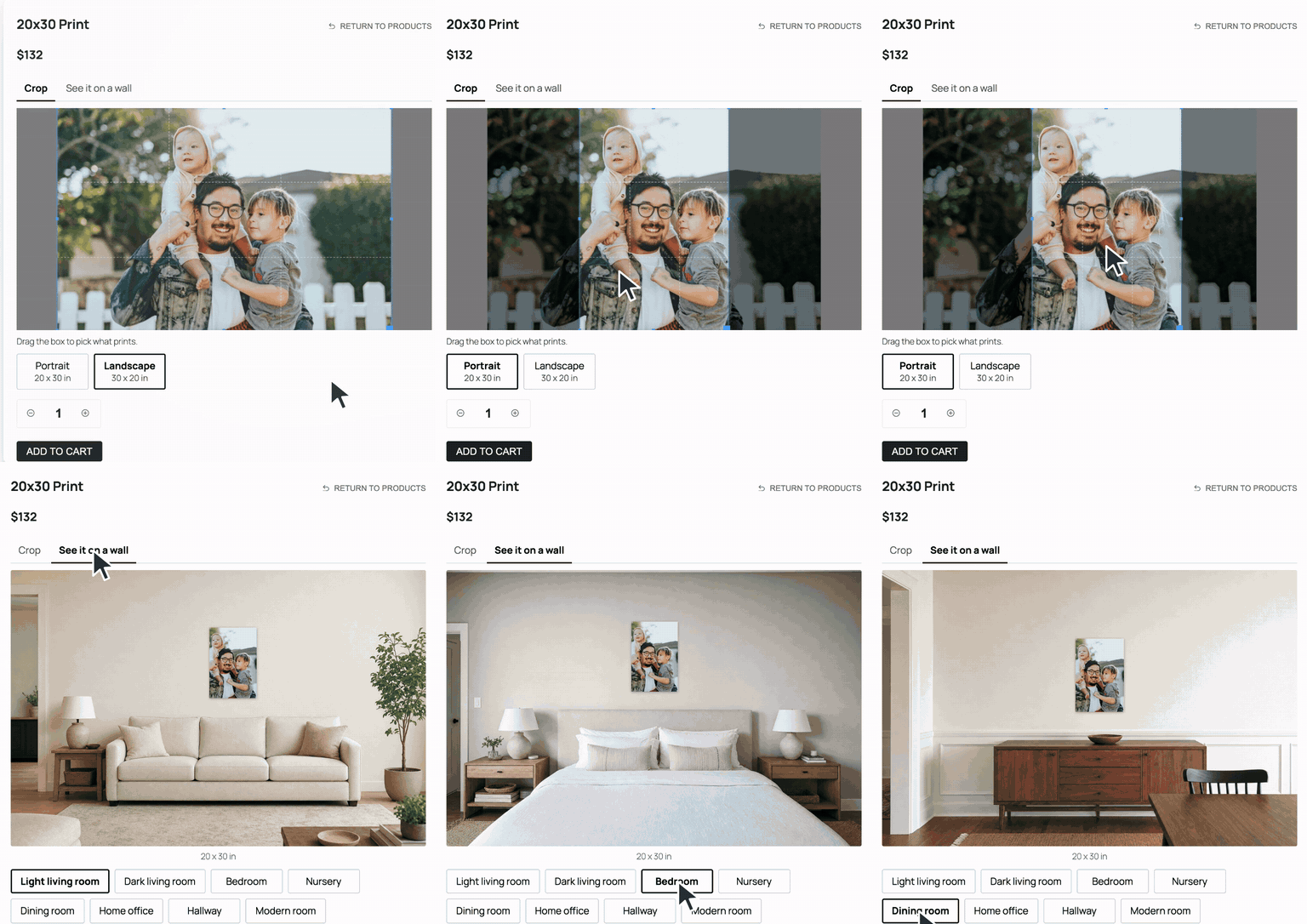
Clients Pick What Prints
When a client opens a print in your gallery, a crop box shows right on their photo, locked to the shape of that print. They drag it to frame the photo the way they want and pick portrait or landscape. Each size gets its own crop, so an 8x10 and a 4x6 of the same photo can be framed differently. If they make the box so small that the photo won't print sharp at that size, a note lets them know.
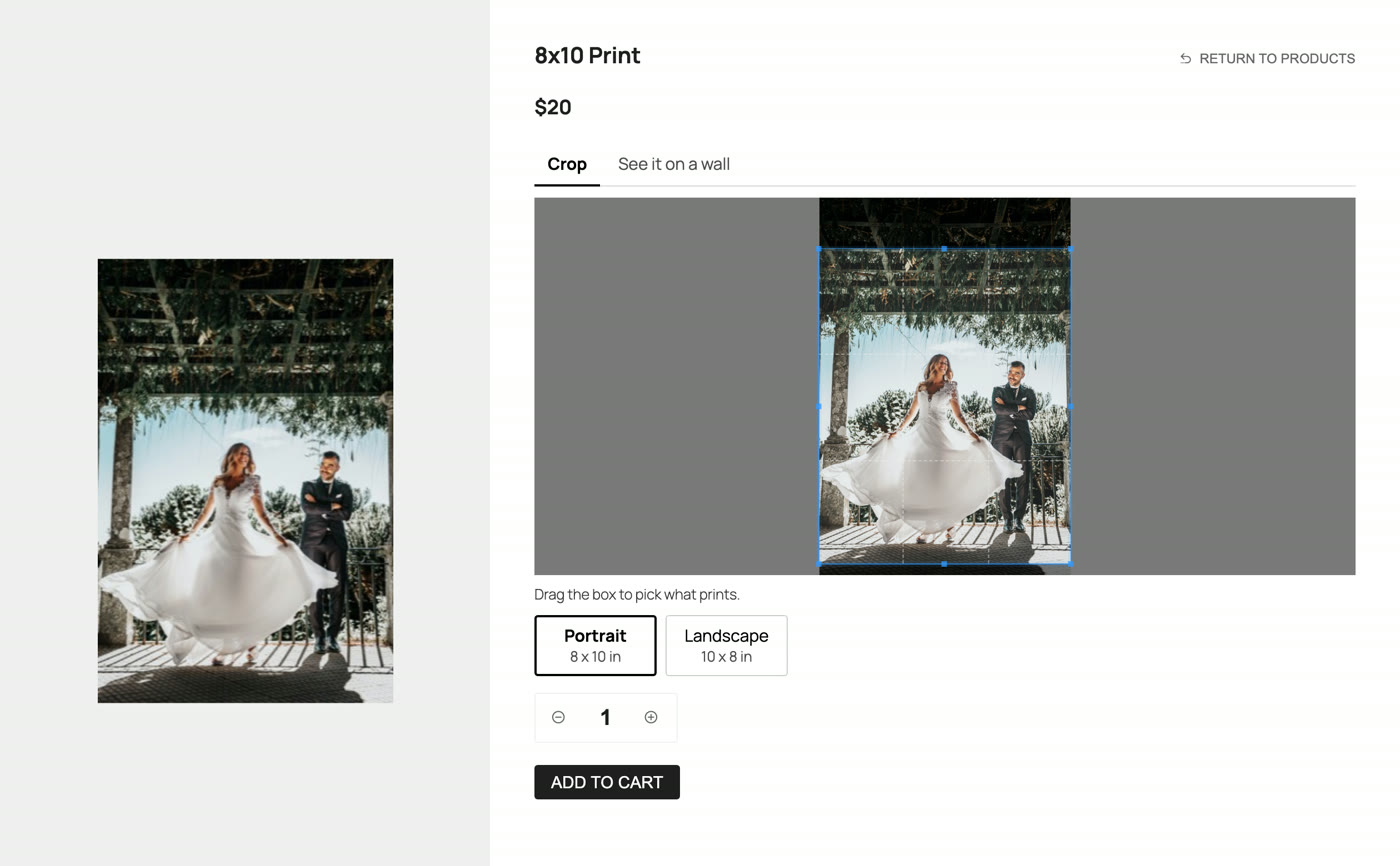
Canvas prints that wrap around the sides show a dashed line for the front, so clients can see what ends up on the edges before they order.
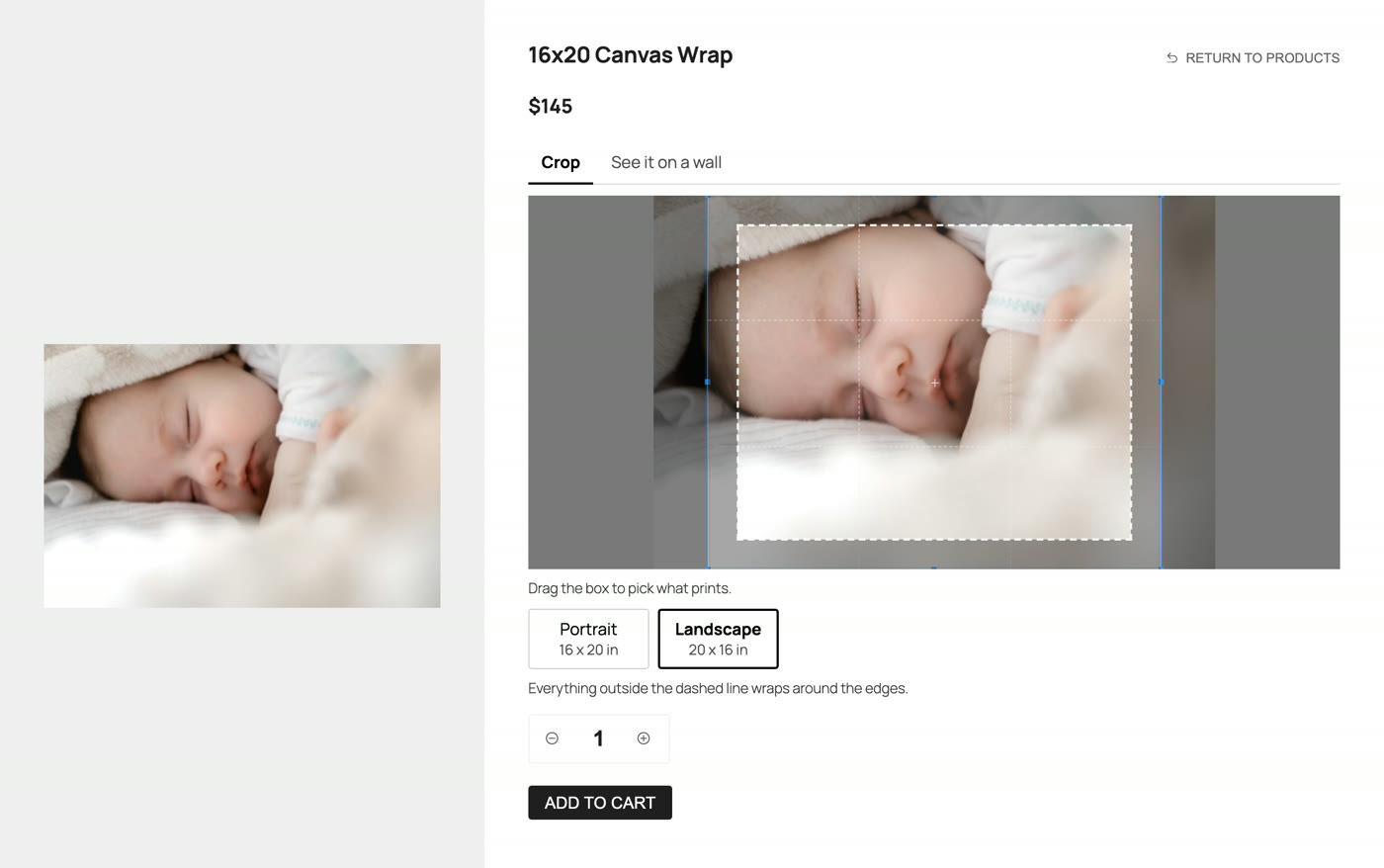
Prints added in bulk, from favorites, or in a package can be cropped from the cart with an Adjust crop button.
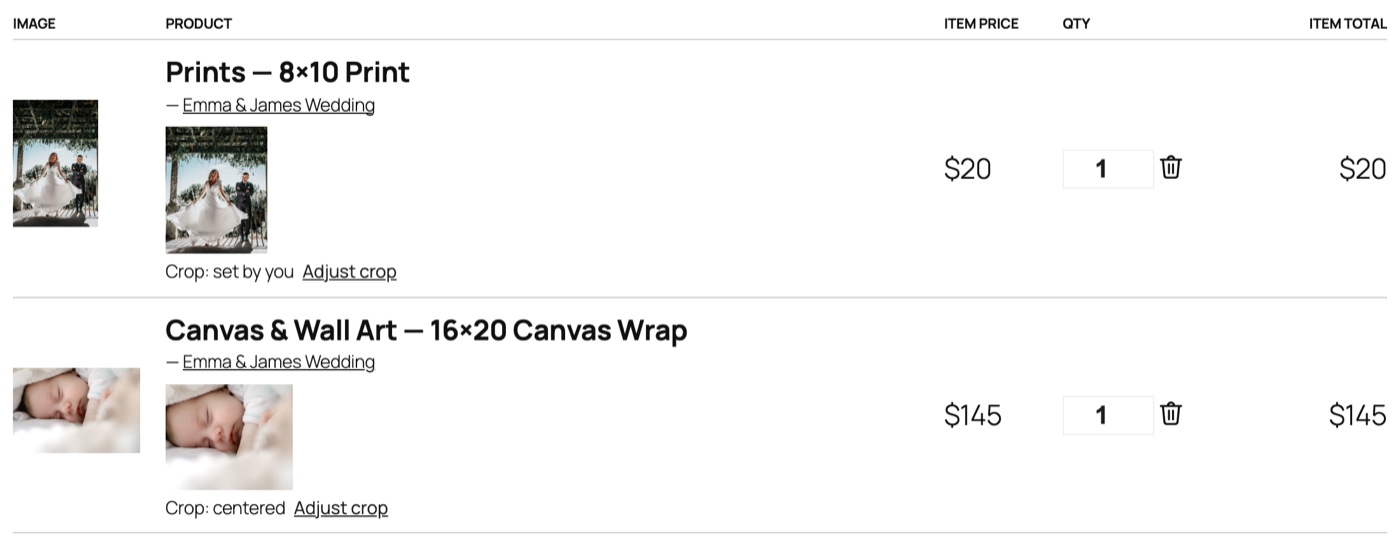
See It on a Wall at Real Size
Most clients can't picture how big a 16x20 is. The See it on a wall tab shows their cropped photo hanging in a room at its true size, so they can see whether it fills the space over the couch or gets lost on the wall.
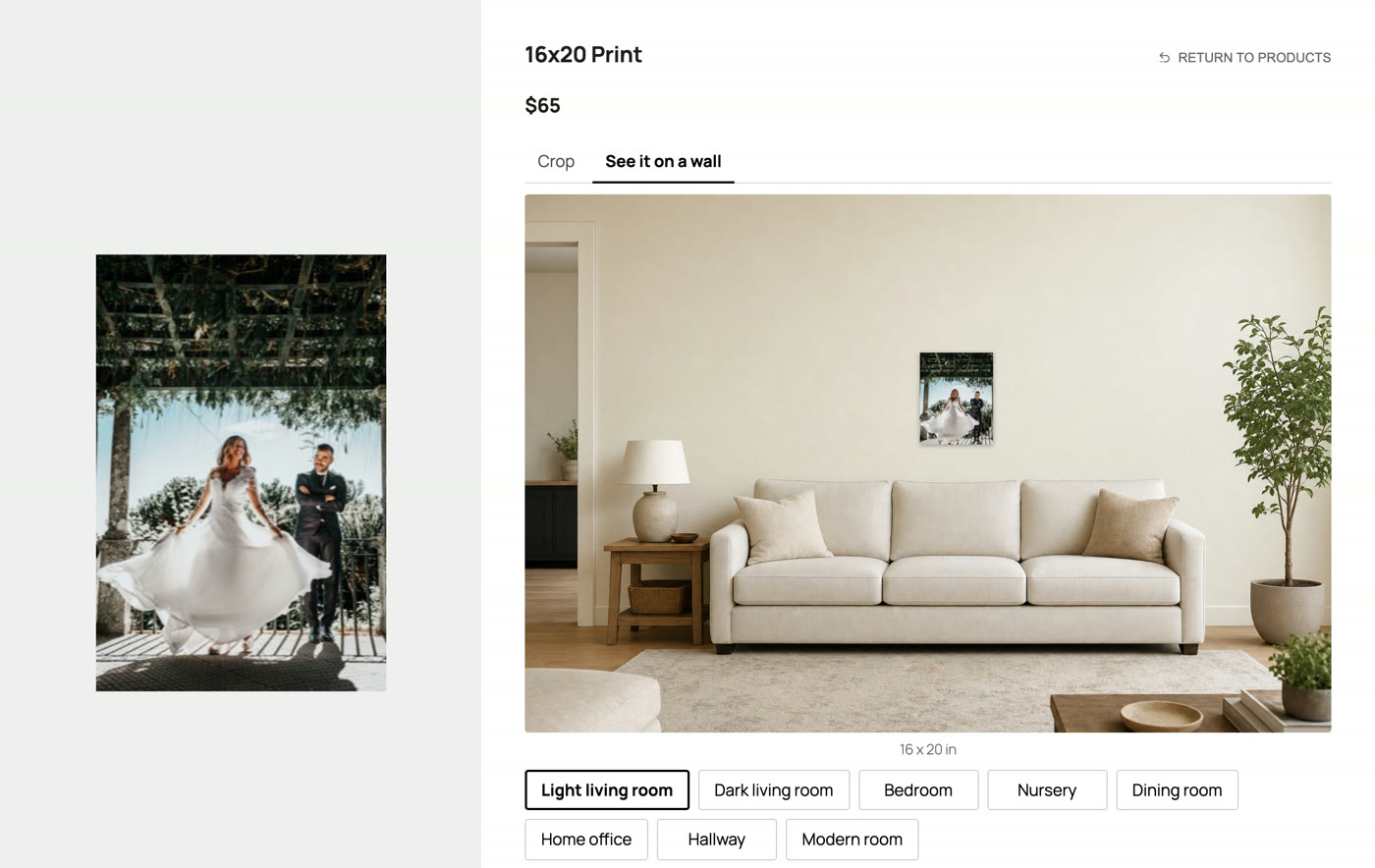
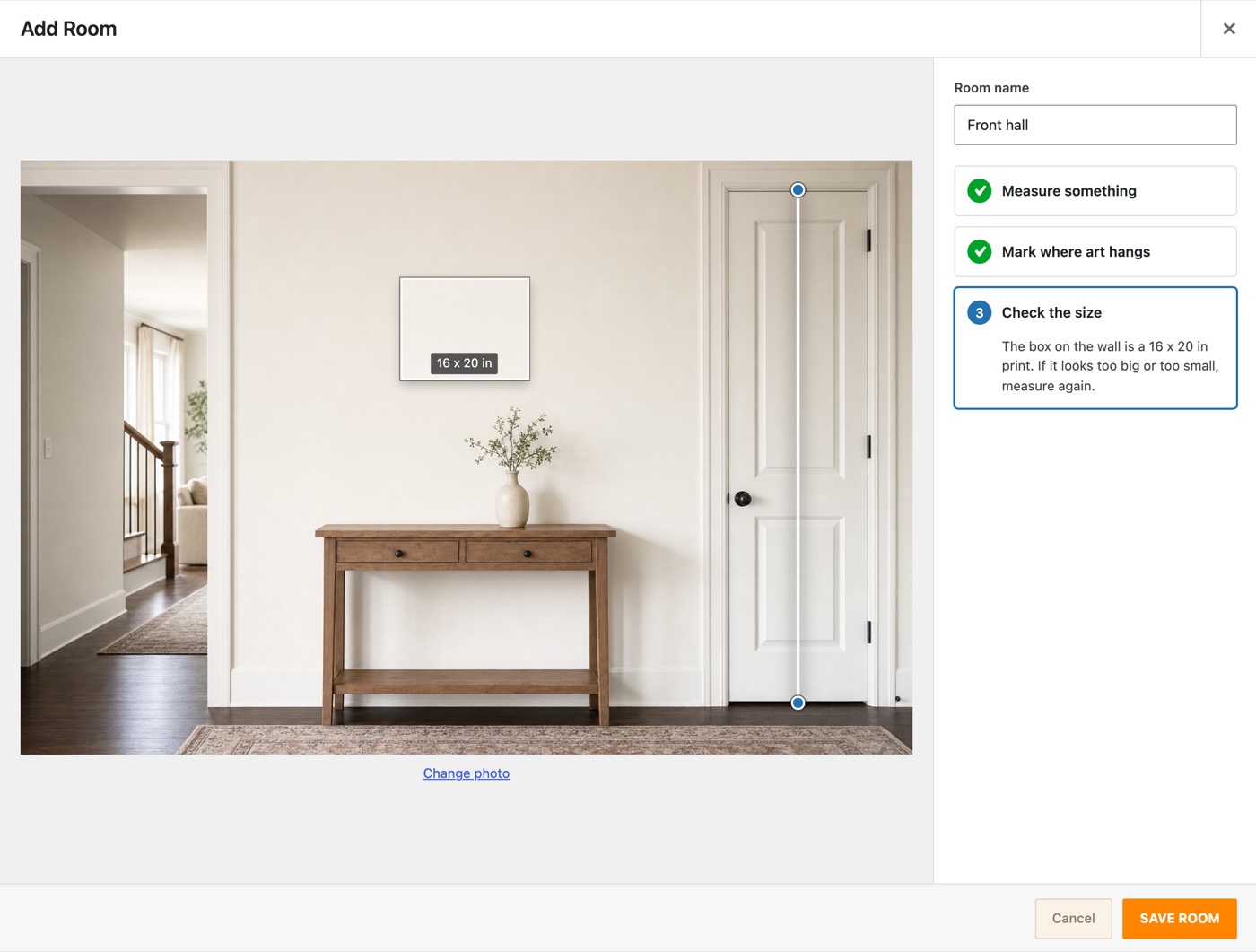
Eight ready-made rooms come with it, from living rooms and a bedroom to a nursery, dining room, home office and hallway, all set to scale. You can add your own too: your studio, a client's living room, any room shot straight on. Add a photo, click both ends of something you know the size of, like a door, and mark where the bottom of a print should sit. Sunshine works out the scale and shows a sample print so you can check it looks right. Clients switch between the rooms you turn on.
The Crop Comes with the Order
Every print on an order shows its crop: whether the client set it or it was centered, the print size and orientation, and where the crop sits in percent and pixels. From the order screen you can:
- View crop to see exactly what the client picked
- Edit crop if it needs a small change before printing
- Download cropped file to get your uploaded photo already cut to the crop
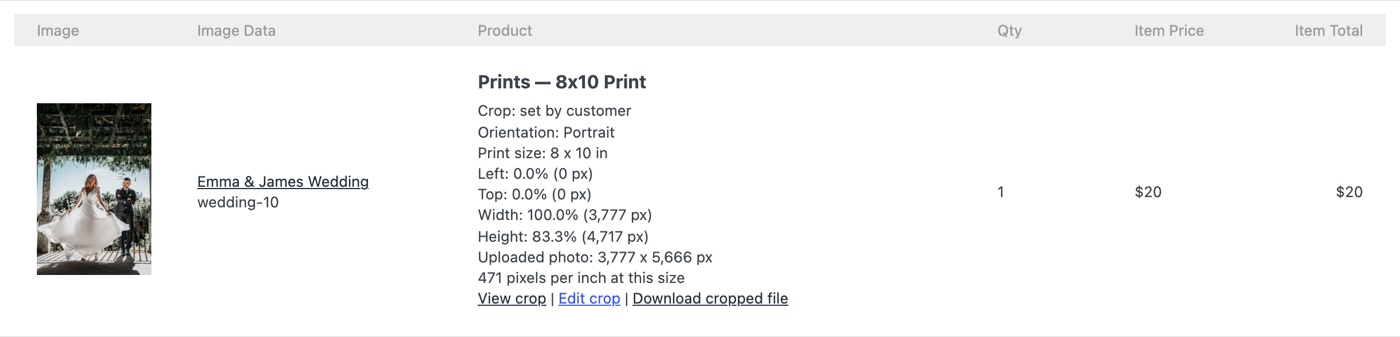
The order screen also warns you when a crop doesn't have enough pixels to print sharp at that size, before it goes to the lab.
Clients see their crop on their order page and in their order emails too.
Fits How You Already Work
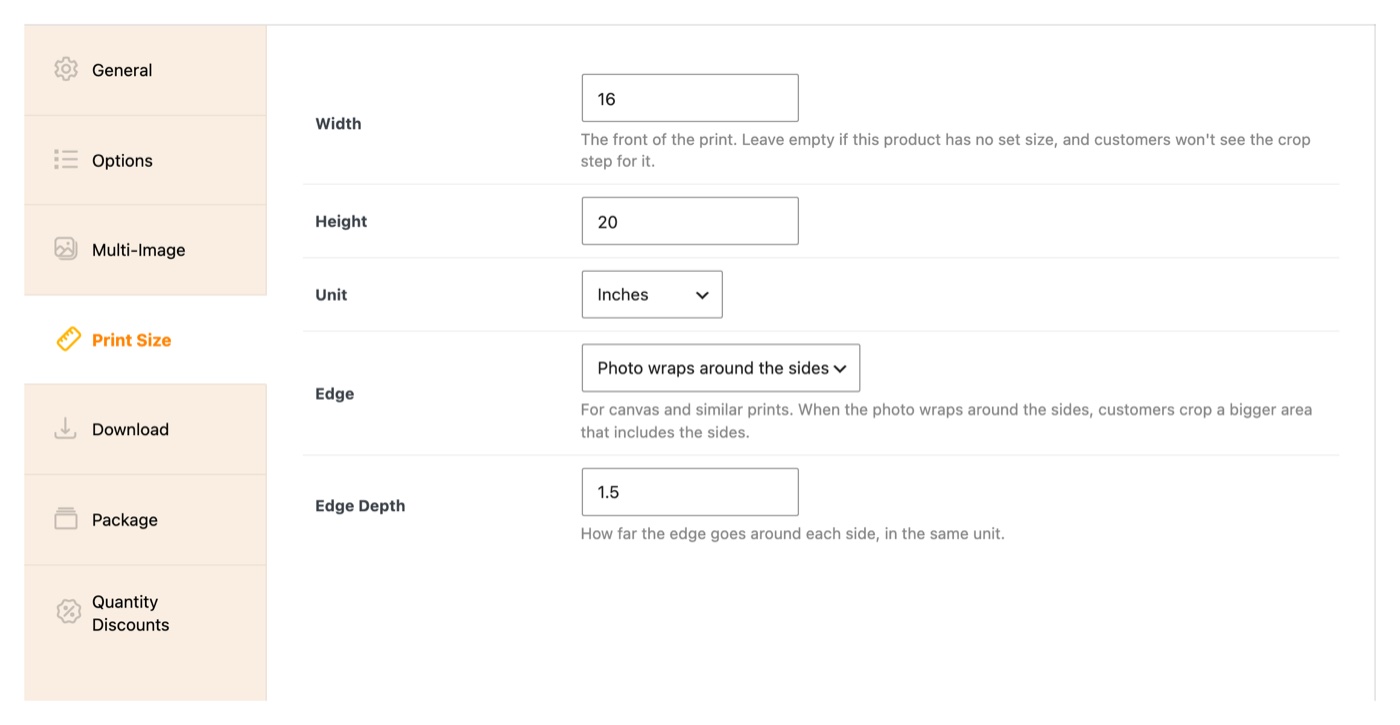
Set a print size on each print product (width, height, inches or centimeters, and the edge for canvas) and the crop step shows up for it. Products without a size work the same as always.
With the Exports add-on, order exports include each print's size, orientation and crop.
Customer cropping and the wall preview each have their own setting, so you can use just the part you want.
Read the Crop & Wall Preview documentation for the full setup.
$79 $47.40
- 14-day money back guarantee
- 1-on-1 customer support
- Safe & secure online payment
Add-ons are billed yearly. You may cancel your subscription at any time. An active license is required for the add-ons to work, and for updates and support. View terms
Get a plan and save!
This add-on is part of our Pro plan and you can save big compared to buying individually.
Latest Version: 3.0


Try Sunshine Photo Cart Free
Build your galleries and start selling on your own WordPress website in minutes. Our fully functional free version is a great option for many photographers.