
Custom checkout fields
Sunshine Photo Cart allows you to customize the checkout process by adding or removing fields. This guide will walk you through the steps to add custom fields to the checkout, using the filters provided in the SPC_Cart class. All available field types are documented below to help you create the fields that best suit your needs.
Understanding the Checkout Fields Structure
The fields are organized into sections. Each section contains an array of fields with specific attributes.
The sections are:
contact— name and emaildelivery— how the order reaches the customer, when there is more than one optionshipping— the shipping address, present only when something in the cart needs shippingshipping_method— which shipping option they pickedbilling— the billing address, present only when it is needed (see below)payment— the payment method and its own fields
Not every section appears on every order. A download-only order has no shipping or shipping_method section, and billing only appears when something asks for it.
Here's a simplified representation of how fields are structured:
$fields['section_id'] = array(
    'name'   => 'Section Name',
    'fields' => array(
        array(
            'id'       => 'field_id',
            'type'     => 'field_type',
            'name'     => 'Field Name',
            'required' => true_or_false,
            'default'  => 'default_value',
            // Additional attributes...
        ),
        // More fields...
    ),
);
Learn how to add this custom code to your WordPress website
Adding Custom Fields Using Filters
To add custom fields to the checkout, you can hook into the sunshine_checkout_fields filter. Here's how you can do it:
- Hook into the Filter: Use the
add_filterfunction to hook your custom function into thesunshine_checkout_fieldsfilter. - Modify the Fields Array: In your custom function, add or modify fields within the
$fieldsarray. - Return the Modified Fields: Ensure your function returns the modified
$fieldsarray.
Example: Adding a Custom Field to the Contact Section
Let's add a custom "Company Name" field to the contact section.
add_filter( 'sunshine_checkout_fields', 'add_custom_company_field' );
function add_custom_company_field( $fields ) {
    // Define the new field
    $company_field = array(
        'id'       => 'company_name',
        'type'     => 'text',
        'name'     => __( 'Company Name', 'sunshine-photo-cart' ),
        'required' => false,
        'default'  => '',
        'size'     => 'full',
    );

    // Insert the new field into the 'contact' section
    $fields['contact']['fields'][] = $company_field;

    return $fields;
}
Learn how to add this custom code to your WordPress website
In this example:
- We hooked the
add_custom_company_fieldfunction to thesunshine_checkout_fieldsfilter. - We created a new field array
$company_field. - We inserted the new field into the
contactsection'sfieldsarray. - We returned the modified
$fieldsarray.
Example: Adding a New Section with Custom Fields
You can also add a completely new section to the checkout.
add_filter( 'sunshine_checkout_fields', 'add_custom_survey_section' );
function add_custom_survey_section( $fields ) {
    // Define the new section
    $fields['survey'] = array(
        'name'   => __( 'Customer Survey', 'sunshine-photo-cart' ),
        'fields' => array(
            array(
                'id'       => 'how_did_you_hear',
                'type'     => 'select',
                'name'     => __( 'How did you hear about us?', 'sunshine-photo-cart' ),
                'required' => true,
                'options'  => array(
                    'google'   => 'Google',
                    'friend'   => 'Friend',
                    'social'   => 'Social Media',
                    'other'    => 'Other',
                ),
            ),
        ),
    );

    return $fields;
}
Learn how to add this custom code to your WordPress website
In this example:
- We added a new section called
survey. - We defined two custom fields within this section.
- We returned the modified
$fieldsarray.
Available Field Types
When adding custom fields, you can choose from several field types. Each field type has specific attributes and expected values.
Common Attributes
id(string): Unique identifier for the field.type(string): Type of field (see available field types below).name(string): Label displayed for the field.required(bool): Whether the field is required.default(mixed): Default value for the field.size(string): Size of the field ('full','half', etc.).options(array): Options for select, radio, or checkbox fields.visible(bool): Whether the field is visible.autocomplete(string): Autocomplete attribute for the field.description(string): Additional description displayed below the field.
Field Types
Below are the available field types you can use:
1. Text
Single-line text input.
array(
    'id'   => 'text_field',
    'type' => 'text',
    'name' => __( 'Text Field', 'sunshine-photo-cart' ),
);
Learn how to add this custom code to your WordPress website
2. Email
Email input field, which validates email addresses.
array(
    'id'   => 'email_field',
    'type' => 'email',
    'name' => __( 'Email Field', 'sunshine-photo-cart' ),
);
Learn how to add this custom code to your WordPress website
3. Password
Password input field.
array(
    'id'   => 'password_field',
    'type' => 'password',
    'name' => __( 'Password Field', 'sunshine-photo-cart' ),
);
Learn how to add this custom code to your WordPress website
4. Telephone
Telephone input field.
array(
    'id'   => 'phone_field',
    'type' => 'tel',
    'name' => __( 'Phone Field', 'sunshine-photo-cart' ),
);
Learn how to add this custom code to your WordPress website
5. Textarea
Multi-line text input.
array(
    'id'   => 'textarea_field',
    'type' => 'textarea',
    'name' => __( 'Textarea Field', 'sunshine-photo-cart' ),
);
Learn how to add this custom code to your WordPress website
6. Radio
Radio buttons for selecting one option from multiple choices.
array(
    'id'      => 'radio_field',
    'type'    => 'radio',
    'name'    => __( 'Radio Field', 'sunshine-photo-cart' ),
    'options' => array(
        'option1' => __( 'Option 1', 'sunshine-photo-cart' ),
        'option2' => __( 'Option 2', 'sunshine-photo-cart' ),
    ),
);
Learn how to add this custom code to your WordPress website
7. Checkbox
Single checkbox or multiple checkboxes.
// Single checkbox
array(
    'id'   => 'checkbox_field',
    'type' => 'checkbox',
    'name' => __( 'Checkbox Field', 'sunshine-photo-cart' ),
);

// Multiple checkboxes
array(
    'id'      => 'checkboxes_field',
    'type'    => 'checkbox',
    'name'    => __( 'Checkboxes Field', 'sunshine-photo-cart' ),
    'options' => array(
        'option1' => __( 'Option 1', 'sunshine-photo-cart' ),
        'option2' => __( 'Option 2', 'sunshine-photo-cart' ),
    ),
);
Learn how to add this custom code to your WordPress website
8. Select
Dropdown select field.
array(
    'id'      => 'select_field',
    'type'    => 'select',
    'name'    => __( 'Select Field', 'sunshine-photo-cart' ),
    'options' => array(
        'option1' => __( 'Option 1', 'sunshine-photo-cart' ),
        'option2' => __( 'Option 2', 'sunshine-photo-cart' ),
    ),
);
Learn how to add this custom code to your WordPress website
9. HTML
Custom HTML content.
array(
    'id'   => 'html_content',
    'type' => 'html',
    'html' => '<p>Your custom HTML content here.</p>',
);
Learn how to add this custom code to your WordPress website
Conditional Logic for Fields
You can show or hide fields based on the values of other fields using the conditions attribute.
Example: Conditional Field
array(
    'id'       => 'conditional_field',
    'type'     => 'text',
    'name'     => __( 'Conditional Field', 'sunshine-photo-cart' ),
    'required' => true,
    'conditions' => array(
        array(
            'field'   => 'trigger_field_id',
            'compare' => '==',
            'value'   => 'specific_value',
            'action'  => 'show',
        ),
    ),
);
Learn how to add this custom code to your WordPress website
In this example, the conditional_field will only be shown if trigger_field_id equals specific_value.
Validating Custom Fields
Sunshine Photo Cart automatically validates required fields and fields with specific types like email. For custom validation, you can hook into the sunshine_validate_{field_type} filter.
Example: Custom Validation for a Text Field
add_filter( 'sunshine_validate_text', 'custom_text_field_validation', 10, 3 );
function custom_text_field_validation( $error, $value, $field ) {
    if ( $field['id'] == 'custom_text_field' && strlen( $value ) < 5 ) {
        return __( 'The text must be at least 5 characters long.', 'sunshine-photo-cart' );
    }
    return $error;
}
Learn how to add this custom code to your WordPress website
Saving Custom Field Data
Any fields you add will automatically be saved to the metadata for the order, no additional steps are necessary.
Using Custom Data
You can use the sunshine_create_order hook which is passed $order:
add_action( 'sunshine_create_order', 'custom_create_order_action', 10, 1 );
function custom_create_order_action( $order ) {
    $custom_field = $order->get_meta_value( 'custom_field_id' );
    if ( $custom_field ) {
        // Do something here.
    }
}
Learn how to add this custom code to your WordPress website
Including custom order data in admin order details screen
You can use the sunshine_admin_after_order_general hook to output your custom data:
add_action( 'sunshine_admin_after_order_general', 'show_custom_order_meta_admin', 10, 1 );
function show_custom_order_meta_admin( $order ) {
    $custom_field = $order->get_meta_value( 'custom_field_id' );
    if ( $custom_field ) {
        echo '<p>Custom Field Name: ' .  $custom_field . '</p>';
    }
}
Learn how to add this custom code to your WordPress website
Including custom order data in email receipts
You can use the sunshine_order_email_search_replace filter to include your custom data to the available search/replace template tags:
add_filter( 'sunshine_order_email_search_replace', 'custom_order_email_data', 10, 2 );
function custom_order_email_data( $search_replace, $order ) {
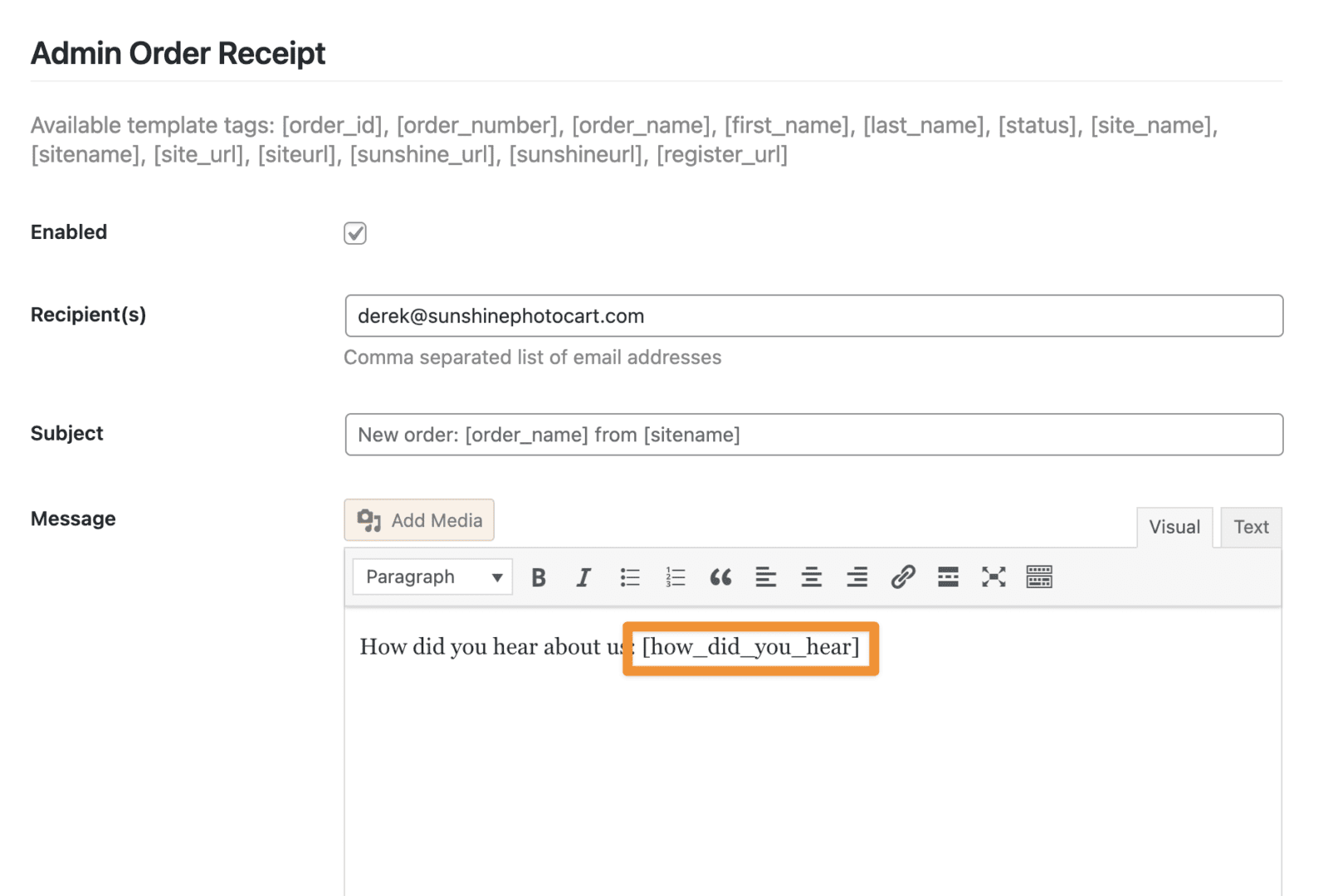
    $search_replace['how_did_you_hear'] = $order->get_meta_value( 'how_did_you_hear' );
    return $search_replace;
}
Learn how to add this custom code to your WordPress website
Go to Sunshine > Settings > Email and edit the Customer Receipt and/or Admin Receipt and include the related template tag [how_did_you_hear]:
Filters for the address and billing sections
Beyond sunshine_checkout_fields, a few filters deal specifically with addresses and the billing step.
Changing the address fields
sunshine_shipping_fields and sunshine_billing_fields let you modify the shipping and billing address fields separately. A common use is offering a different country list for shipping than for billing.
add_filter( 'sunshine_billing_fields', 'my_billing_fields' );
function my_billing_fields( $fields ) {
    // $fields is the array of address fields for the billing section
    return $fields;
}
Learn how to add this custom code to your WordPress website
The older sunshine_shipping__fields and sunshine_billing__fields filters, with two underscores, still work.
Controlling whether a billing address is asked for
Sunshine asks for a billing address when your payment method needs one, when you have turned on Always collect a billing address, or when tax has to be worked out and there is no shipping address to work it out from.
Use sunshine_checkout_needs_billing_address to override that decision:
add_filter( 'sunshine_checkout_needs_billing_address', 'my_needs_billing', 10, 2 );
function my_needs_billing( $needs_billing_address, $cart ) {
    return true; // always ask for one
}
Learn how to add this custom code to your WordPress website
If you are building a payment gateway, set $needs_billing_address on your payment method class instead of using this filter. The checkout works the rest out from there, the same way the built-in gateways do.
Modifying the billing section itself
sunshine_checkout_section_billing filters the whole billing section after it has been built, in the same way sunshine_checkout_section_delivery does for the delivery section.
Still need help?
If you have not yet found your answer in the documentation articles, please contact support