
Connecting PayPal
PayPal is part of the core Sunshine Photo Cart plugin and allows you to accept online payments via PayPal accounts, credit cards, Venmo, bank accounts, pay later, Apple Pay, and more.
A PayPal Business Account is required, personal accounts will not work.
Sunshine connects to PayPal using REST API credentials: a Client ID and a Secret. These are long codes you create in the PayPal Developer Dashboard.
Important: the Client ID and Secret are not your PayPal login email, your account username, or the API username/password/signature from PayPal's older (NVP/SOAP) API. Entering any of those instead of a REST API Client ID will stop the PayPal button from loading at checkout.
Where to get your Client ID and Secret
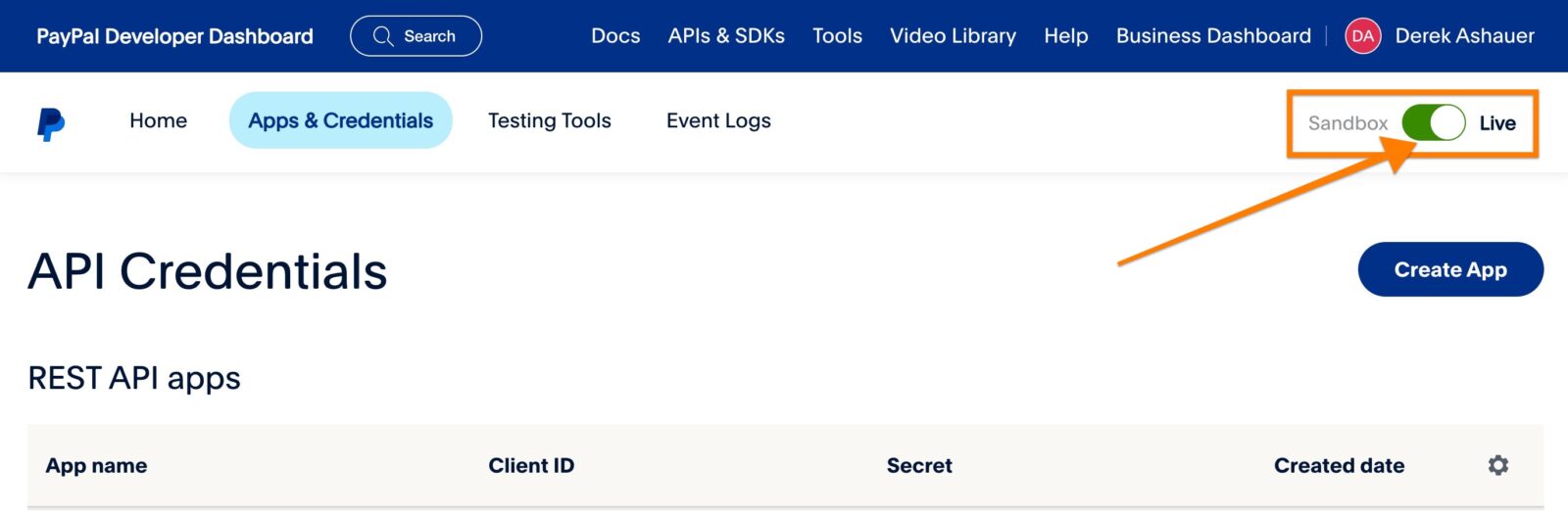
- Go to the PayPal Developer Dashboard → Apps & Credentials and log in with your PayPal Business account.
- Make sure the Live toggle is selected (use Sandbox only for testing).
- Under Apps & Credentials, open an existing app or click Create App to make one.
- Copy the Client ID and click Show under the Secret Key to copy the Secret.
- In WordPress, go to Sunshine Photo Cart → Settings → Payments → PayPal, set the Mode to Live, and paste each value into the matching field.
If you need PayPal's own walkthrough for creating an app, see PayPal's instructions.
When copying the credentials, be sure you are matching Live to Live and Sandbox to Sandbox. If you put Sandbox API credentials into the Live fields, it will not work.
Enable the features you would like. For example:

Screenshot
Still need help?
If you have not yet found your answer in the documentation articles, please contact support