
Setting up Square
With the Square payment gateway add-on, you can allow your customers to pay for orders using your Square account.
Square is part of the core, free plugin and has platform fees. When you upgrade to the paid Square add-on, all platform fees are removed.
Configuring Square in Live/Production Mode
- Go to Sunshine > Settings > Payments > Square
- Optionally enter a custom name and description to show customers on the Checkout page
- Select "Live" for the "Mode" option
- Click the Connect to Square button
- Login to your Square account and approve the connection
- Back in Sunshine, select which Location you would like to use. If you add a location in Square later, click Refresh locations to see it in the list
Keeping Square Connected
Your Square connection renews itself in the background about once a week, so it keeps working without you doing anything. It also renews when you visit your WordPress admin, in case your site's scheduled tasks don't run often.
If the connection goes about 90 days without renewing, Square stops accepting payments through it. Sunshine shows a warning in your WordPress admin two weeks before that happens. If you see it, or a message that the connection can't renew, go to Sunshine > Settings > Payments > Square, click Disconnect from Square, then click Connect to Square again.
You might also see a notice asking you to disconnect and connect Square again to use the more secure connection, where only your site holds your Square keys. It takes a minute: click Disconnect from Square, then Connect to Square, and choose your location again.
The Refresh connection link under the Disconnect button renews the connection right away.
To stop using Square or switch to a different Square account, click Disconnect from Square.
Configuring Square in Test Mode
Unfortunately Square does not have as easy a method to connect in test mode. You will need to create a Developer account.
- Go to Square Developer and create an account if you do not yet have one
- Add a new Application
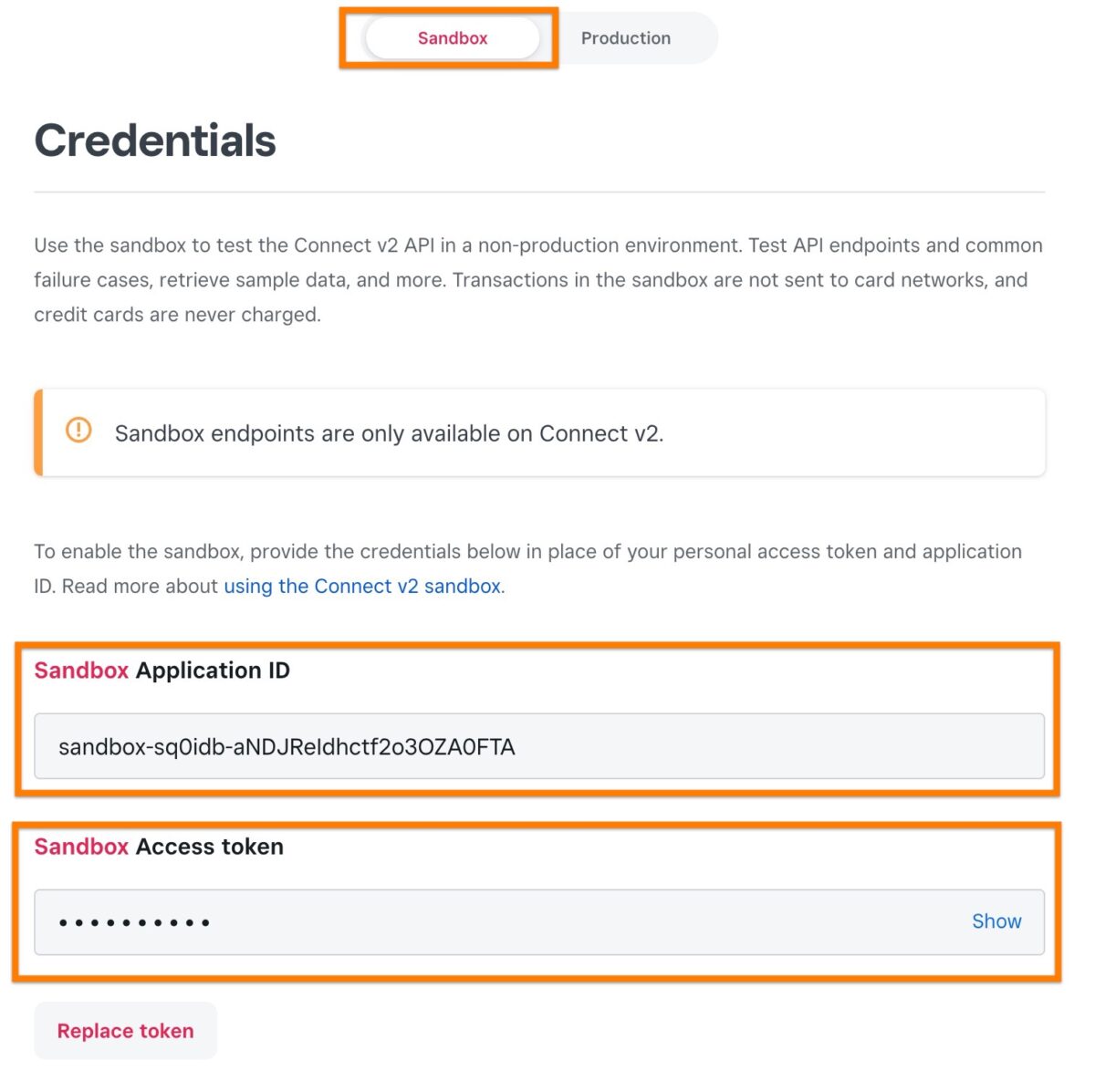
- Make sure you have the "Sandbox" tab selected at the top
- In Sunshine, go to Sunshine > Settings > Payments > Square and select "Sandbox" for the "Mode" option
- Copy the "Application ID" and "Access Token" into the Sandbox Application ID and Sandbox Access Token settings
Square and the Billing Address
Square asks for a billing address at checkout, and it is the only payment method that does. Stripe, PayPal, Authorize.net, Mollie and Mercado Pago all work without one.
This means your customers see a billing address step when paying with Square whether or not you have turned on Always collect a billing address in Sunshine > Settings > Checkout. Nothing needs configuring for this; Square asks for what it needs on its own.
The address is used to verify the card. Card verification is required for European cards, and a card that would otherwise be declined often goes through once the issuer can see where the buyer is. On orders that are being shipped, your customer can tick a box to reuse their shipping address, so there is usually nothing extra for them to type.
How Square Orders Are Recorded
Each Square charge is itemized with the same line items, tax, shipping, and discounts shown on the Sunshine order. The Sunshine order number is also passed to the Square transaction, so you can quickly match a Square payment to its Sunshine order from inside the Square Dashboard.
When a payment completes, Sunshine pulls the card brand, last 4 digits, and expiration date back from Square and stores them on the order so you can see at a glance how the customer paid.
Square Processing Fees
After a payment settles, Sunshine fetches the actual Square processing fee for that order and saves it. Fees refresh automatically once per day to catch payments that hadn't fully settled at the time of purchase.
With the Exports add-on, Square fees appear as their own column on the order export so you can reconcile your earnings without having to log into Square.
Declined Payments
If Square declines a card, your customer sees the reason on the checkout page and can try again with the same card or a different one. The order is marked Failed in Sunshine > Orders until they pay, then it moves to New like any other paid order.
To get an email when payments run into trouble, turn on the Admin Payment Problem email in Sunshine > Settings > Emails. It's off until you turn it on, and you choose which problems it tells you about, like a declined payment, an order marked Failed, or a payment that doesn't match the order total. See Emails for more.
Refunds
You can issue refunds to a Square payment directly from the order screen in your WordPress admin.
- Open the order in Sunshine > Orders
- In the Order Actions panel, choose Refund payment in Square
- Leave Full refund checked, or uncheck it and enter a partial amount
- Leave Notify customer via email checked to send the customer their receipt again, showing the refund
- Click Apply
The refund amount is recorded on the order and comes off its total. A full refund changes the order status to "Refunded". A partial refund keeps the order's current status, and you can refund more later, up to what is left on the order. If the payment included a platform fee, the matching part of that fee is refunded too.
Troubleshooting Pending Square Orders
Most Square payments finalize the moment the customer pays. Once in a while an order can be left as "Pending Payment" even though the card was charged. This usually happens when the customer closes the browser or loses their connection in the second between paying at Square and returning to your site.
Sunshine handles this for you in a few ways.
Automatic background check
Sunshine quietly re-checks recent pending Square orders in the background. If Square reports that a payment actually went through, the order finalizes on its own. You don't have to do anything, and normal orders are unaffected since they finalize instantly at checkout.
Recheck a single order
If you're looking at one order that seems stuck:
- Open the order in Sunshine > Orders
- In the Order Actions panel, choose Recheck payment status in Square
Sunshine asks Square whether that payment completed and finalizes the order if it did.
Reconcile all pending orders at once
To check every pending Square order in one pass:
- Go to Sunshine > Tools
- Run Reconcile Pending Square Orders
This compares each pending Square order against Square's records and finalizes the ones Square reports as paid. It's a safe way to clean up after a connection problem or to confirm nothing slipped through.
Still need help?
If you have not yet found your answer in the documentation articles, please contact support