A client can screenshot a proof from your gallery, ask an AI tool to remove the watermark, and get back a clean-looking photo in under a minute.
Tools like ChatGPT and Nano Banana (Google's Gemini) do this for free, and anyone with a browser can use them. In November 2026 I tested a long list of watermark styles with ChatGPT, and every single one came off, including some that covered most of the photo.
Watermarks still do something useful, just not what most advice says. What they can still control is whether the photo that comes back is really your client's photo, and whether your client thinks twice before trying.
The Problem Is Real
85% of the 3 billion images shared online daily are unlicensed, roughly 2.5 billion stolen images every day. For professional photographers, 64% report experiencing image theft more than 200 times, and 68% of stolen images had their watermarks removed, even before AI made removal this easy.
Some removal tools only repaint the area under the watermark, guessing what was there from the pixels around it. ChatGPT goes further and redraws the whole photo. Either way, for simple watermarks like a logo in one corner or a thin line of text across the bottom, the results are nearly perfect.
The Association of Photographers found that 58% of their members lost commissioned work to generative AI in 2026, with a 46% decrease in publicly visible photos on members' websites due to concerns over illegal scraping. Photographers are pulling their work offline because they don't trust the current protections, but you can't sell photos your clients can't see.
Why Corner Watermarks Don't Cut It Anymore
The reason AI tools remove watermarks so easily comes down to predictability. A logo sitting in the corner of a photo occupies a small, isolated area. The AI has plenty of clean image data surrounding it to reconstruct what's underneath.
If 95% of your image has no watermark, the AI has a big reference area to work from and can "paint over" the other 5% with high confidence.
That makes the old approach, a small logo in the bottom right at maybe 10% opacity, the least effective watermark you can use. It was always easy to crop out, and now it's easy to erase completely too.
What Happened When I Tested It
I used stock photos of a family in their living room, a posed family portrait and a baby close-up. I watermarked each one with the same code Sunshine uses, so they match what you'd get from Sunshine's watermark settings, and then asked ChatGPT to remove the watermark. Each test was a single try, and ChatGPT can give a different result every time, so treat these as examples and not hard rules.
The styles I tried were repeating text (light and strong), a crosshatch pattern, dense text, grainy text, a detailed logo made of thin lines, and a solid logo in color and in white at 50%, 80% and 95% opacity, with and without grain. ChatGPT removed every one of them, and what changed from test to test was how close the result came to the real photo.
AI removed every watermark I tried, so what a watermark controls now is whether the photo that comes back is still your client's photo.
See-Through Watermarks Come Back Close to the Original
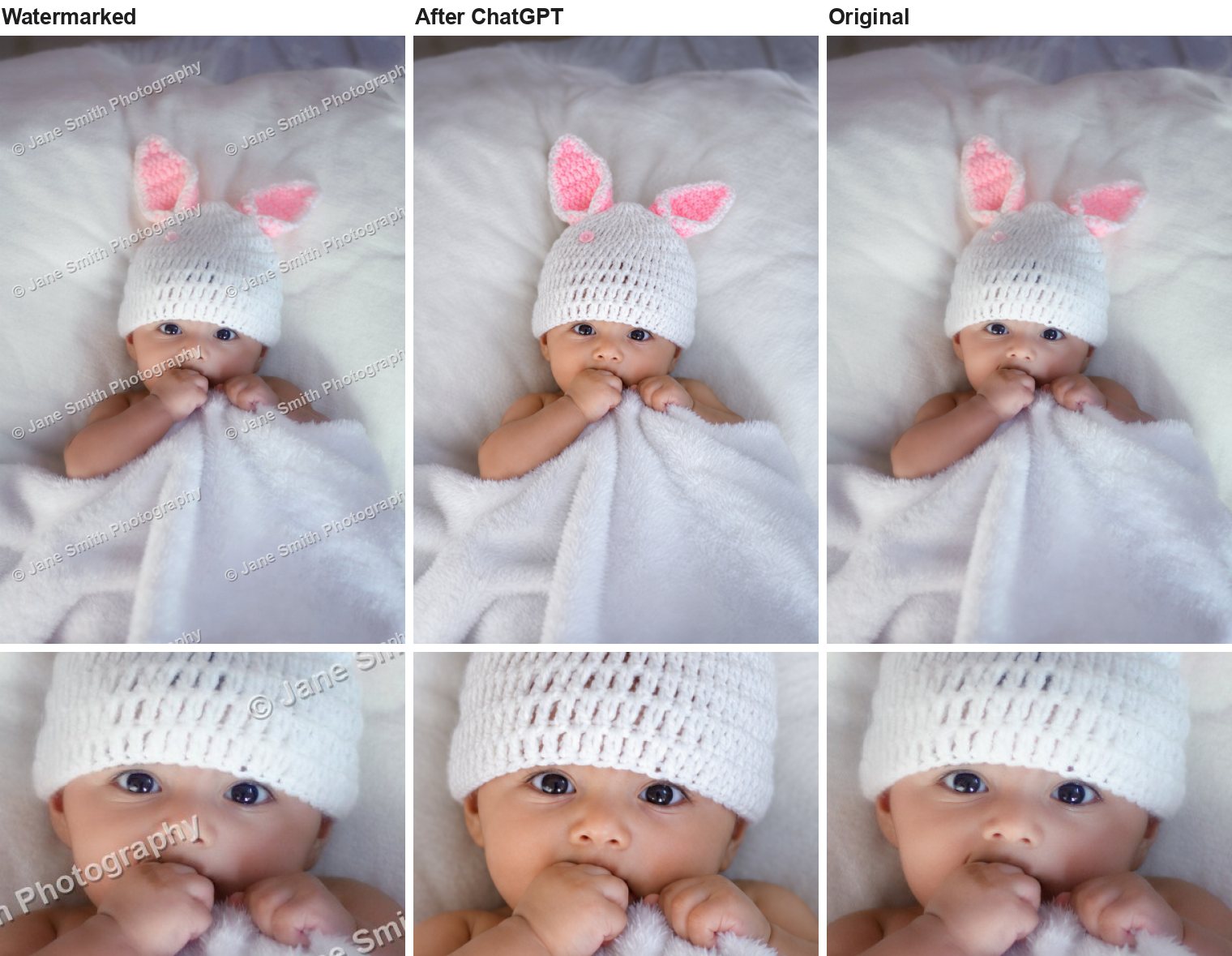
When the photo shows clearly through the watermark, ChatGPT has everything it needs. This baby portrait had a strong repeating copyright line across the whole image, and the result is very close to the real photo.
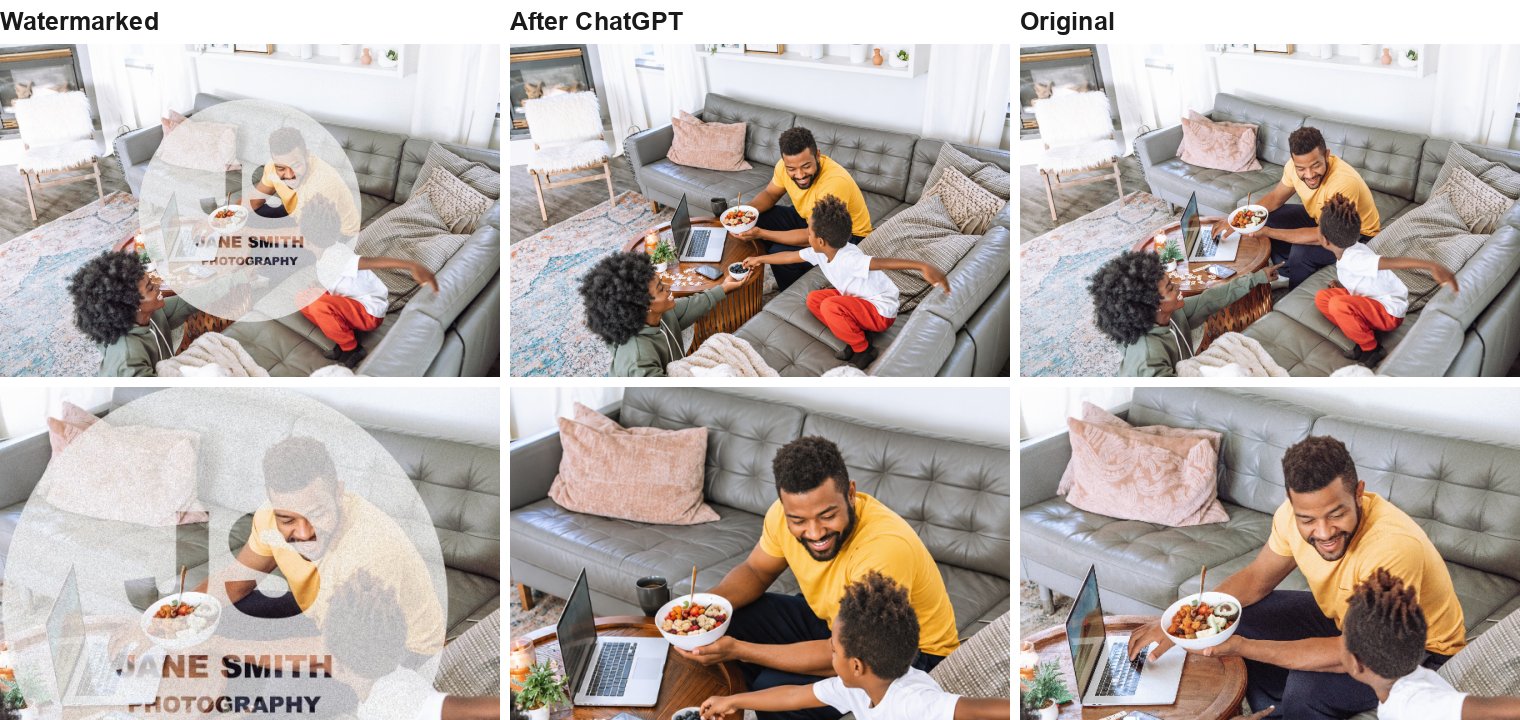
I also ran light repeating text, a crosshatch pattern and a thin-line logo on a photo of a family sitting in their living room, and those came back the same way, with the same poses and layout, though the faces drifted a little: the dad came back with a fuller beard and a slightly different face in every result.
Solid Watermarks Over a Face Get a Different Face
When a solid logo covered a face, ChatGPT couldn't see the person, so it drew someone new. In this family portrait the logo at 80% opacity covered the mom's face and part of the dad's. The result looks like a clean, natural photo, but the mom is a different woman.
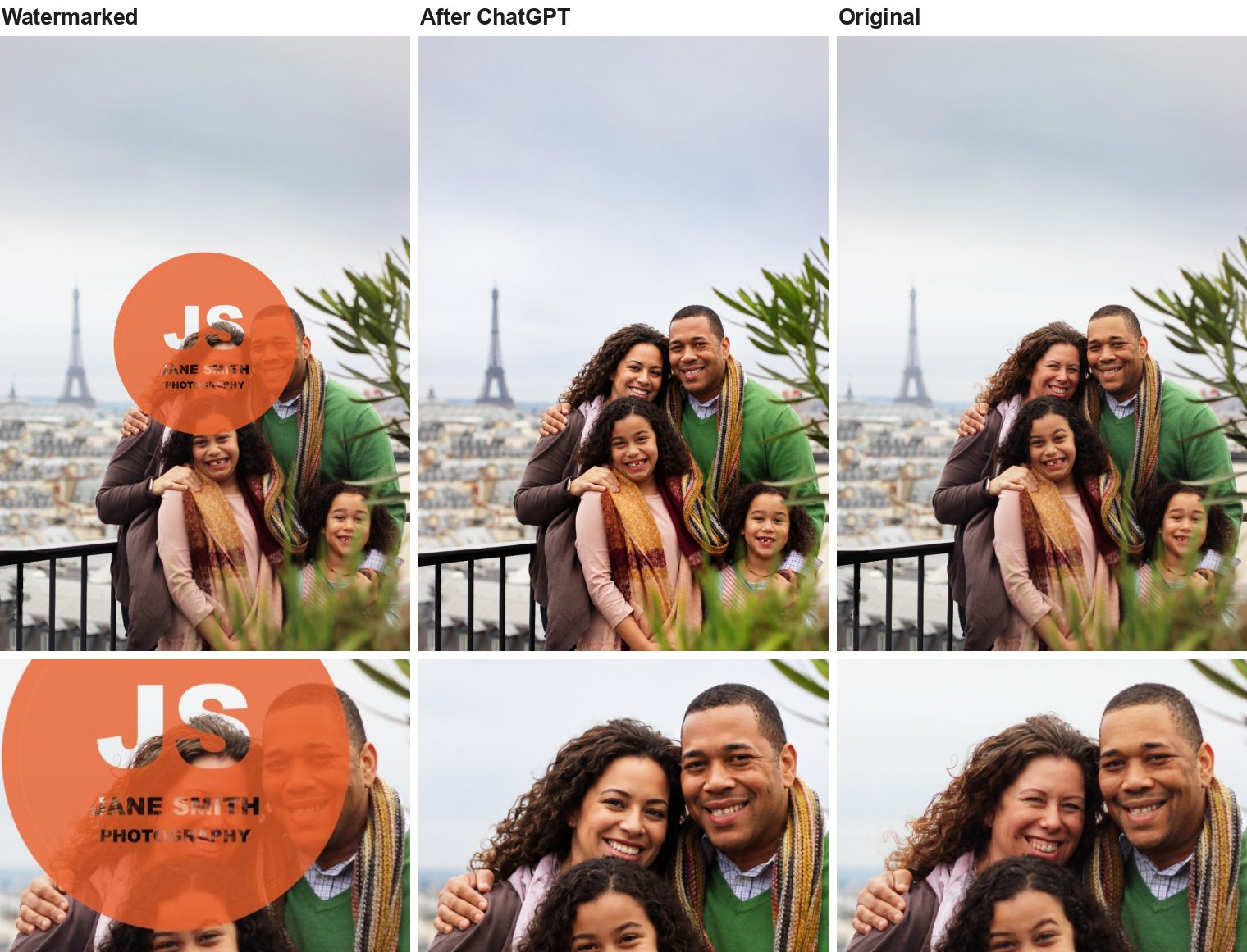
The two girls weren't under the logo, and they came back looking like themselves.
Very Solid Watermarks Get a Made-Up Scene
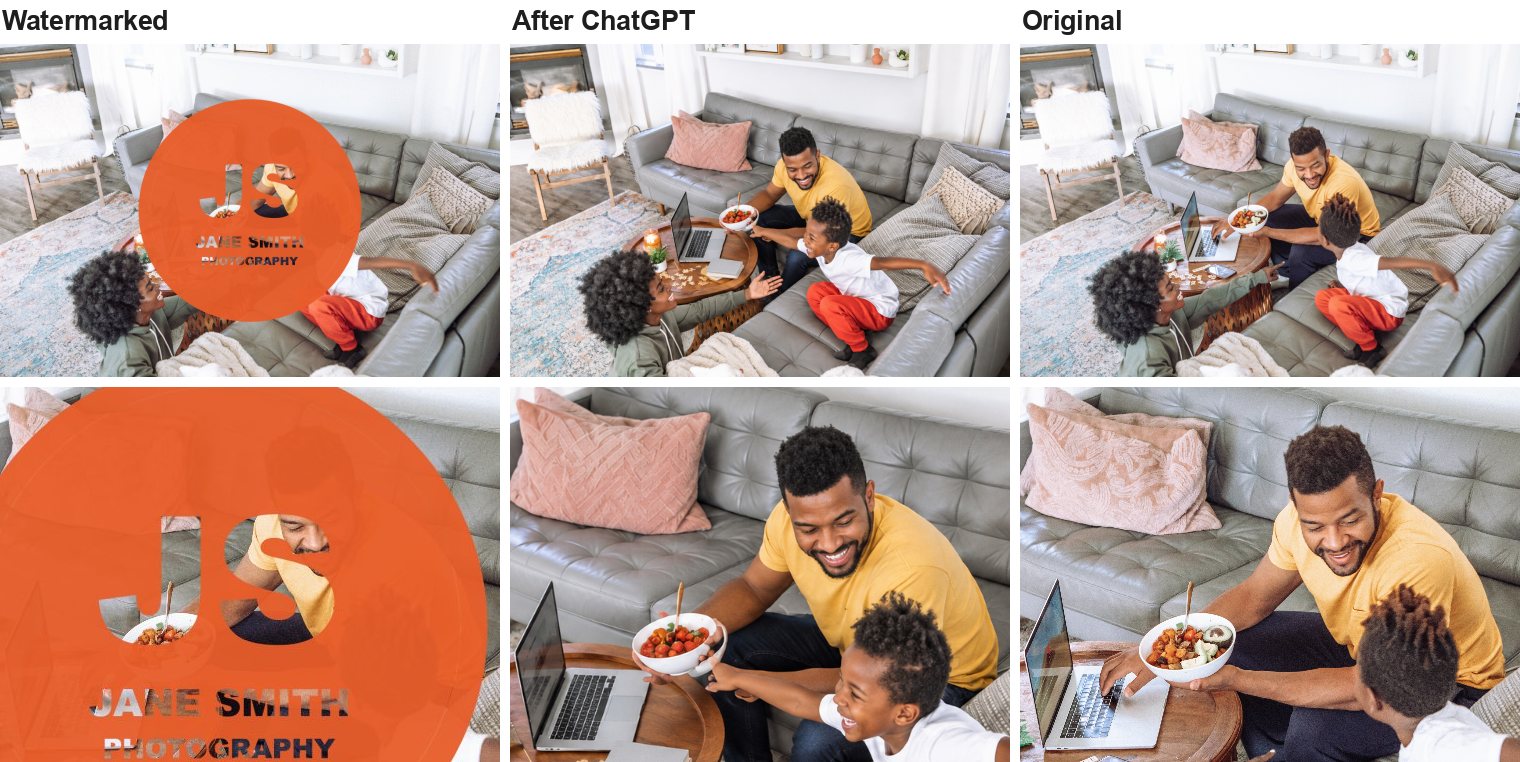
At 95% opacity, the logo hid almost everything in the middle of the living room photo. ChatGPT took longer than usual, offered two versions, and filled the space with its own ideas. In one, the boy turned around to face the camera, and in the other the round table became a wooden chest and the laptop was gone.
Grain Didn't Make a Difference
A common tip (one I gave in an earlier version of this article) is to add grain or noise to your watermark, so the AI can't tell it apart from the photo and leaves smooth, plastic-looking patches behind. I tried it two ways: grainy repeating text, and the same solid logo from the tests above with heavy grain added, in white and in color at 50% and 80% opacity. ChatGPT removed every one of them cleanly, with no patches I could find.
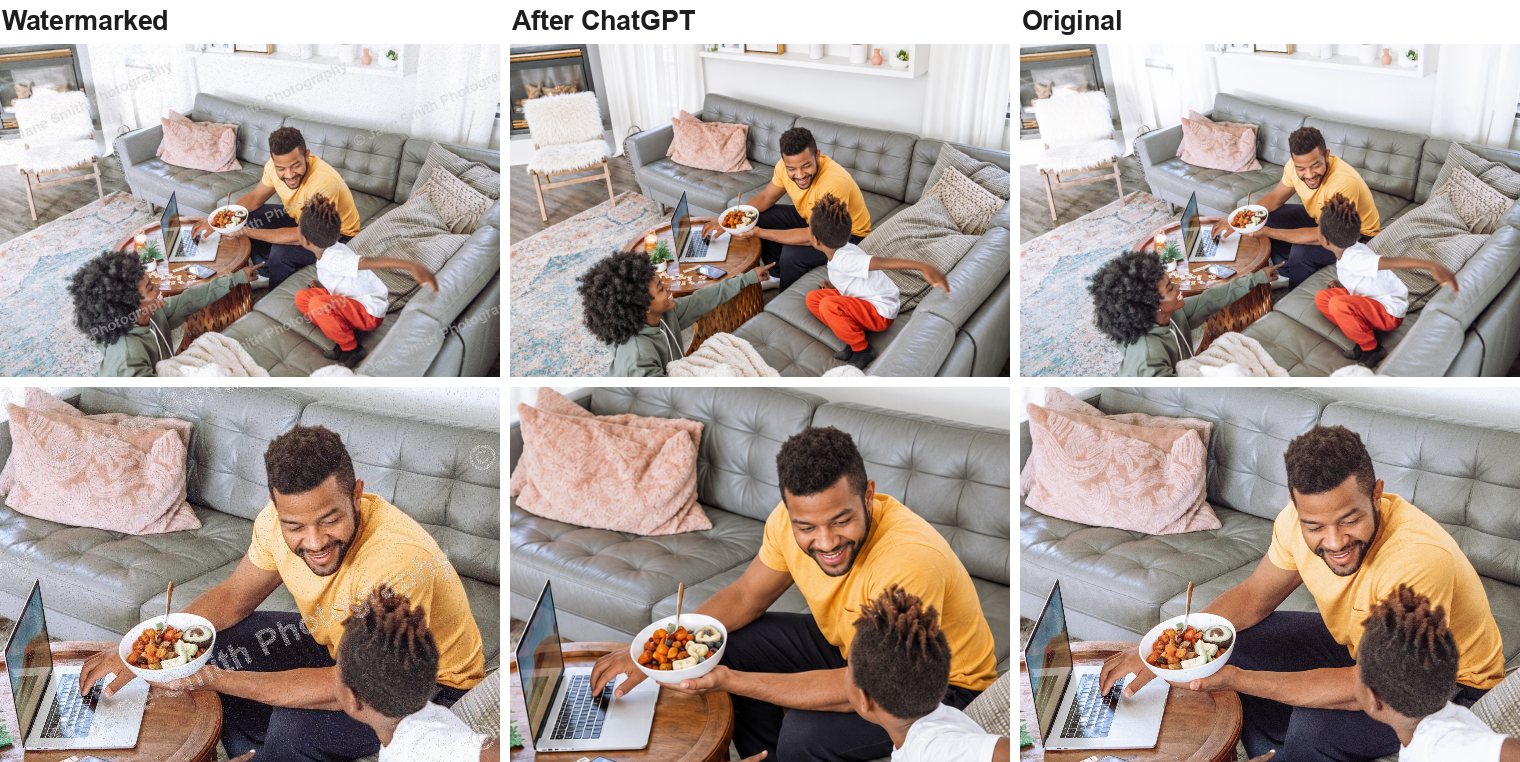
The grainy solid logos came back the same way the smooth ones did. With the white logo at 80%, the family kept their places on the couch, but the dad's hand moved off the laptop, a coffee mug and a bowl of blueberries showed up on the table, and the boy was reaching for them. That's the same kind of change the smooth logo got, so the grain didn't add any protection.
What Still Helps With Watermarks
Cover the Faces
The face is the part of a portrait your client is paying for. A watermark the AI can see through gives it the real face back, while a solid one over the face means the "clean" copy shows someone else, and most people won't want to print a family photo with a stranger in it.
Sunshine puts the same watermark on every photo in a gallery, so a centered logo will land on faces in some photos and miss them in others. In the posed family portrait it covered the parents, but in a wedding photo where the couple stood apart, it landed mostly between them. A bigger watermark catches more faces, at the cost of covering more of every photo.
Make It Solid Where It Counts
Opacity is a trade-off, because a see-through watermark lets your client judge the photo and lets the AI see it too. In my tests, a solid logo at 80% opacity was enough for ChatGPT to replace the face under it, and the rest of the photo around the logo was still easy to see.
Repeating Patterns Still Have a Place
Repeating text across the whole photo didn't stop ChatGPT, but it can't be cropped off, and plenty of people who screenshot a proof never open an AI tool at all. It works best with copyright wording in the text itself, like "© Jane Smith Photography, Copyrighted Proof."
Skip the Fancy Effects
Grain, noise and detailed thin-line logos seemed like they should be harder to remove, and they weren't. Your time is better spent on where the watermark sits and how solid it is.
Beyond Watermarks: Layered Protection
A watermark is only one piece of protecting your proofs, so it works best alongside the steps below.
Serve Smaller Images
The images your clients see in their proofing gallery don't need to be high resolution. A 1200px image is plenty for viewing and selecting favorites on screen but far too small for quality printing.
Even if someone removes the watermark perfectly, a 1200px file doesn't have enough detail for a decent 8x10 print, and your full-resolution originals never leave your server until someone pays for them.
In my tests, ChatGPT's results came back a little bigger than the 1200px proofs I gave it (1536px), but any added detail is made up, so it doesn't make a better print.
Disable Right-Click and Drag
Someone comfortable with computers can get around this, but most people won't bother. Turning off the right-click menu and drag-and-drop to the desktop works like a lock on a screen door: it won't stop someone determined, and it does stop the easiest ways to save a photo.
Use Private or Password-Protected Galleries
Not every gallery needs to be public. For client proofing galleries, requiring a login or password adds a layer of access control that keeps your work out of search engines and away from casual browsers.
Fewer people see your galleries that way, and with watermarks on the photos they do see, far fewer people are in a position to take them.
Consider Your Thumbnail Strategy
When clients browse your gallery, they see thumbnail-sized versions of each photo. If those thumbnails aren't watermarked, someone can screenshot the gallery grid and get small but usable copies of your work.
Watermark your thumbnails too, so the gallery grid isn't an easy way around the watermark on the larger photos.
Include the Digital Files in Your Session Fee
If clients get every photo with their session, there's nothing to steal. Nobody runs a proof through AI to get a photo they already have.
This means raising your session fee to cover the files, so you're paid before anyone sees a gallery. Prints, wall art and albums are still extras. Some photographers prefer this anyway: no waiting to see if the client buys, and no shortfall when they don't.
It won't fit every business, since it changes your pricing if most of your income comes from selling photos one at a time after the session. But if AI is already cutting into those sales, it's worth running the numbers.
Add Legal Warnings People Can See
Watermarks change what an AI tool gives back, but they don't stop anyone from trying. Legal warnings don't stop an AI tool either. What they do is make the person using it think twice, so treat them as a way to discourage people and not as a technical block.
When I tested this with ChatGPT, I made a proof with "© Jane Smith Photography, Copyrighted Proof, Not For Use" repeated across the image and a line at the bottom saying that removing the copyright notice is against the law. ChatGPT clearly read the copyright text (it even mentioned it when asked), and in a regular chat it removed the watermark anyway. A plain watermark with only a name got the same result. The warning is for your client, who sees it long before they open an AI tool.
Put Copyright Wording in the Watermark
A logo only tells people who took the photo, while wording like "© Jane Smith Photography, Copyrighted Proof" tells them it isn't theirs to use yet. Many clients don't think of removing a watermark as stealing, and a plain reminder right on the image changes how it feels.
In the US, removing copyright information from a photo to hide or help with infringement can be its own violation under the Digital Millennium Copyright Act (section 1202), separate from the copyright claim itself, with damages of $2,500 to $25,000 per violation. Many other countries have similar rules. I'm not a lawyer, so check what applies where you work before quoting a specific law on your images. Simple wording like "Copyrighted proof. Not for use without purchase." works anywhere.
Add a Note to Your Gallery
Clients see the gallery page before they look closely at any single photo, so a short note there reaches everyone. Something like "These are watermarked proofs. The images are copyrighted, and removing the watermark or using them without purchase isn't allowed. Clean versions come with your order." It can be friendly and still be clear.
Ask Clients to Agree Before They See the Photos
A note is easy to scroll past, so asking visitors to check a box agreeing to your terms before the photos show means everyone has at least seen them, and if your gallery keeps a record of who agreed and when, you have something specific to point to if a proof turns up somewhere it shouldn't.
Put It in Your Client Contract
A signed agreement carries more weight than a note on a web page. Add a line to your booking contract saying that proofs are for viewing and ordering only, and that removing watermarks or using proof images without purchase is a copyright violation. Some photographers also list a usage fee for proofs used without purchase, which gives you something concrete to point to if it happens, and nobody can say they didn't know.
Follow Through When You Find a Stolen Image
A warning only discourages people if you back it up. A reverse image search with Google Lens shows where your photos are posted, and services like Pixsy and Copytrack can find them for you and help collect licensing fees. When it's one of your own clients, a friendly message that points to the contract they signed, along with an invoice for the image, is a good first step.
How to Set This Up in Sunshine Photo Cart
Everything above can be set up in Sunshine Photo Cart without any add-ons, except including downloads with your sessions.
Upload a Strong Watermark Image
Go to Sunshine > Settings > Galleries, scroll to Watermark, and upload your watermark as a PNG with transparency. A solid logo or shape with your business name and copyright wording did more in my tests than thin lines or plain text.
The transparency in your PNG file controls the opacity. Set it in your image editor before uploading. Around 80% was enough for ChatGPT to replace the face under the logo in my tests, while the rest of the photo stayed easy to see.
Set the Right Position
Sunshine gives you six positioning options: Center, Repeat, Top Left, Top Right, Bottom Left, and Bottom Right.
Center puts the watermark in the middle of every photo, where the subject often is, so it's the one to use with a solid logo. Repeat tiles your watermark across the whole image. That can't be cropped off, but keep in mind that AI could see through the repeating text in my tests and gave back something very close to the real photo.
Avoid the corner positions (Top Left, Top Right, Bottom Left, Bottom Right) as your main protection, since they leave the subject completely uncovered.
Increase the Size
The "Max Size" setting controls how large your watermark appears as a percentage of the image width, and my tests used 45%. A bigger watermark lands on more faces across a gallery, but it also hides more of each photo from your client, so look at a few of your own photos with it before settling on a size.
Because the size is based on the width, the same setting makes a smaller watermark on vertical photos than on horizontal ones.
Watermark Your Thumbnails
In the same Watermark section, check Watermark Thumbnails so the small photos in the gallery grid get your watermark too, along with the larger ones.
Turn On Right-Click Protection
Under Sunshine > Settings > Galleries, in the Features section, check Image Theft Prevention. It turns off the right-click menu, stops photos from being dragged to the desktop and blocks the long-press save on phones. It isn't bulletproof, but it removes the easiest ways to grab your photos. The watermark doc covers every watermark setting.
Use Private Galleries for Client Work
For client proofing sessions, set your galleries to Private or password-protected. That keeps the photos out of search results and limits them to the people you invited. The private galleries doc shows how to set each one up.
Include Downloads With Your Sessions
With the Session Fees add-on, clients pay for their session online when they book, and you can include their digital downloads in that price. The files are already paid for when the gallery goes live.
Add Your Copyright Note
To show your copyright note in every gallery automatically, go to Sunshine > Settings > Design and add it to "Before Sunshine" (above the content) or "After Sunshine" (below it). These show on every Sunshine page, including the cart and checkout, so write the note to make sense there too. If you only want the note on one gallery, add it to that gallery's main content area instead, and it shows above the photos.
For the watermark itself, put your copyright wording right into the PNG file you upload, next to your logo or business name.
Sunshine also creates a Terms and Conditions page when you install it, and checkout links to it. Add a line there saying proofs are copyrighted and can't be used or edited without purchase, so every customer agrees to it when they order.
Turn On Gallery Terms
Gallery Terms asks visitors to agree to your terms before they see a gallery's photos, like not saving the proofs or removing the watermark. Sunshine keeps a record of who agreed, when, and the exact wording they agreed to, which you can see on each gallery's Terms Agreements tab and on each customer's profile.
Turn it on under Sunshine > Settings > Galleries. You can require it on every gallery or only on the ones you choose.
What About Invisible Watermarks and Metadata?
You might have heard about invisible watermarking technologies like C2PA Content Credentials or SynthID. These embed data into an image's pixel structure in ways humans can't see.
They can help prove ownership after the fact, but they don't prevent use, since someone can still take and use your image even if it carries invisible proof that it's yours. They're useful if you end up in a legal dispute, and they won't stop anyone before that.
For proofing galleries where you're trying to prevent unpaid use of your images, visible watermarks still do more than invisible ones. They serve double duty: they deter theft and they remind clients that purchasing the unwatermarked version is the path to getting the clean image they want.
IPTC metadata (copyright info stored in your image files) is worth using too, but it's easy to strip, so treat it as a paper trail and not as protection.
No Protection Is Perfect
A determined person with the right tools and enough patience can get around almost anything, and that was as true with film negatives as it is with digital files. Most image theft is opportunistic, though: someone saves a proof because nothing stopped them, or runs it through an AI tool because it took thirty seconds and the watermark was in an easy spot.
Every layer of protection you add cuts out some of that casual theft. A watermark won't stop an AI tool, but a solid one over the faces means the copy someone gets back isn't really their family. Add copyright wording, terms clients agree to before they see the photos, right-click protection and private galleries, and most people will find it easier to just buy the photo.
Clients who want your work will buy it, and the ones who'd only take it because it was easy usually move on when it isn't.
Start Protecting Your Images Today
If your current watermark is a small logo in one corner, take twenty minutes today to change it. Make a solid watermark PNG with your copyright wording, set it to the center at a size that covers faces in your own photos, watermark your thumbnails, turn on right-click protection and Gallery Terms, and add a line about proofs to your contract.
None of this stops AI from removing a watermark, and no setting I tested could. What it does is make sure the clean copy isn't really your client's photo and that everyone who sees your gallery knows the proofs aren't theirs to use.
If you're not using Sunshine Photo Cart yet, it runs on your own WordPress site, so you decide how every gallery is protected, and the core plugin with the watermark, gallery and terms settings above is free to try.