A photographer I talked with last year runs the spring portrait day at three elementary schools and also takes family portrait sessions year-round at her downtown studio. Four different pickup arrangements: the studio, school A, school B, school C. Each with a different address, different hours, different instructions.
For a long time, Sunshine's pickup option couldn't do that. Pickup was a single global checkbox. One name, one description, no way to say "this pickup is at the school office between 3 and 5pm next week, that pickup is at the studio whenever you're downtown."
In Sunshine 3.6.10, pickup is a real shipping method like Flat Rate or Local Delivery, and you can have as many pickup locations as you need. Each one is its own configurable method with its own name, price, and customer-facing pickup details. Combine that with the Advanced Shipping add-on and each pickup location can be scoped to specific galleries: pickup at the school only appears for that school's galleries, pickup at the studio only appears for studio sessions.
What actually changed
Before, the pickup option in Sunshine worked like a toggle. There was a global "Enable Pickup" checkbox, a single label, and a single description. Every customer at checkout saw the same pickup option, no matter which gallery they were buying from.
That worked fine for photographers with one studio and one type of work. It fell apart the moment you wanted two pickup locations, or wanted the pickup option to only show up for certain galleries.
In the new setup, go to Sunshine → Settings → Delivery & Shipping and add a Pickup shipping method the same way you'd add Flat Rate. Give it a name ("Pickup at Lincoln Elementary"), set its price (free or whatever you want to charge), and fill in the Pickup Location Details. That's the address, hours, and any specific instructions the customer needs to know. Want a second pickup location? Add another instance. Want a third? Same thing.
Each pickup method shows up at checkout as its own delivery option. The customer doesn't see a generic "Pickup" anymore. They see "Pickup at Lincoln Elementary" or "Pickup at Studio" or whatever you named them.
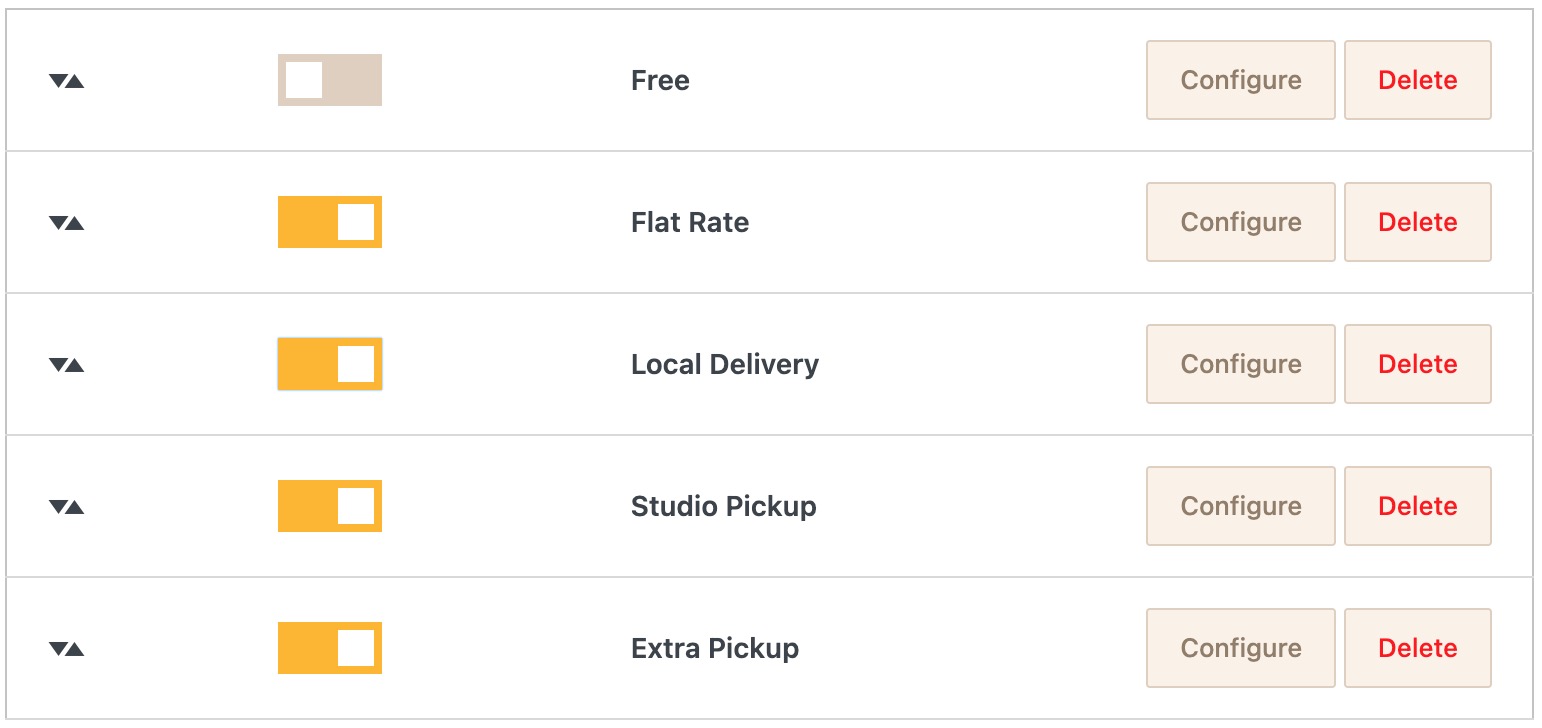
Multi-pickup is in the free core plugin starting with version 3.6.10. The per-gallery scoping piece (showing each pickup location only on specific galleries) comes from the Advanced Shipping add-on.
The scenario this unlocks: school program plus studio work
The setup I keep coming back to in support conversations is the photographer who shoots both schools and family sessions. Here's how it works now:
Pickup at Lincoln Elementary (a Pickup shipping method) - Price: free - Pickup Location Details: "Available at the school office, Monday-Friday 3pm-5pm starting May 15. Bring your order confirmation email." - Include Galleries (Advanced Shipping): Lincoln Elementary 2026
Pickup at Studio (another Pickup shipping method) - Price: free - Pickup Location Details: "411 Main Street downtown. Open M-F 10am-5pm and Saturdays by appointment." - Include Galleries (Advanced Shipping): Family Sessions 2026
Flat Rate $8.95 (the existing shipping method) - Exclude Galleries (Advanced Shipping): Lincoln Elementary 2026
When a parent of a kid in Mrs. Garcia's third grade class checks out, they see one option: Pickup at Lincoln Elementary. The order confirmation email shows the office hours right there, so they don't email asking when they can pick up. It's already on their receipt.
When a family portrait client checks out, they see two options: Pickup at Studio or Flat Rate ship. They pick whichever fits their situation.
Same site. Same admin. Three completely different checkouts.
Pickup details that customers actually need
The Pickup Location Details field is probably the under-realized piece of this. It's not just a description. It's the instructions the customer sees on their order confirmation.
Most pickup emails from photographers have to include "where do I pick up?" follow-up communication. Customer orders, customer gets a generic confirmation, customer emails the photographer asking for the address. Photographer replies, sometimes a few days later. That's friction the customer didn't expect.
With pickup details baked into each location, the order confirmation already says:
Available at the school office, Monday-Friday 3pm-5pm starting May 15. Bring your order confirmation email.
Or:
411 Main Street downtown. Open M-F 10am-5pm and Saturdays by appointment. Ring the bell at the side entrance.
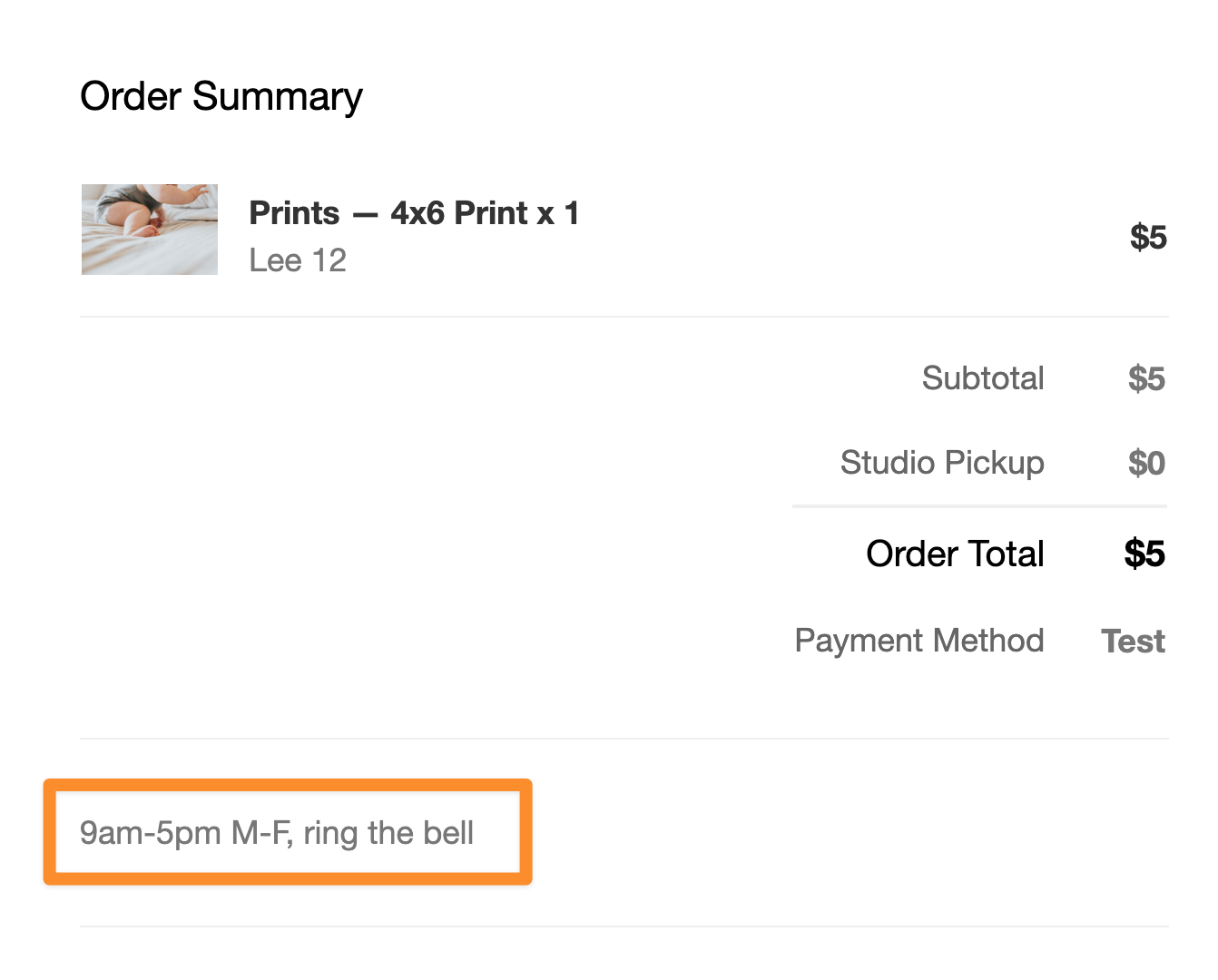
No follow-up email needed. Customer knows exactly where to go and when. Especially useful for school photographers, since parents tend to forget which day they signed up for which classroom photo and what the school's office hours actually are.
The per-gallery piece, briefly
The multi-pickup capability itself doesn't filter by gallery. Every pickup method shows up for every gallery by default. To get "pickup at the school only shows for the school's galleries," you need the per-gallery filtering from the Advanced Shipping add-on.
Every shipping method (including the new pickup instances) has two settings from the add-on:
- Include Galleries — only show this method when the cart contains items from the selected galleries
- Exclude Galleries — hide this method when the cart contains items from the selected galleries
Include Galleries has been part of Advanced Shipping for a while. Exclude Galleries is new in version 3.0.9. It used to require a code snippet pasted into your theme. Both now work for pickup methods too, not just Flat Rate.
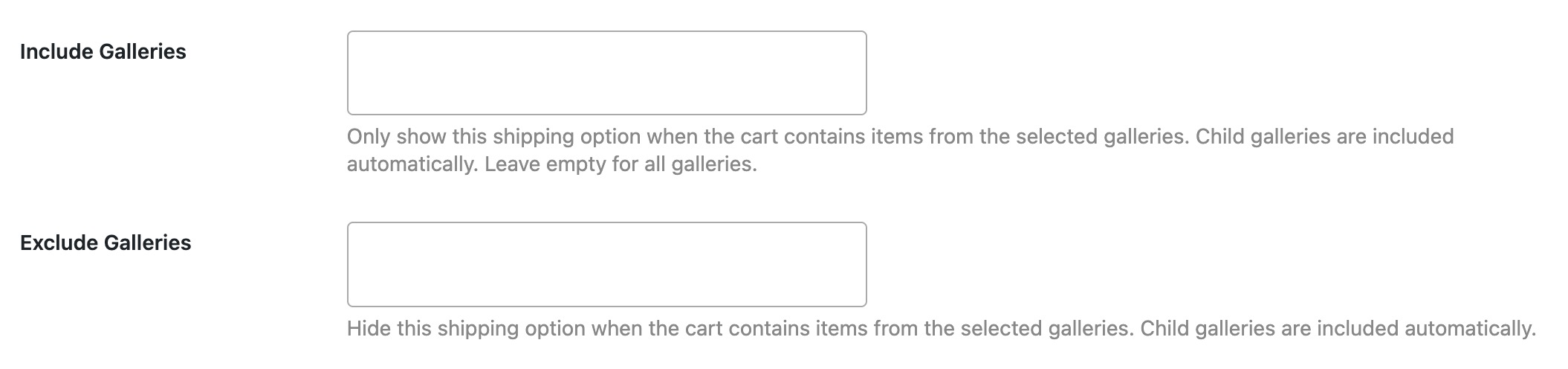
Parent galleries cover their child galleries automatically. If you have a school event with twenty classroom subgalleries underneath it, set the rule on the parent. All twenty classrooms inherit. New subgalleries you add later inherit too.
Running schools at scale? The Bulk Galleries add-on creates hundreds of galleries at once. Set your pickup scope on the school's parent gallery and every classroom under it picks up the right rules automatically.
Real situations this fits
A few photographer setups where this actually changes things:
School photographer who also does family work. Pickup at each school for school galleries, ship or studio pickup for family galleries. Customers never see options that don't apply to them.
Wedding photographer with an in-person studio. Studio pickup for engagement sessions and headshots (the local clients), Flat Rate for the destination wedding clients across the country.
Sports photographer covering multiple leagues. Pickup at each league's home field, plus mail-order for clients who can't make pickup day. Each league gallery only shows its own field's pickup.
Event photographer running both private events and corporate work. Pickup at the event venue on the day of (or the week after), separate from corporate clients who need everything shipped to their HQ.
In every case, the customer's checkout matches what was already going to happen anyway. The photographer doesn't have to send a follow-up email explaining pickup logistics. Those details are already on the order.
This is also where checkout conversion actually matters. Shipping cost is the number-one reason customers abandon carts, and a chunk of "shipping cost abandonment" is really "I didn't expect to pay shipping for this." Parents at a local school event don't expect a shipping fee for a print they could grab next Wednesday. When the option matching their expectation is the only option they see, friction drops.
Setup, step by step
About fifteen minutes for a site with a few pickup locations:
- List your pickup locations. Studio, school A, school B, event venue, whatever you actually have.
- For each one, go to Sunshine → Settings → Delivery & Shipping → Add shipping method → Pickup. Give it a clear name ("Pickup at Lincoln Elementary," not just "Pickup").
- Fill in Pickup Location Details. Write it like you're answering "where do I pick up?" from a customer who's never been to that location.
- Set the price. Usually free, but you can charge if it makes sense.
- If you have the Advanced Shipping add-on, set Include Galleries to the gallery (or parent gallery) the pickup applies to.
- Test in a private browser window. Add items from different galleries to a cart. Confirm each gallery shows the right pickup options.
Once it's set up, new galleries you add under existing parent galleries automatically inherit the pickup rules. New pickup locations slot in as separate methods without affecting the others.
You shouldn't have to think about pickup logistics every time
The whole point of multi-pickup with location details and gallery scoping is to set the rules once and forget about them. Customers see the right options. Order confirmations have the right instructions. New galleries inherit existing rules.
Sunshine has a fully working free version with multi-pickup built in. The Advanced Shipping add-on slots in on top for the per-gallery scoping that makes the school-versus-studio split work. Whether you're running one studio, three schools, or every combination of work that comes through the door, the checkout can finally match.