Crop & Wall Preview is a new add-on for Sunshine Photo Cart that lets your clients pick exactly what part of a photo goes on each print, and then see that print hanging on a wall at its real size before they buy. The crop comes with the order, so you print what they chose instead of guessing.
I built it around two problems with print orders. One is a print that comes back with part of someone's head cut off, because the client ordered a size that doesn't match the shape of the photo. The other is clients sticking to small prints because they can't picture what a bigger one would look like at home.
Why Cropping Matters for Print Orders
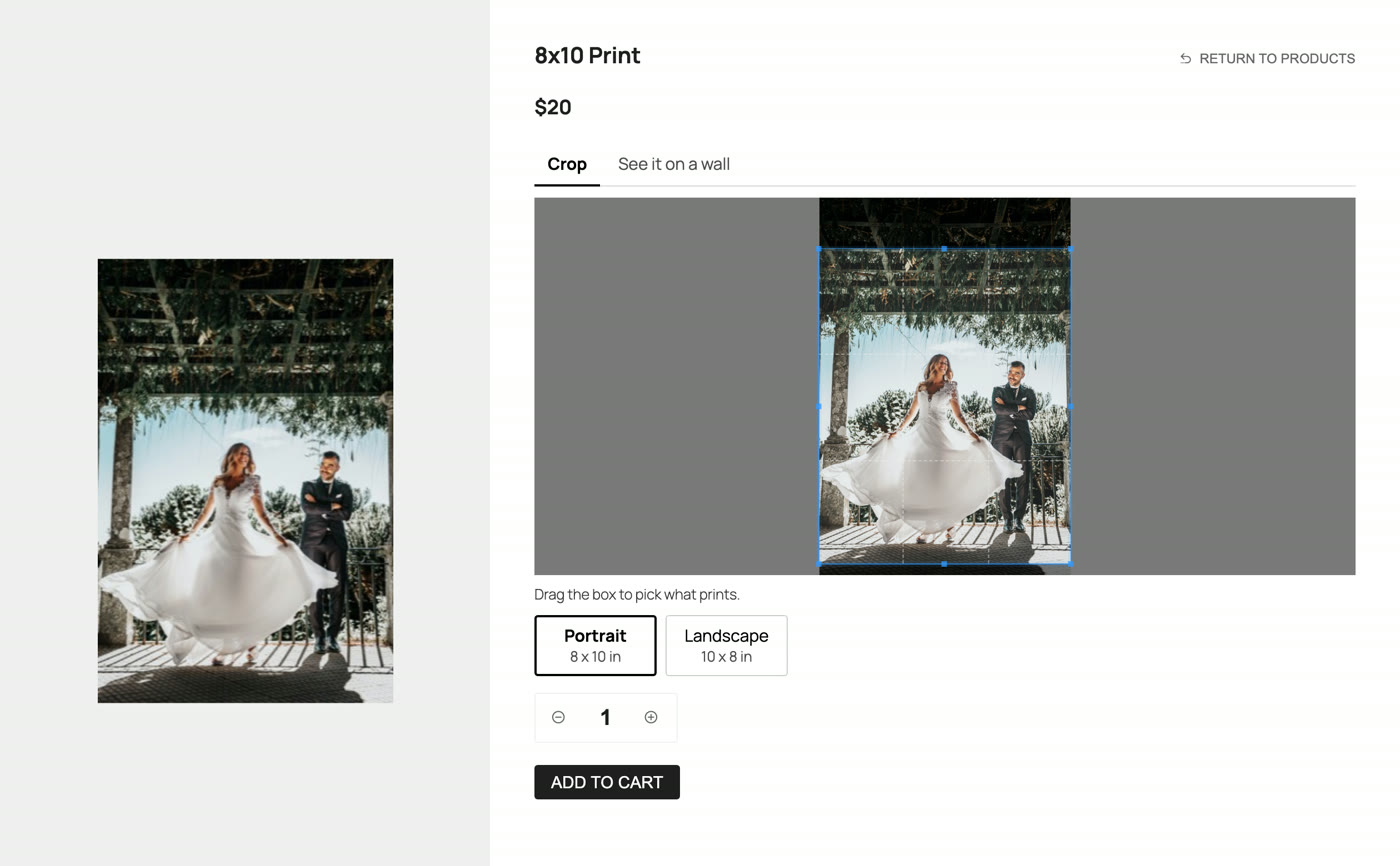
Most cameras make photos with a 2:3 shape, which matches a 4x6 exactly. Plenty of popular print sizes don't. An 8x10, 5x7, 11x14 and 16x20 are all closer to square, so something has to be trimmed. On a full portrait-orientation photo, an 8x10 cuts away about a sixth of the long side. A square print cuts away a third.
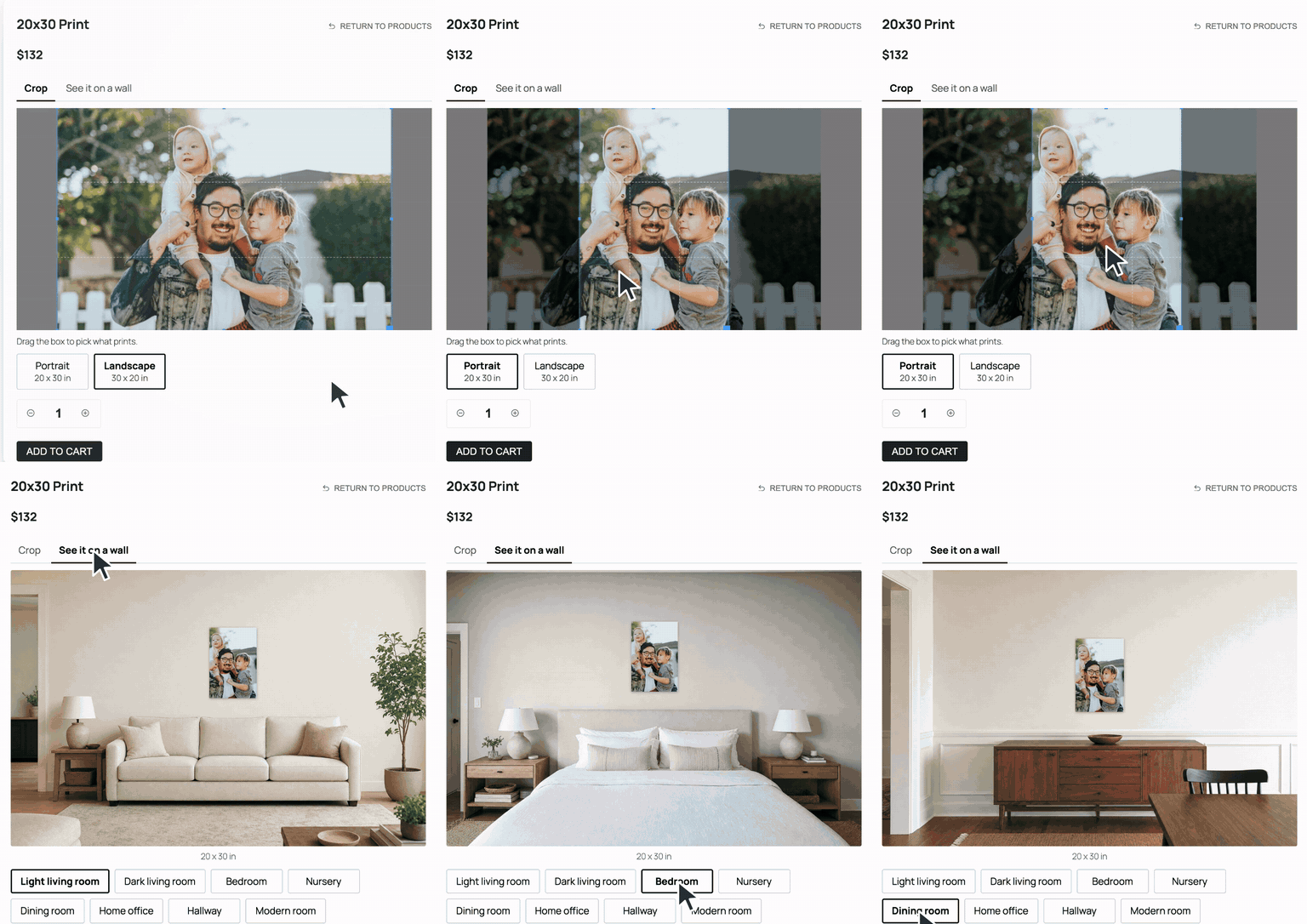
When the shop has no way to know what the client cares about, the only safe guess is to trim evenly from both ends. That works for a lot of photos. It doesn't work for a tight family portrait where Dad is standing at the top of the frame, or a senior photo composed with their face near the top third. Those are the orders that come back with a cut-off forehead, and then you're either reprinting at your own cost or explaining aspect ratios to an unhappy client.
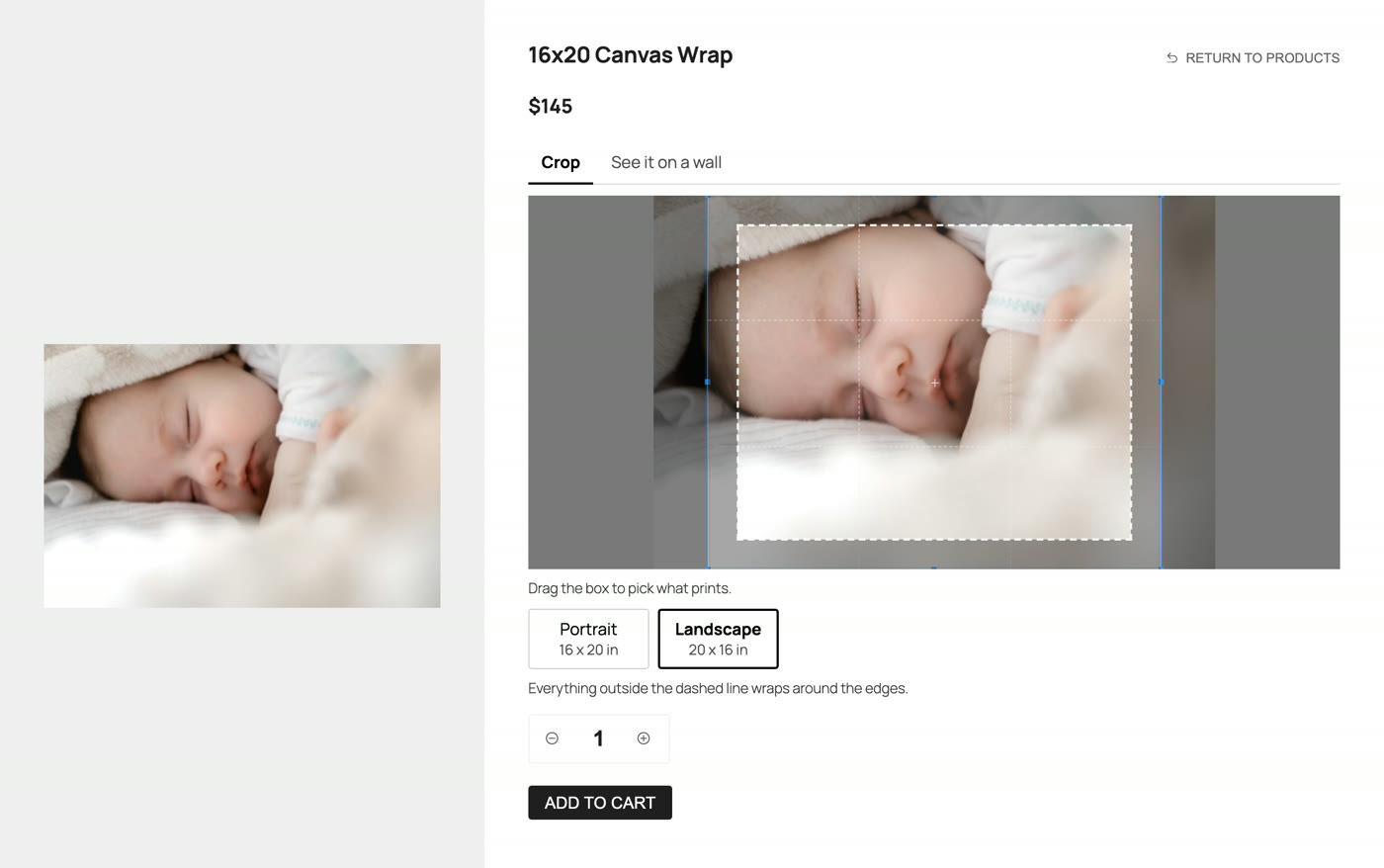
Canvas makes this harder, because a canvas that wraps around its frame loses even more of the photo to the sides, and clients rarely think about that when they order.
Print size is the other half of the problem. A client looking at a thumbnail in a gallery has nothing to compare it to, so a 20x30 is just a number and a price. Many people play it safe and pick the smaller print. When they can see the photo on a wall next to a couch and a door, they can tell whether it fills the space or gets lost, and the bigger print starts to make sense.
AUS$1500 worth of sales within 3 days of installing Sunshine Photo Cart. Need I say more? This system is simple to use, easy to customize, and doesn't force you to dive into the depth of your server to run. We look forward to further development on the media management side but we are quite happy making money through our galleries already.
How It Works in Sunshine Photo Cart
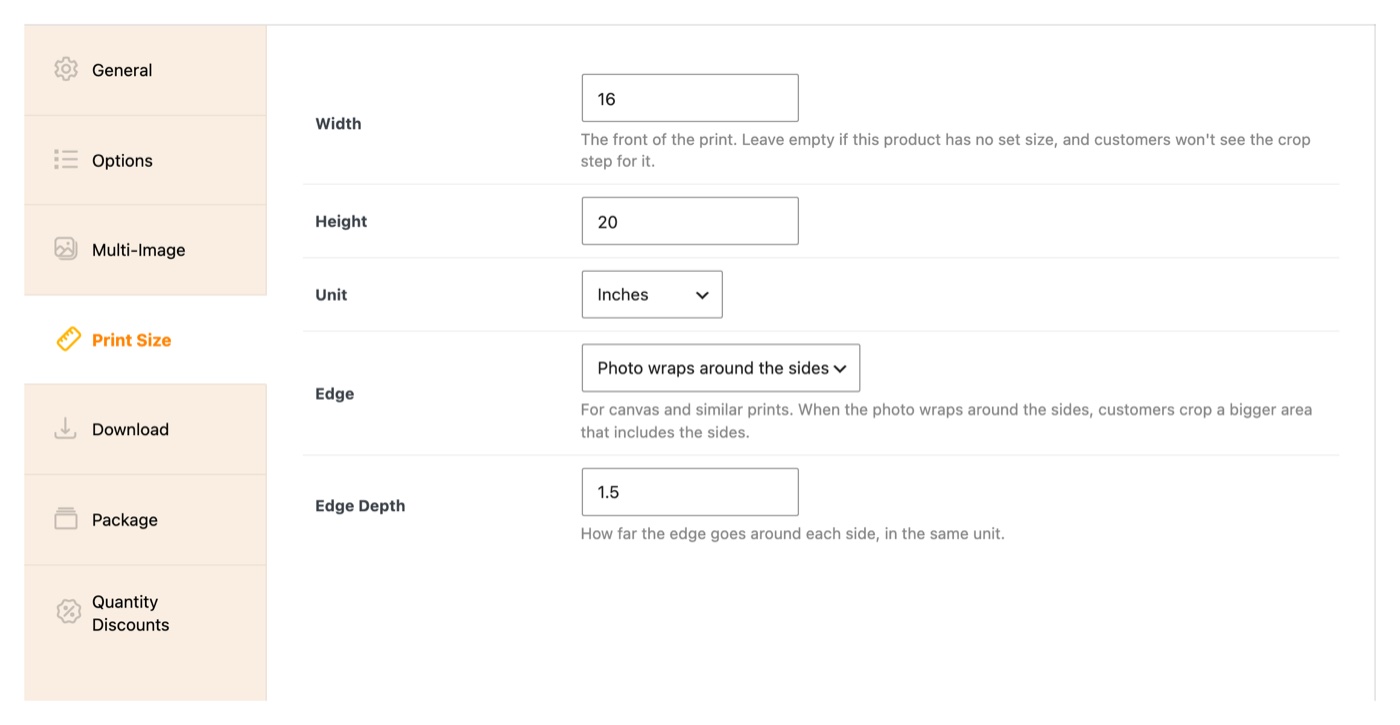
You start by giving each print product its real size: width, height, inches or centimeters, and for canvas, how the edge works and how deep it is. Products without a size keep working the way they always have.
When a client opens one of those prints in your gallery, a crop box shows on their photo, locked to that print's shape. They drag it to frame the photo how they want and choose portrait or landscape. An 8x10 and a 4x6 of the same photo each get their own crop. If they make the box so small that the photo won't print sharp at that size, a note lets them know. For a wrapped canvas, a dashed line shows the front, so they can see what ends up on the sides.
Next to the crop is a See it on a wall tab. It shows their cropped photo hanging in a room at true size, and if you offer more than one room, they can switch between them. Eight rooms come built in and ready to go, from a light living room and a dark one to a bedroom, nursery, dining room, home office, hallway and a modern room, and you can turn off any that don't fit your clients. You can also add your own, like your studio or a client's living room. You upload a photo, click both ends of something you know the size of (a door works well), mark where the bottom of a print should sit, and Sunshine works out the scale and shows a sample print so you can check it.
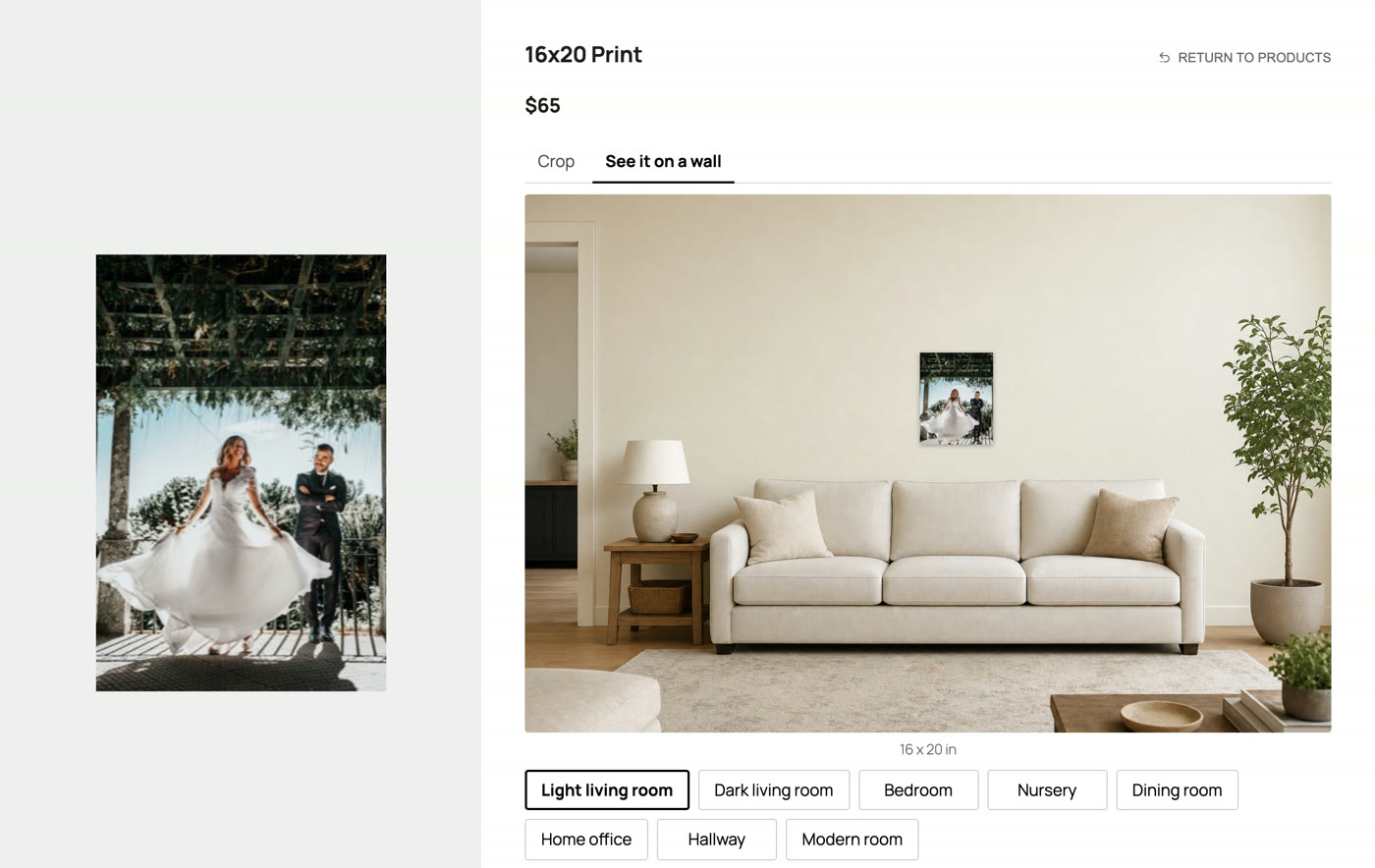
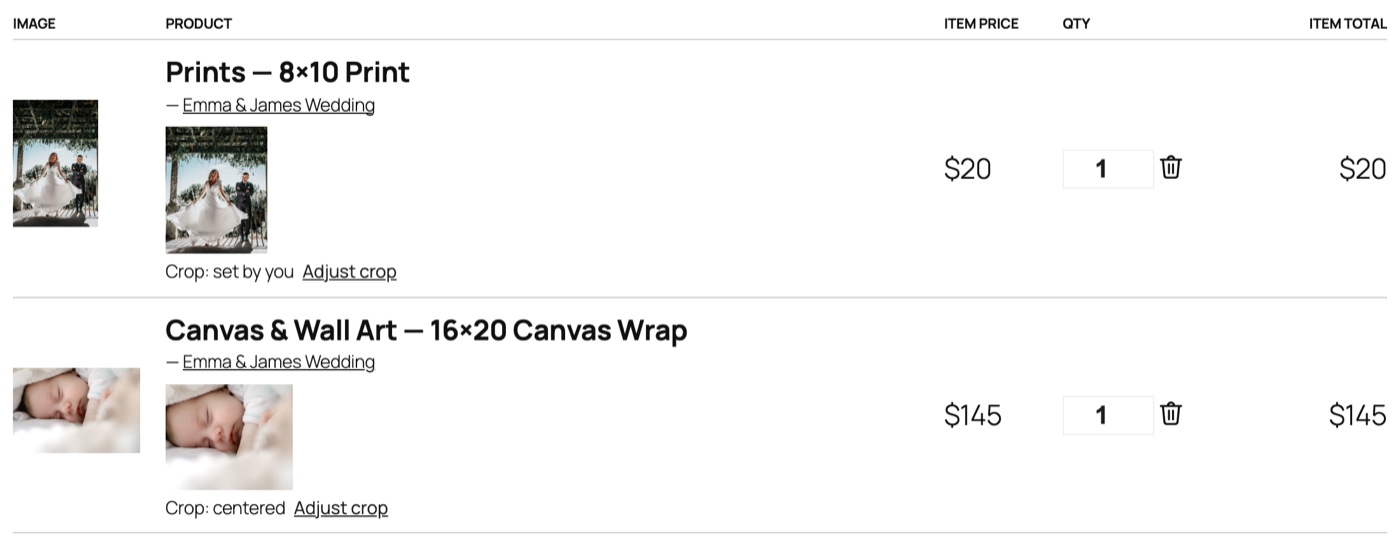
Prints added in bulk, from favorites or in a package start with a centered crop, and the client can fix any of them from the cart with an Adjust crop button.
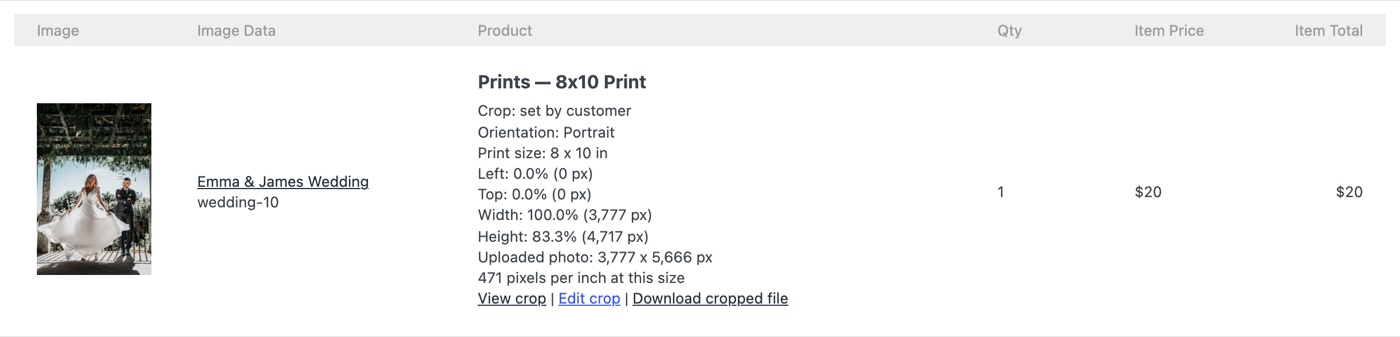
On your side, each print on the order shows who set the crop, the print size and orientation, and where the crop sits in percent and pixels. You can view the crop, edit it if something needs a small nudge, or download your uploaded photo already cut to the crop. If a crop doesn't have enough pixels to print sharp at that size, the order screen tells you before it goes to the lab.
It also works with the Exports add-on, which includes each print's size, orientation and crop in your order exports.
Getting Started
If you have a Pro license, you already have access, so there's nothing new to buy! Find the Add-ons tab under Sunshine in your WordPress admin and turn on Crop & Wall Preview.
- Turn on Crop & Wall Preview in Sunshine > Add-ons and make sure Sunshine Photo Cart is updated to 3.8.2 or newer.
- Go to Sunshine > Products, edit each print, and fill in the Print Size tab.
- Go to Sunshine > Settings > Crop & Wall Preview to choose which of the built-in rooms clients see, and click Add Room if you want to add your own.
- Open a gallery as a client would and try a few prints.
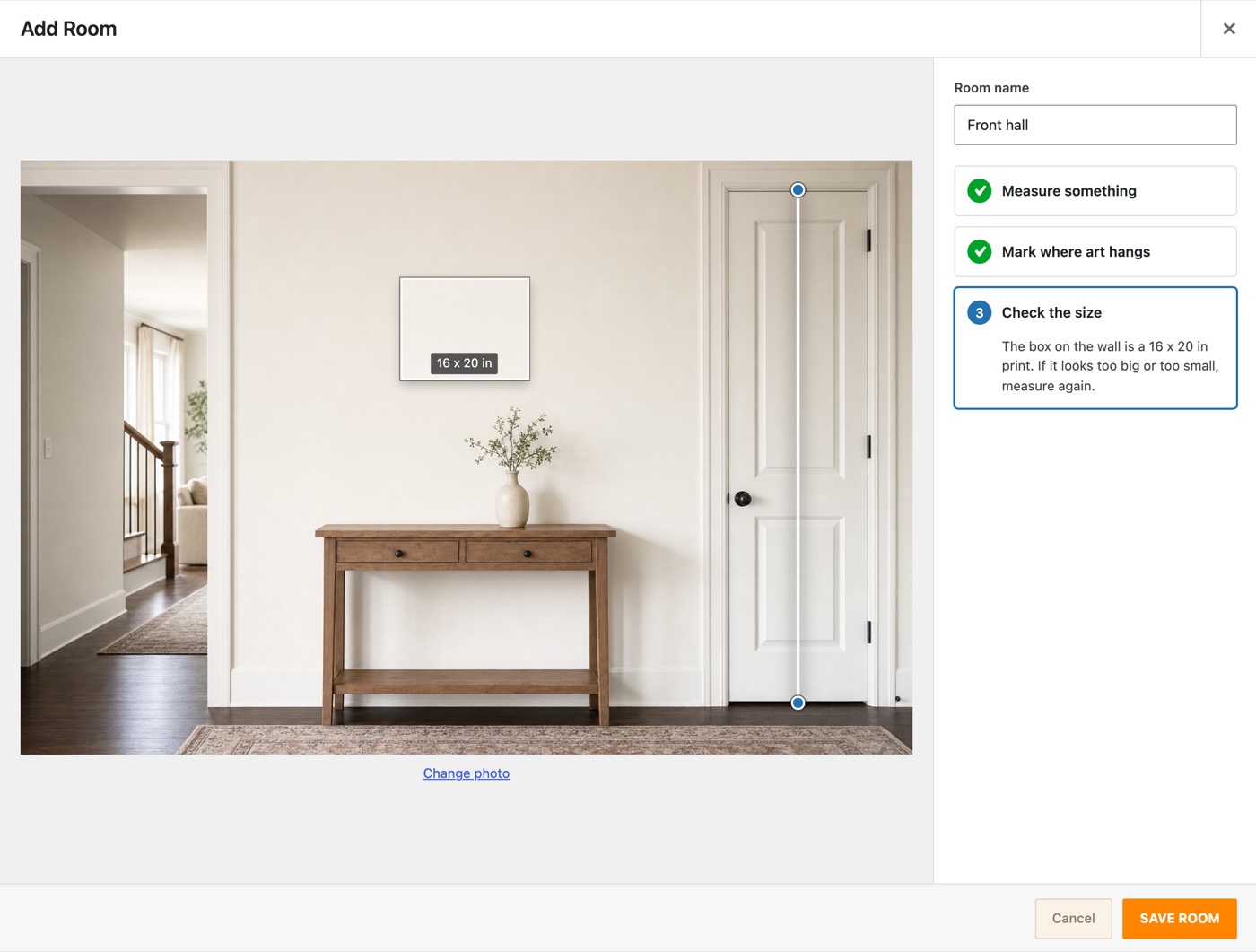
The Crop & Wall Preview documentation walks through every setting, including tips for taking a good room photo.
Ready to print exactly what your clients picked? Get the Crop & Wall Preview add-on.