
Order Invoices
Every order in Sunshine Photo Cart includes an invoice that both you and your customers can view and download as a PDF. Invoices provide a professional summary of the order, including items purchased, pricing, and customer details.
Where to Find Invoices
Admin (You)
There are two places to access invoices in the WordPress admin:
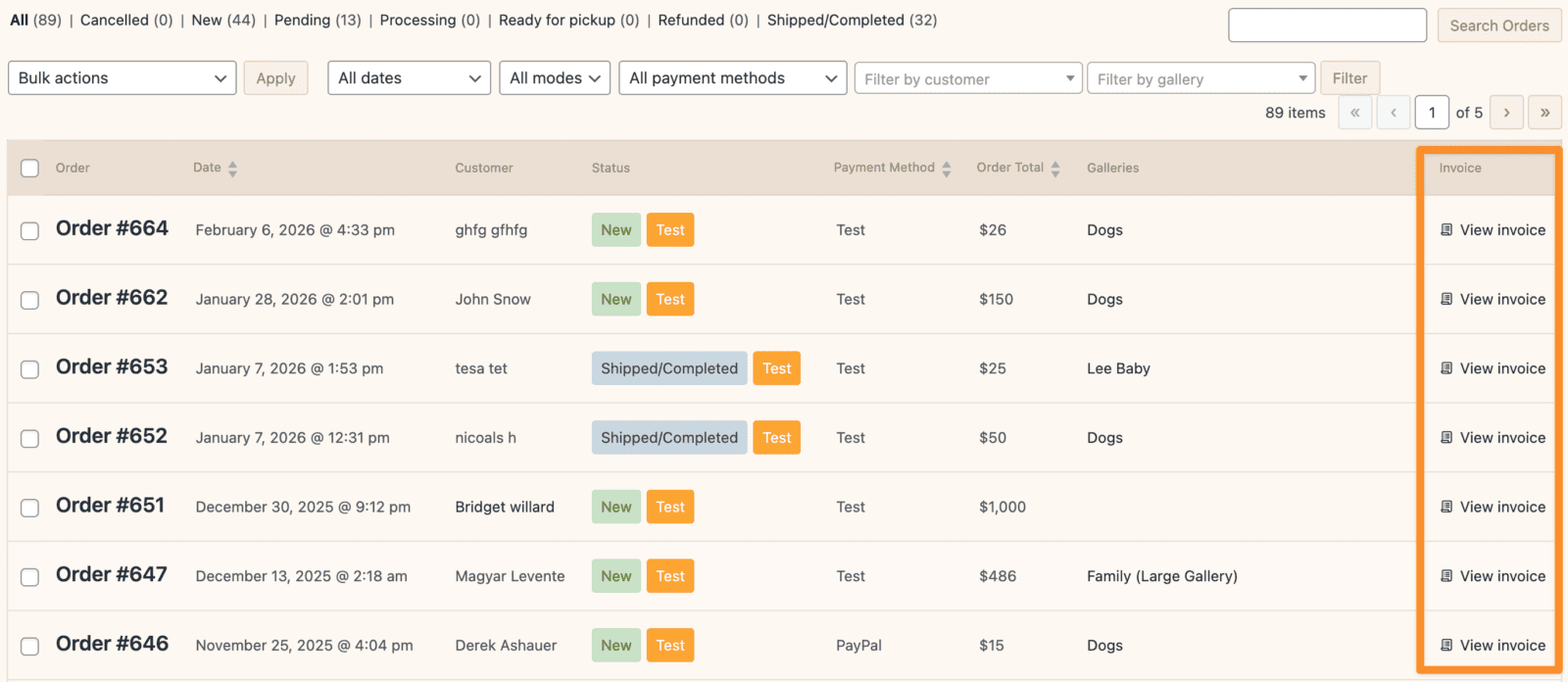
- Orders list — Go to Sunshine > Orders. Each order has a "View invoice" link in the Invoice column.
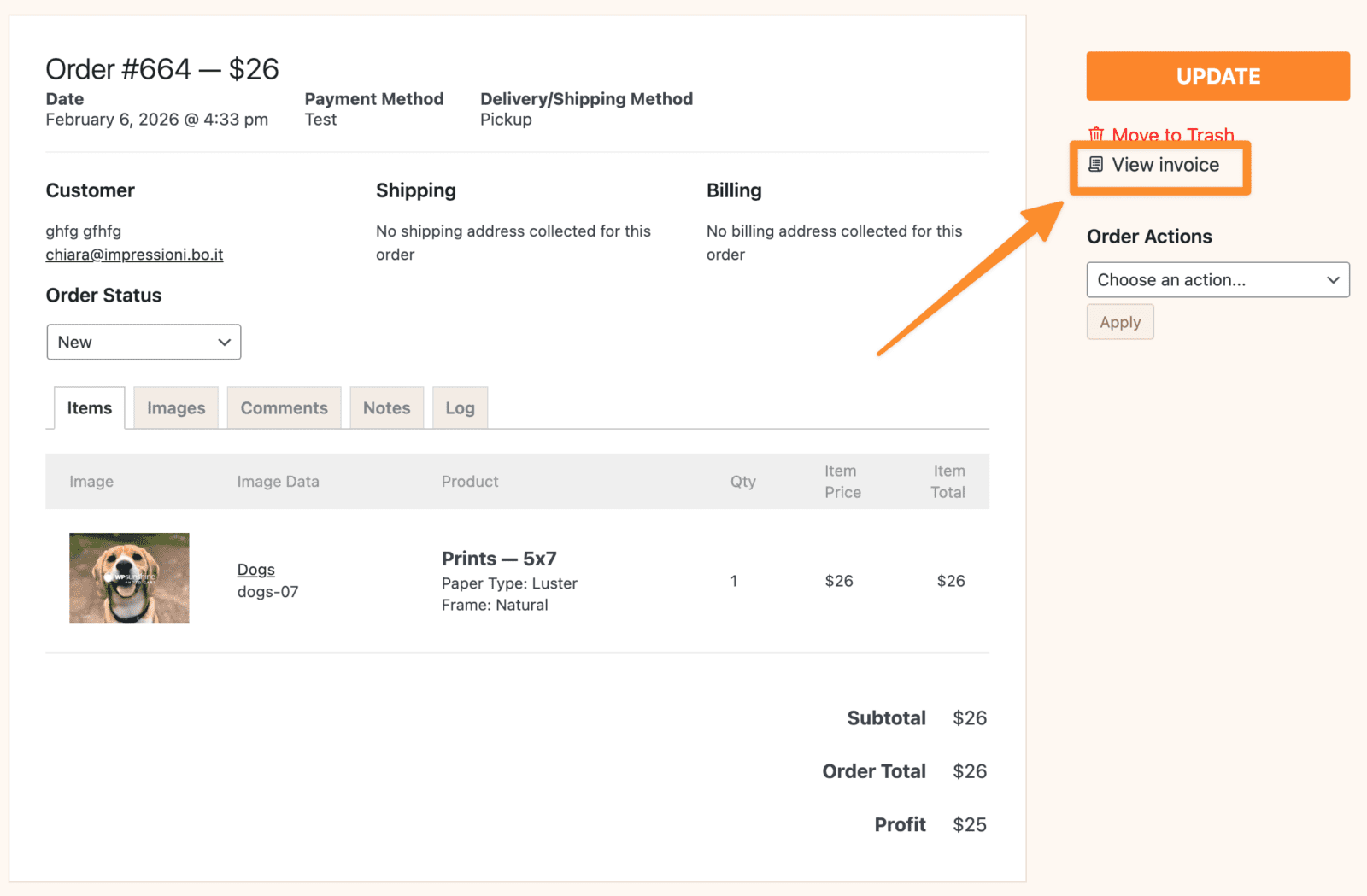
- Order detail page — Open any order and click the View invoice button at the top.
Customers
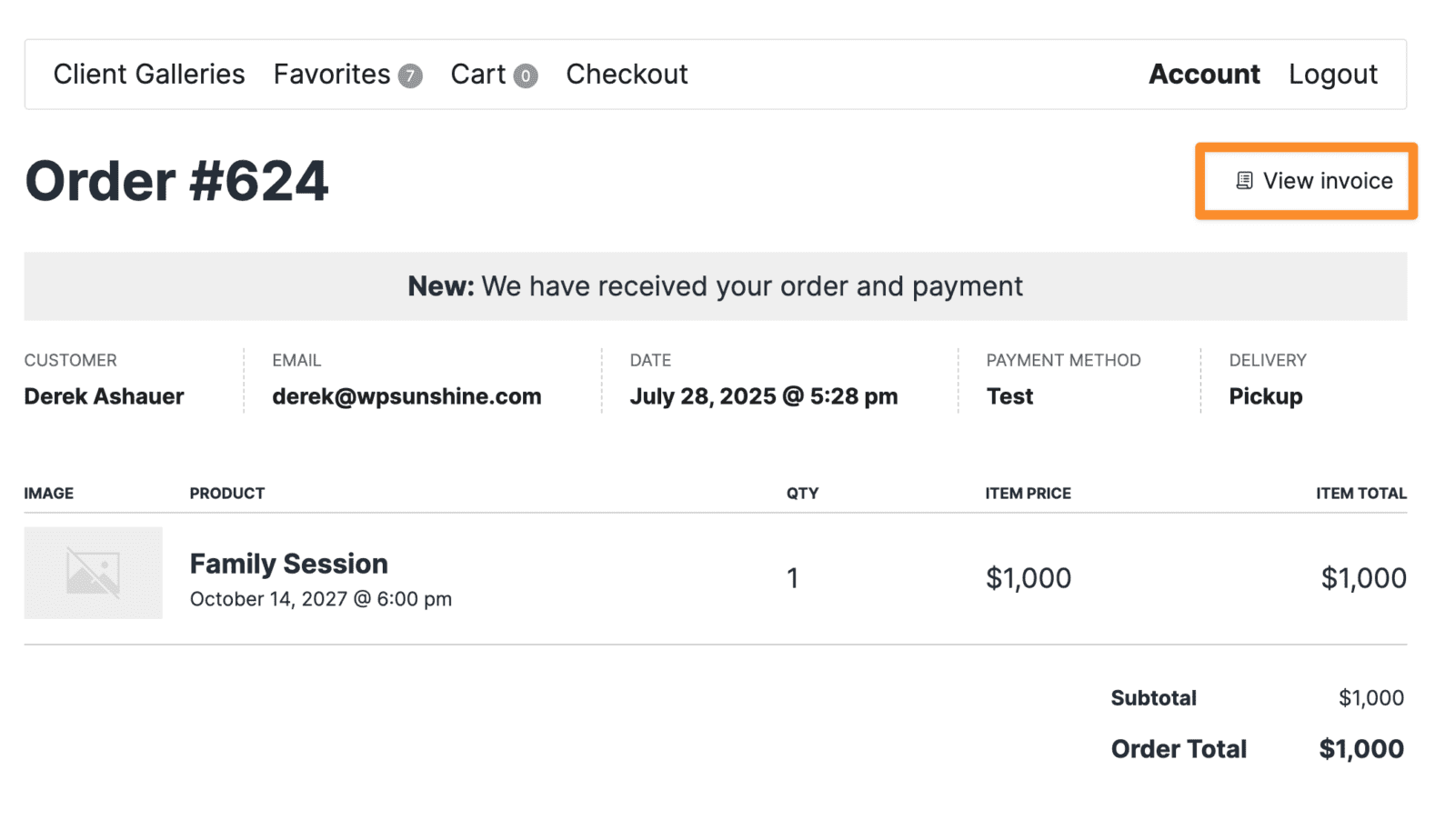
Customers can access their invoices from their account page. Under their list of orders, each order has a "View invoice" link.
Invoices are also linked in the order confirmation email that customers receive after placing an order, and in order status update emails.

What the Invoice Shows
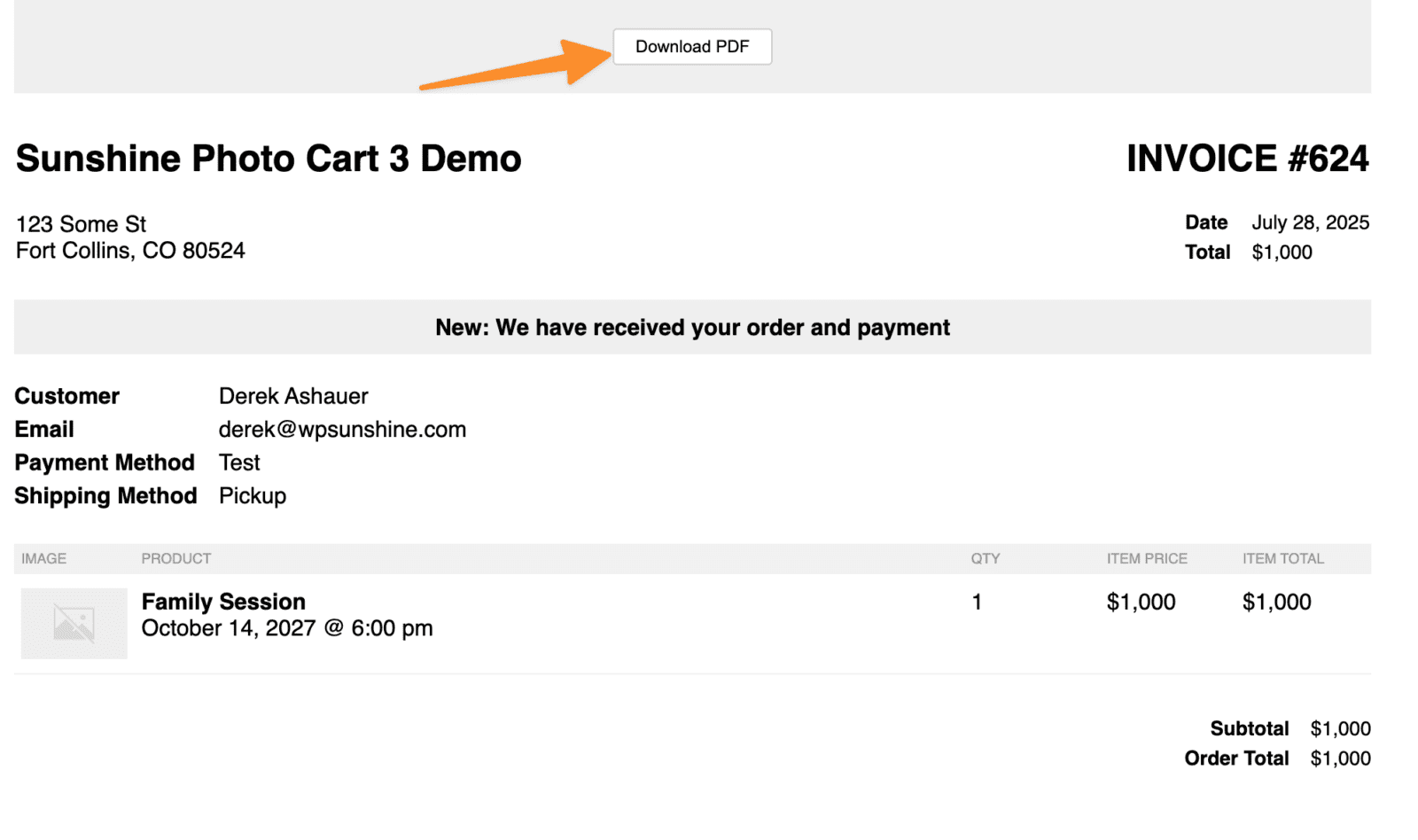
The invoice is a clean, formatted page that includes:
- Your business logo (or site name if no logo is set)
- Invoice number matching the order number
- Your business address
- Order date and total
- Order status
- Customer details — name, email, phone, payment method, and shipping/delivery method
- Shipping and billing addresses (when applicable)
- Customer notes (if any were added at checkout)
- Ordered items — with product image, product name, options, gallery name, image name, quantity, and pricing
- Order totals — subtotal, shipping, discounts, tax, fees, credits, refunds, and final total
When you (the admin) view an invoice, it also shows the original filenames for each ordered image. Customers do not see filenames.
Downloading as PDF
At the top of every invoice is a Download PDF button. Clicking it generates a PDF version of the invoice that can be saved or printed. The PDF is named invoice-[order-number].pdf.
You can also use your browser's print function to print the invoice directly — the action bar at the top is automatically hidden when printing.
Invoice Settings
Logo and Extra Content
Go to Sunshine > Settings > Design and scroll to the Invoices section. Here you can configure:
- Logo — Upload an image to display in the top-left of the invoice. If no logo is uploaded, your site name is shown instead. The logo is displayed on a white background.
- Extra Content — Add custom text or HTML that appears on every invoice. This is useful for things like return policies, thank you messages, or legal notices.
Disabling Invoices
If you don't want customers to access invoices, go to Sunshine > Settings > Checkout and scroll to the Orders section. Check Disable Invoice to hide all invoice links from the customer-facing side of your site. This removes the Invoice column from the customer's orders list.
Disabling invoices only affects customers — you can still view invoices from the admin.
Customizing Invoices
For more advanced customization of the invoice layout and content, see How to Customize Invoices.
Hooks and Filters
sunshine_invoice_title
Change the title displayed on the invoice.
add_filter( 'sunshine_invoice_title', function( $title, $order ) {
    return 'Receipt #' . $order->get_order_number();
}, 10, 2 );
Learn how to add this custom code to your WordPress website
sunshine_invoice_file
Change the PDF filename when a customer downloads the invoice.
add_filter( 'sunshine_invoice_file', function( $filename, $order ) {
    return 'receipt-' . $order->get_order_number();
}, 10, 2 );
Learn how to add this custom code to your WordPress website
sunshine_order_invoice_permalink
Modify the URL used for invoice links.
add_filter( 'sunshine_order_invoice_permalink', function( $permalink ) {
    return $permalink;
} );
Learn how to add this custom code to your WordPress website
Invoice Action Hooks
These action hooks let you inject custom content into specific areas of the invoice template:
sunshine_invoice_after_page_header— After the logo and title rowsunshine_invoice_after_address— After your business addresssunshine_invoice_after_basics— After the date and totalsunshine_invoice_after_header— After the full header sectionsunshine_invoice_after_order_status— After the order status barsunshine_invoice_after_data— After the customer details and addressessunshine_invoice_after_cart_items— After the items tablesunshine_invoice_after_order_totals— After the order totals
All hooks receive the $order object as a parameter.
add_action( 'sunshine_invoice_after_order_totals', function( $order ) {
    echo '<p style="text-align: center; margin-top: 20px;">Thank you for your order!</p>';
} );
Learn how to add this custom code to your WordPress website
Still need help?
If you have not yet found your answer in the documentation articles, please contact support