How event photographers handle hundreds of client galleries from one weekend
Posted on May 11, 2026
For event photographers, gallery management isn't an "admin tidiness" problem. It's the difference between a business that scales and one that doesn't. One hunter/jumper horse show can produce 300 galleries from a single weekend, one per horse-and-rider pair. School photographers stack up galleries by the hundreds during picture day season. Race photographers run thousands across a circuit.
The first audience for Sunshine Photo Cart was boutique work, weddings and family portraits. Over the years volume photography has become a much bigger part of who's using it, and the tools have grown to match: Bulk Galleries, Cloud Storage, the Gallery Navigator, plus Quick Edit and Bulk Edit. Here's the workflow I see working for photographers handling volume on WordPress, and where each of those pieces fits.
Build galleries the same way every time
The fastest gallery is one you don't have to think about. Decide on your defaults once and apply them to every new gallery without re-deciding.
For event photography that usually means picking ahead of time:
- Default expiration (30, 60, or 90 days based on how long your typical buyer takes to order)
- Default access type (direct URL works well when each competitor has a unique link)
- Default price level (the price tier you've decided fits this kind of event)
- Default products (prints, digital files, action sequence sheets, whatever you actually offer)
Once those are set, every new gallery is just a name and a set of photos, not a fifteen-decision setup. The same approach works for any niche where you build many galleries that share most of their settings: school days, sports leagues, race events, recitals, conferences.
If a specific event needs different settings (a school wants longer expiration, a league wants different pricing), handle it as an exception, not a rebuild. The Quick Edit and Bulk Edit panels covered further down make overriding defaults on specific galleries easy without breaking your standard setup.
For events where every competitor gets their own gallery, the Bulk Galleries addon creates hundreds of galleries from a single CSV. One row per competitor (name, division, access details), and a few hundred galleries spin up in minutes instead of days.
Pick a naming convention and stick to it
When you have 400 galleries from one event, naming matters. The wrong convention turns finding any specific gallery into a hunt. The right one means you can find any client in seconds, even months after the shoot.
A workable naming pattern for school work:
Lincoln Elementary 2026 - Mrs. Garcia - Smith J
That includes the school, the year, the classroom, and the student. Specific enough to find one student in a school of 800. Sortable, because alphabetical sorting by classroom keeps related galleries together. Parseable, because the structure is consistent if you ever need to extract data programmatically.
Sports work might use 2026 Spring Soccer League - Tigers U10 - Garcia M. Race events: 2026 City Marathon - Bib 4218. Pick a convention before your first big shoot, write it down, and don't deviate. Inconsistency in naming is what eventually makes a gallery library unusable.
Edit settings across many galleries at once
Even with great defaults, you'll need to change settings on many galleries after the fact. The event organizer asks for a longer buying window. You apply a new price level to a specific event series. A division's access type needs to change from direct URL to password.
The slow way is opening each gallery, changing the setting, saving, closing, repeat. The fast way is doing it from the gallery list screen.
In Sunshine 3.6.8, Quick Edit lets you change a gallery's most-used settings inline from the list. Hover the row, click Quick Edit, change what you need, hit Update. Bulk Edit takes the same idea further. Check several galleries at once, choose Edit from the bulk actions dropdown, change one setting, every selected gallery updates. A "No change" option on every field means you can update one setting without touching anything else.
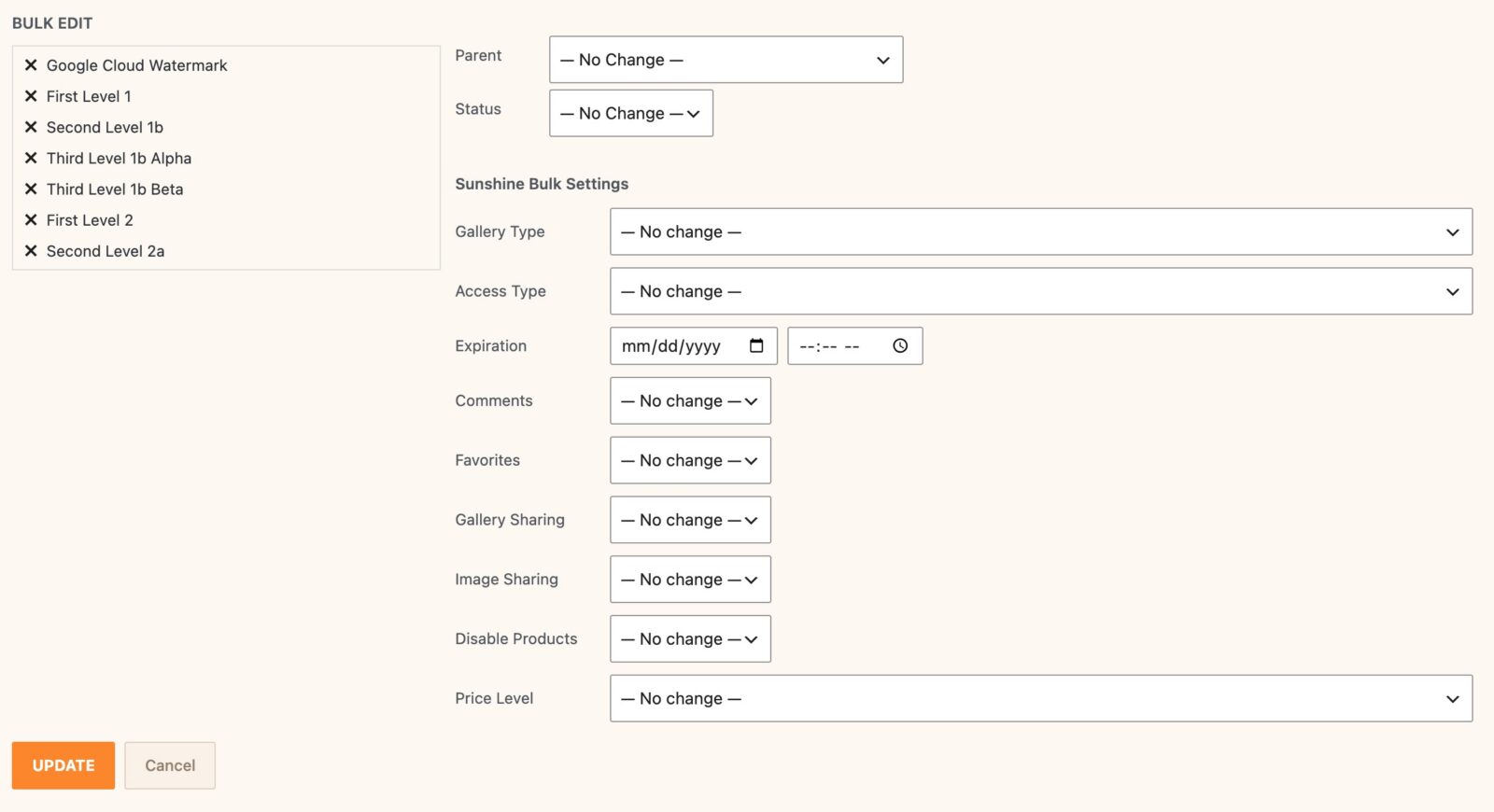
Pushing expiration out by two weeks for an entire event's worth of galleries goes from a long manual job to about thirty seconds. Full details in the Quick Edit and Bulk Edit documentation.
Use parent and sub-galleries
Once you pass about fifty galleries, a flat list becomes useless. By the time you're managing thousands across multiple events, you need real structure.
The simplest structure is parent and sub-galleries. An event photographer might organize by event, then division, then competitor. A hunter/jumper photographer's structure could look like 2026 Spring Show > 3'6" Performance Hunters > Sara Mitchell & Sterling. A race photographer might use 2026 Marathon Series > Half Marathon > Bib 4218. A school photographer organizes by school, then year, then class.
This isn't just for tidiness, it changes how fast you can find any specific gallery. Looking for "the gray horse from the spring show" is a slog through a flat list. Three clicks if your structure is Event > Division > Competitor.
Sunshine supports unlimited gallery nesting, so you can build the hierarchy that matches your business. The new Gallery Navigator gives you a tree view of your entire gallery structure inside the WordPress admin, so you can see the full picture and jump straight to any gallery without wading through pages of lists.

Let old galleries expire on their own
Galleries that should have expired six months ago are clutter. They make searches slower, take up disk space, and make your admin feel like a graveyard.
Set every gallery to expire automatically. Sunshine hides expired galleries from public view on its own, so you don't have to remember to clean them up. Set the right expiration when you create the gallery and the system handles the rest.
If a client comes back asking for more time, you've already got a fast way to extend it (Quick Edit or Bulk Edit, see above). The default expiration is your friend, not a constraint.
Automate the buying window
The buying window for event photography is short. Typically one to four weeks before urgency drops off a cliff. The clients who don't order in that window mostly never will.
Manual email reminders are how revenue walks out the door. You forget some, you get to others late, and clients move on.
Automated email sequences fix this. Set up a template that sends a welcome email when a gallery goes live, a reminder a week before expiration, and a last-call email the day before. The Automated Email Marketing addon handles this with triggers based on gallery activity, including reminders for clients who got access but haven't visited yet.
The clients you don't have to think about are the ones who buy without you chasing them. That's how event work becomes profitable instead of just busy.
Move storage to the cloud early
For event photographers this one shows up fast. A single weekend can put thirty or forty thousand images on your server. Two events later, you've blown past your hosting plan's disk quota and your backups start failing.
When it catches up to you, you'll know. Site gets slow, hosting bill jumps, support tickets about backups start coming in. The fix is to stop storing images on your web server in the first place.
The Cloud Storage addon moves your gallery images to S3, Bunny.net, Cloudflare R2, Backblaze B2, or any other compatible provider. Your web server hosts the storefront, the cloud handles the heavy files. Cheaper hosting, faster page loads, no storage panic.
Already past the wall and have a backlog of galleries on your server? Cloud Storage includes a built-in migration tool that bulk-uploads your existing galleries to your cloud provider in the background, with a progress bar so you can track it. You don't have to start fresh, and you don't have to do it all at once.
Build the system once, then run it
The shift from "running a few galleries" to "running a busy gallery business" is the moment you stop doing things one at a time. For event photographers, that shift happens immediately. There's no easing in when one weekend creates three hundred galleries.
A few habits I see consistently in the photographers who handle volume well:
- If you find yourself doing the same task across more than a handful of galleries, look for a bulk version
- If a gallery setting is the same across most of your work, set a default and stop deciding fresh each time
- Build the parent/child structure of your galleries early, it's much harder to reorganize later
- Move storage off your web server before you hit the wall, not after
The goal isn't to spend more time managing galleries, it's to spend less. The time you save goes back into making images and working with the event organizers and clients who keep the business going.
Thanks for reading. If you're trying to make this work on your own WordPress site, you can download Sunshine Photo Cart free and dig in. Always happy to hear what's working (or not) for you.