
Quick Edit and Bulk Edit for galleries and products
When you need to change a setting on one gallery or product, opening the full edit screen is overkill. And when you need to change the same setting across twenty galleries, opening each one is painful. Quick Edit and Bulk Edit handle both cases right from the list screens.
How to Use Quick Edit
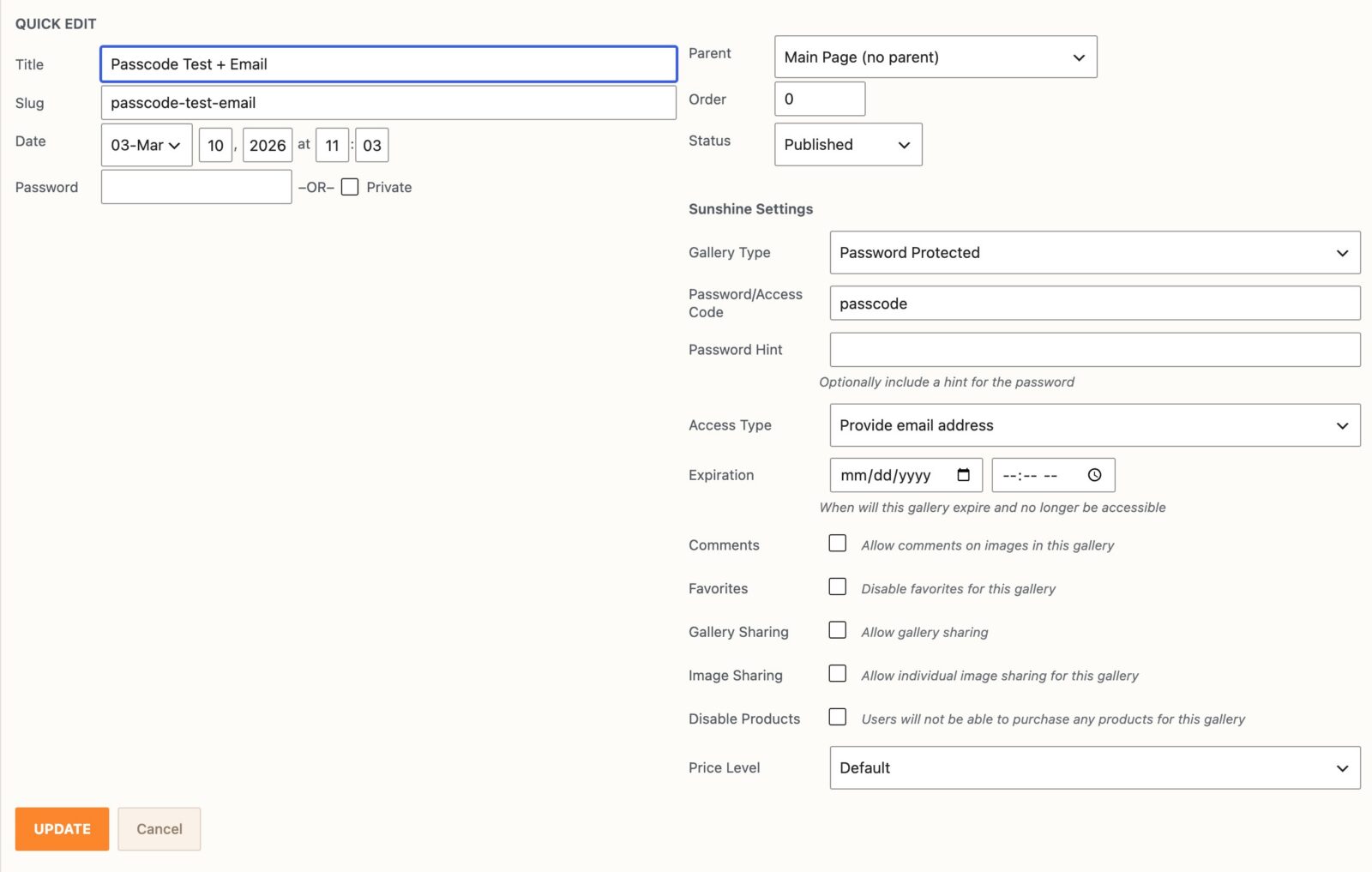
- Go to Sunshine > Galleries or to the Products menu.
- Hover over the row you want to edit.
- Click Quick Edit in the row's action links.
- Update any of the fields in the Sunshine Settings panel.
- Click Update.
Your changes save without leaving the list screen.
How to Use Bulk Edit
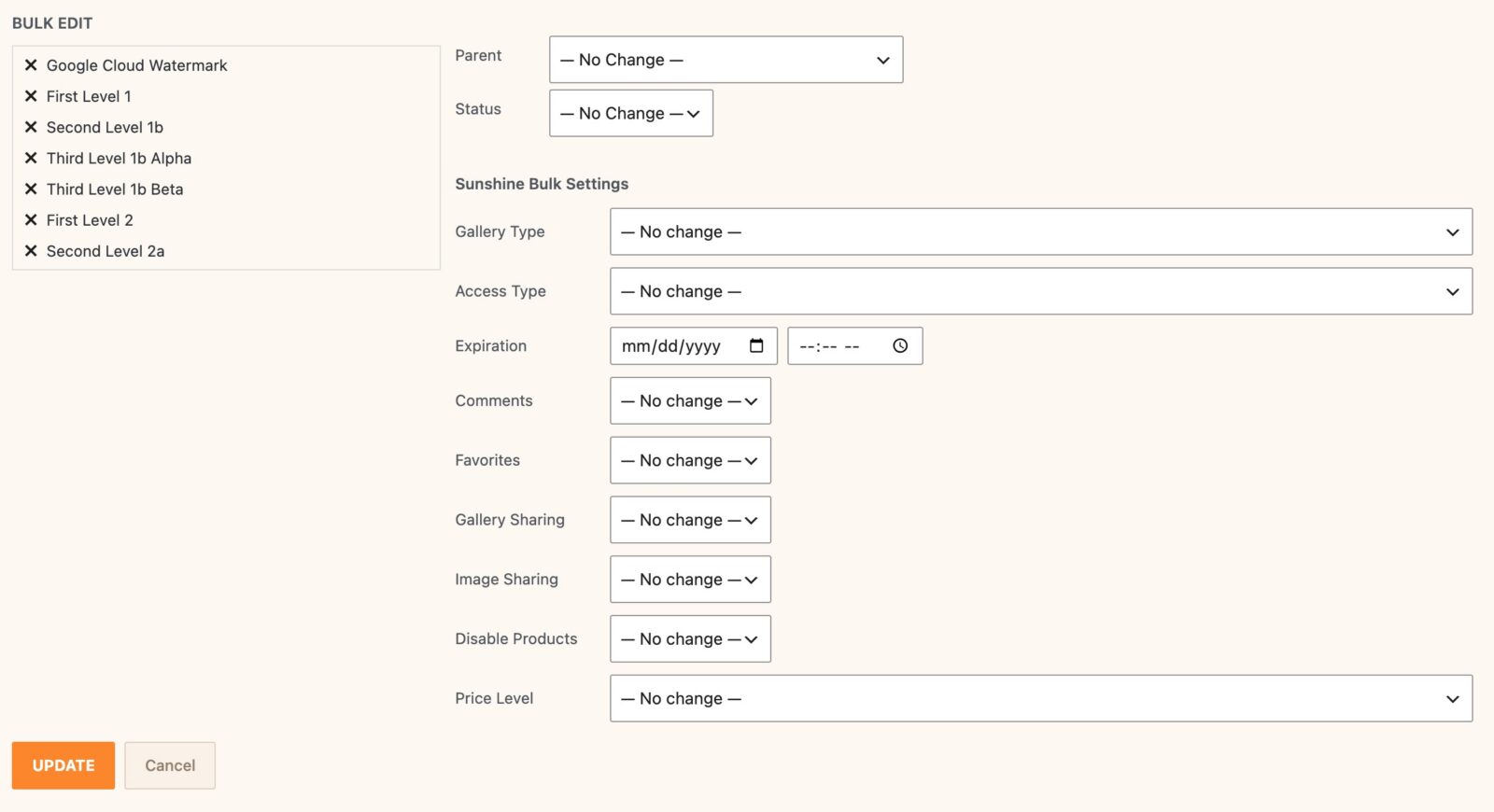
- Go to Sunshine > Galleries or to the Products menu.
- Check the box next to each row you want to update (or check the header box to select the whole page).
- From the Bulk actions dropdown above the list, choose Edit and click Apply.
- Update any of the fields in the Sunshine Bulk Settings panel.
- Click Update.
Every selected row receives the same change.
What You Can Edit on Galleries
Quick Edit and Bulk Edit cover the most-changed gallery settings:
- Gallery Type (Default, Password Protected, Private)
- Password / Access Code (Quick Edit only)
- Password Hint (Quick Edit only)
- Allowed Customers (for private galleries)
- Access Type (Default, Registered and logged in, Provide email address, Direct URL)
- Expiration date and time
- Comments on/off, and whether comments require approval
- Favorites on/off
- Gallery Sharing on/off
- Image Sharing on/off
- Disable Products on/off
- Price Level
Fields that depend on a parent setting only become relevant when the parent is set. For example, the Password field only applies when Gallery Type is Password Protected.
What You Can Edit on Products
For products, you can update:
- Product Type
- Price (Quick Edit only — or all price levels at once if you have the Price Levels addon)
- Taxable on/off
- Disable Shipping on/off
- Extra Shipping Cost
- Minimum Quantity
- Maximum Quantity
How Bulk Edit Handles "No Change"
Bulk Edit shows a — No change — option for every dropdown and a placeholder of the same wording on text and number fields. Leave a field set to — No change — (or leave a text field empty) and that field is skipped on every selected row. Only fields you actually change get applied. This means you don't need to worry about wiping out unrelated settings on the rows you're updating.
For checkboxes, Bulk Edit replaces the checkbox with a No change / Yes / No dropdown so you can clearly choose to turn the option on, off, or leave it as-is.
Notes
- Bulk Edit does not show fields that are only useful per-row, like the Password field — these are Quick Edit only.
- The fields available reflect the settings on each post type's main edit screen. As your store grows and you install addons that add gallery or product settings, those settings can opt into Quick Edit and Bulk Edit too.
- Saved values run through the same validation as the full edit screen, so anything you can save normally on a gallery or product is safe to save through these inline editors.
Still need help?
If you have not yet found your answer in the documentation articles, please contact support