
Emails Sunshine Sends
Sunshine sends emails for you while you work. Customers get receipts, order updates and account emails. You get new order alerts, sign up alerts, a weekly summary and more. This guide covers all 12 emails built into Sunshine: who gets each one, when it goes out, and what you can change.
Where to Find Email Settings
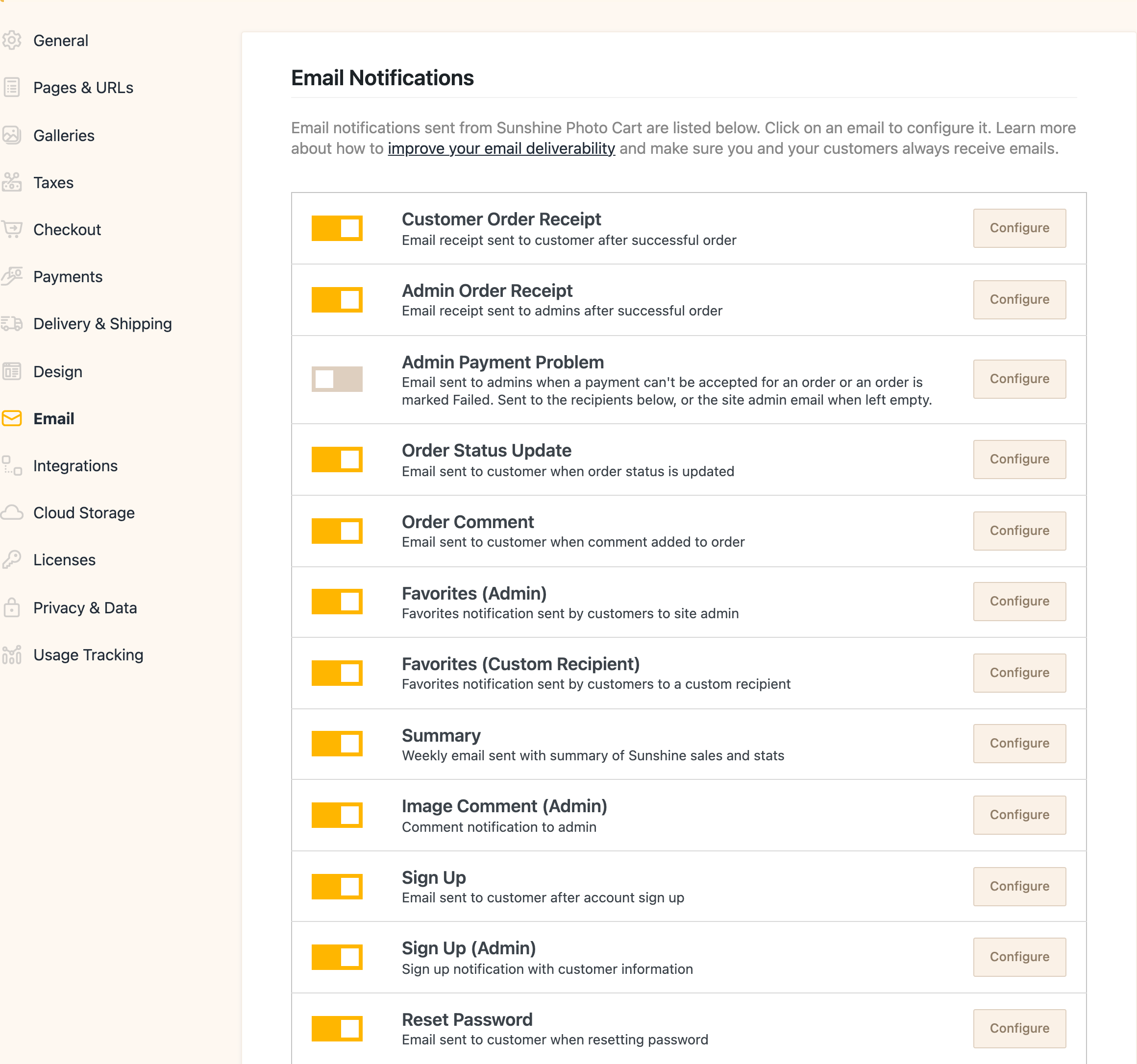
Go to Sunshine > Settings > Email. At the top is a list of every email Sunshine can send. Each row has:
- An on/off switch. Flip it to turn that email on or off right away, no save needed.
- The email's name and a short line about what it does.
- A Configure button that opens that email's own settings.
Below the list are the settings that every email shares.
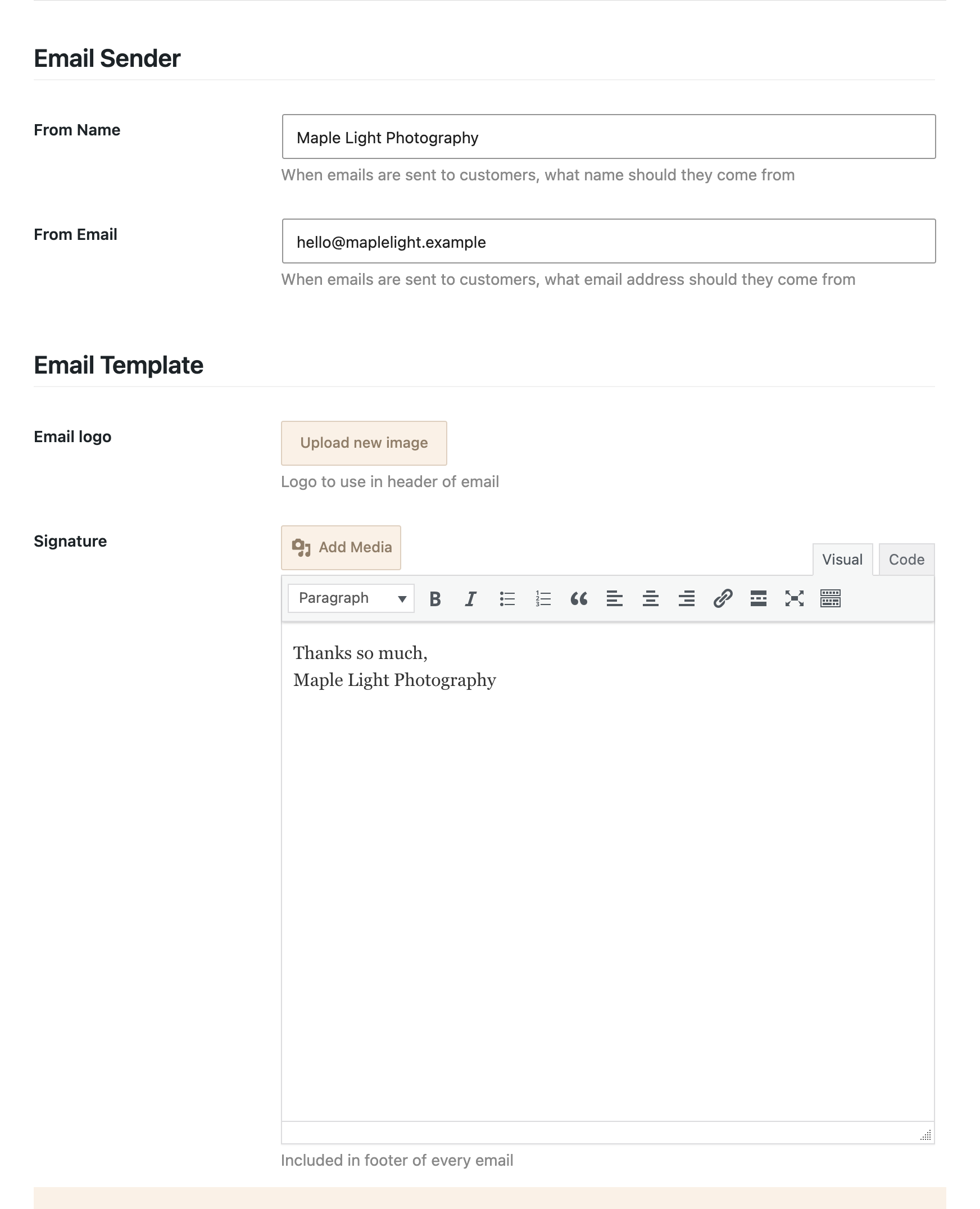
Email Sender
- From Name: The name your emails come from. When you install Sunshine this is filled in with your site name. If you leave it empty, your site name is used.
- From Email: The address your emails come from. When you install Sunshine this is filled in with your WordPress admin email. If you leave it empty, the WordPress admin email is used.
When a customer hits reply on most Sunshine emails, the reply goes to your From Email. The two exceptions are emails sent to you about an order (Admin Order Receipt and Admin Payment Problem). Those are set up so that hitting reply writes back to the customer.
Email Template
- Email logo: An image shown at the top of every email. If you don't add one, your site name is shown as text instead.
- Signature: Text added to the bottom of every email. A good spot for your name, studio name, phone number or a short thank you.
To change colors, fonts or buttons, see Custom CSS for Emails. That setting is in Sunshine > Settings > Design.
Settings for Each Email
Click Configure next to any email to open its settings. Every email has these:
- Enabled: The same on/off choice as the switch in the list.
- Subject: The subject line. Leave it empty to use the default, which is shown in light gray in the box.
- Message: Your own text, added near the top of the email above the details Sunshine fills in. Use it for a personal note, pickup hours, what happens next, or anything else you want people to read.
Some emails also have:
- Recipient(s): Who gets the email. Enter one address, or several separated by commas. Only emails that go to you have this field. When you install Sunshine it is filled in with your WordPress admin email.
At the top of each email's settings page is a list of template tags you can use in the Subject and Message. A template tag is a word in square brackets, like [first_name], that Sunshine swaps for the real value when the email is sent. The tags for each email are listed below.
These tags work in every email:
[sitename]or[site_name]: Your site's name[siteurl]or[site_url]: Your site's address[sunshine_url]or[sunshineurl]: The address of your main client galleries page[register_url]: The address of your customer account page
There is a Return to email list link at the top right of each email's settings page to get back to the full list.
Emails to Your Customers
These six emails go to your customers. All six are on when you install Sunshine.
Customer Order Receipt
Who gets it: The customer who placed the order.
When it's sent:
- After a customer checks out. For card and online payments it goes out once the payment goes through. For offline payments, it goes out right after they place the order, and the receipt shows the order is waiting for payment.
- When you mark an unfinished order as paid by hand, so the customer gets their receipt then.
- When you open an order and choose Resend order email to customer from the Order Actions menu.
- When you refund a Stripe or Square payment from the order screen and tick the option to tell the customer.
What it says: The order name and date, the order status and its description, your Message, buttons to view the order and the invoice, every item ordered with its photo, the totals, the payment method, any notes from the customer, and their contact details and addresses. The invoice button is left out if you've turned off invoices in Sunshine > Settings > Checkout.
Default subject: Receipt for [order_name] from [sitename]
Template tags: [order_id], [order_number], [order_name], [first_name], [last_name], [status], [receipt_url], [receipt_link], [invoice_url], [invoice_link]
The _url tags give you the plain web address. The _link tags give you a ready-made clickable "View order" or "View invoice" link.
Order Status Update
Who gets it: The customer on the order.
When it's sent: Only when you change an order's status yourself:
- On a single order, when you change the status, a Notify customer of status change box appears. The email is only sent if you tick it.
- With the bulk actions on the orders list, every changed order gets this email. To change many orders without emailing anyone, see Disable Order Status Emails During Bulk Updates.
Status changes made automatically, like a payment service marking an order paid, don't send this email.
What it says: "Order status for [order name] has changed", the new status and its description, your Message, buttons to view the order and invoice, and the same order details as the receipt. You can change the wording of each status in Orders > Order Statuses. See Customizing Order Statuses.
Default subject: Update on [order_name] from [sitename]
Template tags: [order_id], [order_number], [order_name], [first_name], [last_name], [status], [gallery_names]
[gallery_names] lists the names of every gallery the ordered photos came from.
Order Comment
Who gets it: The customer on the order.
When it's sent: When you add a comment on the Comments tab of an order with Notify customer? ticked. That box is ticked for you. Untick it to leave a comment the customer won't be emailed about.
What it says: "A comment on [order name]", your Message, the comment you wrote, and a button to view the order. It tells the customer they can reply to the email, and their reply goes to your From Email.
Default subject: A comment has been made on [order_name] from [sitename]
Template tags: [order_id], [order_name], [first_name], [last_name], [status]
Sign Up
Who gets it: The new customer.
When it's sent: When someone creates an account on your site, either from the sign up form or by choosing to make an account during checkout.
What it says: "An account has been created for you at [your site]", your Message, and the email address they signed up with. If they chose their own password, there's a button to go to their account. If they signed up without a password, there's a Set your password button instead.
Default subject: Your new account on [sitename]
Template tags: [first_name], [last_name]
Reset Password
Who gets it: The customer who asked to reset their password.
When it's sent: When someone uses the lost password form on your site and there is an account for that email address. If there's no account, nothing is sent. The person sees the same message either way, so the form can't be used to find out who has an account.
What it says: Your Message, a short note that they can ignore the email if they didn't ask for it, and a Click to reset password button.
Default subject: Password reset request at [sitename]
Template tags: [first_name], [last_name]
Favorites (Custom Recipient)
Who gets it: Anyone your customer chooses to share their favorites with, like a spouse or family member.
When it's sent: When a customer clicks Share your favorites on their favorites page, ticks Custom recipients, and enters email addresses. The share button only shows when Allow Image Sharing is turned on in Sunshine > Settings > Galleries.
A customer can enter up to 3 addresses at a time and share a few times per hour. This keeps the form from being used to send spam.
What it says: Your Message, the customer's own note if they wrote one, up to 6 of their favorite photos with file names, and a View all favorites button. That button opens a private link to their favorites. Anyone with the link can see those photos, and the share form tells your customer this before they send it.
Default subject: [first_name] [last_name] has sent you favorited images on [sitename]
When a customer isn't logged in, the subject leaves out their name and says "Favorited images have been shared with you on [sitename]" instead.
Template tags: [first_name], [last_name] (the name of the customer who shared)
Emails to You
These six emails go to you, the store owner. They all have a Recipient(s) field, so you can send them to yourself, an assistant, or both. All of them are on when you install Sunshine except Admin Payment Problem.
If the Recipient(s) field is empty, these emails aren't sent to anyone. The only exception is Admin Payment Problem, explained below.
Admin Order Receipt
Who gets it: The addresses in its Recipient(s) field.
When it's sent: At the same moments the customer gets their first receipt: after checkout, or when you mark an unfinished order paid by hand. It is not sent again when you resend the customer's receipt or send a refund email.
What it says: Everything in the customer's receipt, plus the original file name of each ordered photo and a Files list of every file name in the order. That makes it easy to find the photos to print. Buttons take you straight to the order and invoice in your WordPress admin.
Hitting reply writes back to the customer, not to yourself.
Default subject: New order: [order_name] from [sitename]
Template tags: [order_id], [order_number], [order_name], [first_name], [last_name], [status], [gallery_names]
Admin Payment Problem
This email warns you when a payment can't be accepted for an order, or an order is marked Failed. Most of the time you'll never see it. When you do, it usually means a customer may have paid but the order didn't go through, and you'll want to look into it before they email you asking where their photos are.
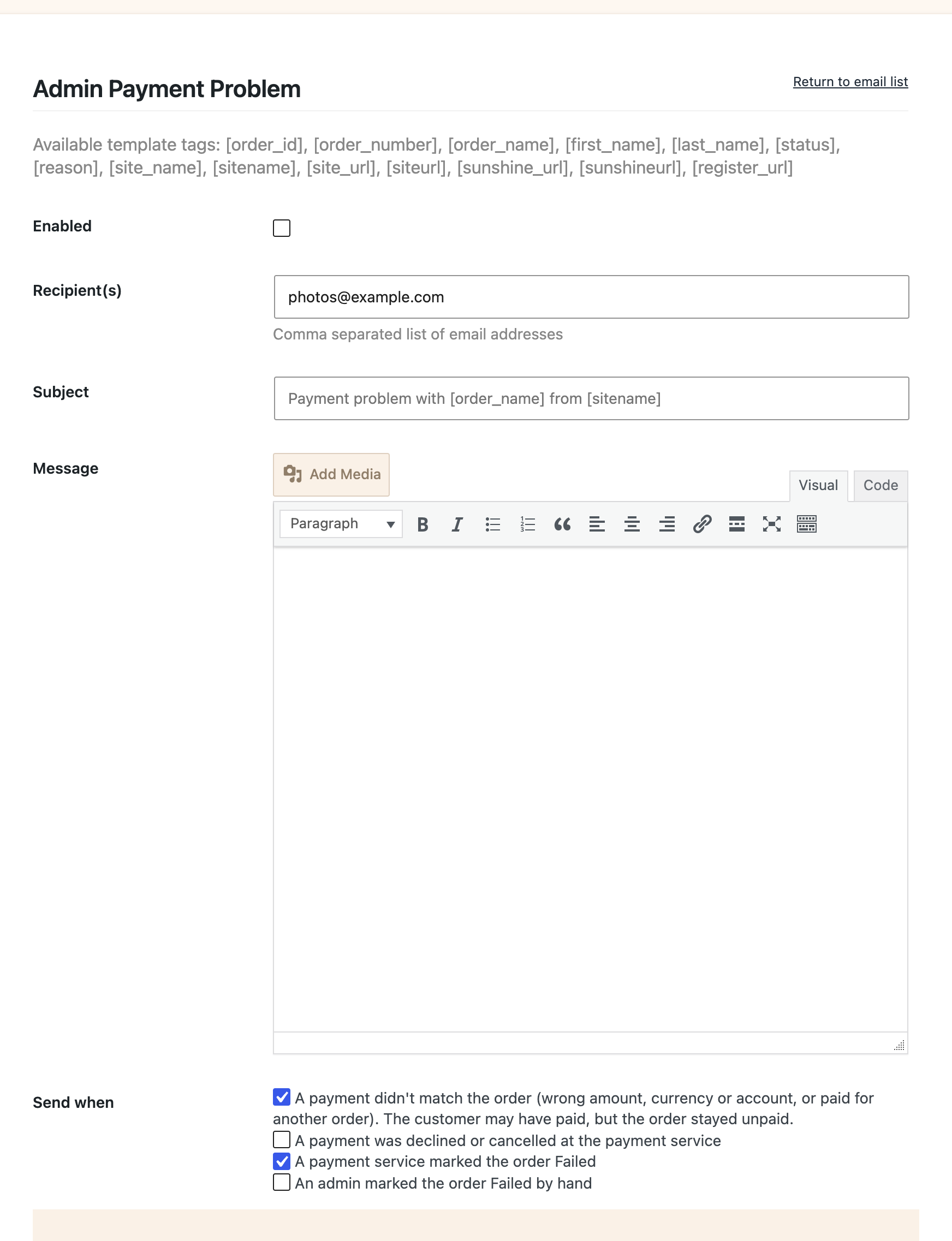
It is off by default. Turn it on in the email list or on its settings page.
Who gets it: The addresses in its Recipient(s) field. Unlike the other emails to you, if that field is empty it goes to your WordPress admin email. Turning it on always sends it somewhere.
Send when: This email has an extra setting that lets you pick which problems you want to hear about. Tick any of these:
- A payment didn't match the order (wrong amount, currency or account, or paid for another order). The customer may have paid, but the order stayed unpaid. This is the important one. The payment service says money changed hands, but it doesn't line up with the order, so Sunshine won't mark the order paid. Ticked by default.
- A payment was declined or cancelled at the payment service. The customer's bank turned the payment down, or they cancelled on the payment page. Usually the customer will try again, so many photographers leave this off. Not ticked by default.
- A payment service marked the order Failed. The order's status was changed to Failed during checkout or by the payment service, for example after a card was declined while paying with Stripe or Square. Ticked by default.
- An admin marked the order Failed by hand. You or someone on your team changed the status to Failed yourselves. Not ticked by default.
If you save the settings with none of these ticked, the email isn't sent at all, even with it turned on.
What it says: The order name (linked to the order in your admin), a plain explanation of what went wrong, your Message, the customer's name and email, the order total and currency, the payment method, and the order status. It reminds you to check the payment in that payment service's dashboard (for example, Stripe's) before you refund it or mark the order paid. A View Order button takes you to the order.
If the order was placed while the payment method was in test mode, "(test mode)" is added to the end of the subject so you can tell it apart from a real order.
Hitting reply writes back to the customer.
Each reason is sent once per order. Payment services often send the same notice more than once, so Sunshine remembers which problems it has already emailed you about for each order and doesn't repeat them. A different problem on the same order still sends a new email. The explanation is also saved in the order's log.
Which payment methods report problems: Stripe, Square, PayPal and PayPal (Legacy) in Sunshine itself, plus the Authorize.net, Mollie, Mercado Pago, Payfast, Paystack, Quickpay and SystemPay add-ons. All of them report payments that don't match the order. Square, Mercado Pago, Payfast, Paystack, Quickpay and SystemPay also report declined or cancelled payments. Any order marked Failed sends this email no matter which payment method was used, as long as that choice is ticked.
Default subject: Payment problem with [order_name] from [sitename]
Template tags: [order_id], [order_number], [order_name], [first_name], [last_name], [status], [reason]
[reason] is the plain explanation of what went wrong.
Sign Up (Admin)
Who gets it: The addresses in its Recipient(s) field.
When it's sent: When a customer creates an account on your site, at the same time they get their own Sign Up email. It isn't sent when you're logged in as an admin, since you already know about it.
What it says: Your Message, the new customer's name and email address, and a View Customer button.
Default subject: Customer signup at [sitename]
Template tags: [first_name], [last_name], [email]
If the customer didn't give a name, the name tags say "No first name given" or "No last name given".
Favorites (Admin)
Who gets it: The addresses in its Recipient(s) field.
When it's sent: When a customer clicks Share your favorites and leaves your studio ticked as a recipient. Your studio is ticked for them by default, so this is the usual way clients send you their picks.
What it says: Your Message, the customer's note if they wrote one, up to 6 of their favorite photos, a View all favorites button, and the file names of every favorite. The file name list is handy for finding photos in Lightroom. See How to view user favorites for more ways to see what clients picked.
For a logged-in customer, the button opens their customer page in your WordPress admin. For a guest, it opens a private link to the photos they shared.
Default subject: Favorites submitted by [email] on [sitename]
Template tags: [email], [first_name], [last_name] (the customer who shared)
Image Comment (Admin)
Who gets it: The addresses in its Recipient(s) field.
When it's sent: When someone leaves a comment on a photo in a gallery. This includes comments that are waiting for your approval. To let clients comment on photos, see Enable comments on images in a gallery.
What it says: The photo and its name, who wrote the comment and when, the comment itself, and a Manage comments on this image button.
Default subject: A new comment by [name] on [sitename]
Template tags: [name] (the person who left the comment)
Summary
Who gets it: The addresses in its Recipient(s) field.
When it's sent: Once a week, on the day your week starts. That day comes from Week Starts On in WordPress under Settings > General. It is sent every week, even a week with no orders.
Like all scheduled tasks in WordPress, it needs visits to your site (or a server cron) to run on time. If it shows up late or not at all, see Reliable server cron.
What it says: The dates it covers (the last 7 days), and for that week:
- Total received
- Number of orders
- Average order
- New customers
- New galleries and new images, when you added any galleries that week
It also has a View All Reports button and a tip about a Sunshine feature you may not be using yet.
Default subject: [sitename] summary
Template tags: Only the tags that work in every email.
Customizing Emails
Change the Subject and Message
The quickest way to make an email your own is the Subject and Message fields on its settings page. You can use template tags in both. For example, a Message for the Customer Order Receipt could be:
Hi [first_name], thank you for your order! Prints usually ship within 7 to 10 days. You can check on your order any time here: [receipt_link]
Learn how to add this custom code to your WordPress website
Change the Look
- Add your logo and signature in Sunshine > Settings > Email.
- Change colors, fonts and buttons with Custom CSS for Emails.
Override the Email Templates
If you need to change the layout of an email itself, you can copy its template file into your theme. This is for people comfortable editing PHP files.
- Find the email templates in
wp-content/plugins/sunshine-photo-cart/templates/email/ - Make a folder in your theme at
sunshine/email/ - Copy the file you want to change into that folder, keeping the same file name
- Edit your copy
Sunshine looks in your theme folder first. If you use a child theme, put the folder in the parent theme, since that's the one Sunshine checks for email templates.
| Template file | |
|---|---|
| Customer Order Receipt | customer-receipt.php |
| Order Status Update | order-status.php |
| Order Comment | order-comment.php |
| Sign Up | signup.php |
| Reset Password | reset-password.php |
| Favorites (Custom Recipient) | custom-favorites.php |
| Admin Order Receipt | admin-receipt.php |
| Admin Payment Problem | admin-payment-problem.php |
| Sign Up (Admin) | admin-signup.php |
| Favorites (Admin) | admin-favorites.php |
| Image Comment (Admin) | image-comment.php |
| Summary | summary.php |
The top, bottom and styles shared by every email are in header.php, footer.php and style.php. These can be overridden the same way.
When Sunshine is updated, your copies don't change. Check them now and then against the newest versions. See Customize layouts and emails with template overrides for more.
Emails From Add-ons
Some add-ons send their own emails. When the add-on is active, its emails show up in the same list in Sunshine > Settings > Email with the same Enabled, Subject and Message settings.
- Gift Cards sends the gift card to the person it was bought for. See Gift Cards.
- Digital Downloads can tell a customer when you've added files to their order, and when a large download is ready. See How to provide downloadable files after an order and Background Download Queue.
- Messaging sends messages you write to clients. See How to use the message add-on.
- Automated Email Marketing sends follow-up emails based on what clients do in your galleries, like adding favorites or leaving items in their cart. These are set up separately. See How Automated Emails work.
When Emails Don't Arrive
Sunshine hands every email to WordPress to send. If your emails aren't showing up, or they land in spam, the cause is almost always how your site sends mail, not Sunshine. See Not receiving emails or going to spam for the steps to fix it.
Also check that the email is turned on, and for emails to you, that its Recipient(s) field has the right address in it.
Hooks and Filters
sunshine_email_headers
Change the headers on every email Sunshine sends. This example sends a hidden copy (BCC) of every Customer Order Receipt to your studio inbox, so you have a copy of exactly what the customer saw.
add_filter( 'sunshine_email_headers', function( $headers, $email ) {
    if ( 'customer-receipt' === $email->id ) {
        $headers[] = 'Bcc: [email protected]';
    }
    return $headers;
}, 10, 2 );
Learn how to add this custom code to your WordPress website
Each email's ID is the same as its template file name without .php, for example order-status, admin-receipt or summary.
sunshine_order_email_search_replace
Add your own template tags to the Customer Order Receipt and Admin Order Receipt. This example adds a [total] tag you can use in the Subject or Message.
add_filter( 'sunshine_order_email_search_replace', function( $tags, $order ) {
    $tags['total'] = strip_tags( $order->get_total_formatted() );
    return $tags;
}, 10, 2 );
Learn how to add this custom code to your WordPress website
sunshine_email_attachments
Attach files to an email. This example attaches a PDF care guide to every Customer Order Receipt.
add_filter( 'sunshine_email_attachments', function( $attachments, $email_id, $args ) {
    if ( 'customer-receipt' === $email_id ) {
        $attachments[] = WP_CONTENT_DIR . '/uploads/print-care-guide.pdf';
    }
    return $attachments;
}, 10, 3 );
Learn how to add this custom code to your WordPress website
sunshine_favorites_share_max_recipients
Change how many email addresses a customer can enter when sharing favorites. The default is 3.
add_filter( 'sunshine_favorites_share_max_recipients', function() {
    return 5;
} );
Learn how to add this custom code to your WordPress website
Still need help?
If you have not yet found your answer in the documentation articles, please contact support