
Gallery Terms
Gallery Terms asks visitors to agree to your terms before they see a gallery's photos, like not saving the proofs or removing your watermark. Sunshine keeps a record of who agreed, when, and the exact wording they agreed to, so you can point back to it if a client copies your work.
How to Set It Up
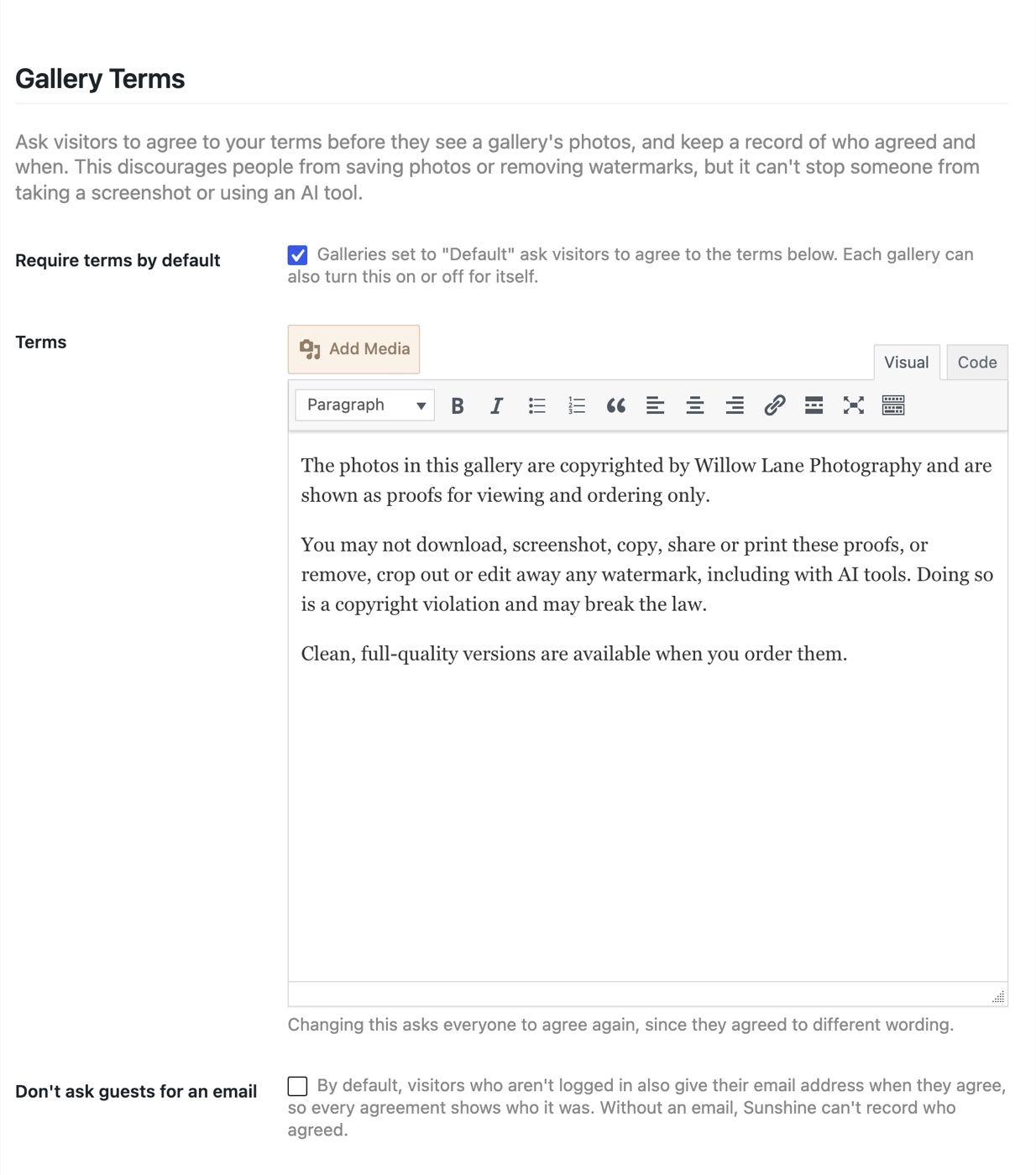
- Go to Sunshine > Settings > Galleries and scroll down to Gallery Terms
- Check Require terms by default if you want every gallery to ask for the terms. Leave it unchecked if you only want it on some galleries.
- In Terms, write the terms visitors agree to. Sunshine starts you off with sample wording that uses your site name, which you can keep or change.
- Leave Don't ask guests for an email unchecked so you know who each guest was (more on this below)
- Save your settings
Turn Terms On or Off for One Gallery
Each gallery has its own Terms setting, so you can make exceptions to the site-wide choice.
- Go to Sunshine > Galleries and edit a gallery
- In the General Options tab, find Terms
- Choose one of these:
- Default follows Require terms by default. The label shows which way that is set right now, like "Default (Required)".
- Required always asks for the terms on this gallery
- Not required never asks on this gallery
- Update the gallery

You can also change Terms for many galleries at once with Quick Edit or Bulk Edit on the Galleries list.
A sub-gallery set to Default follows the nearest gallery above it that has its own setting. So if a main gallery is set to Required, its sub-galleries ask for the terms too, unless you set one of them differently.
What Visitors See
When a visitor opens a gallery that asks for terms, they see your terms in a scrolling box with a checkbox labeled I have read and agree to these terms and a Submit button. The gallery's photos don't show until they check the box and submit.
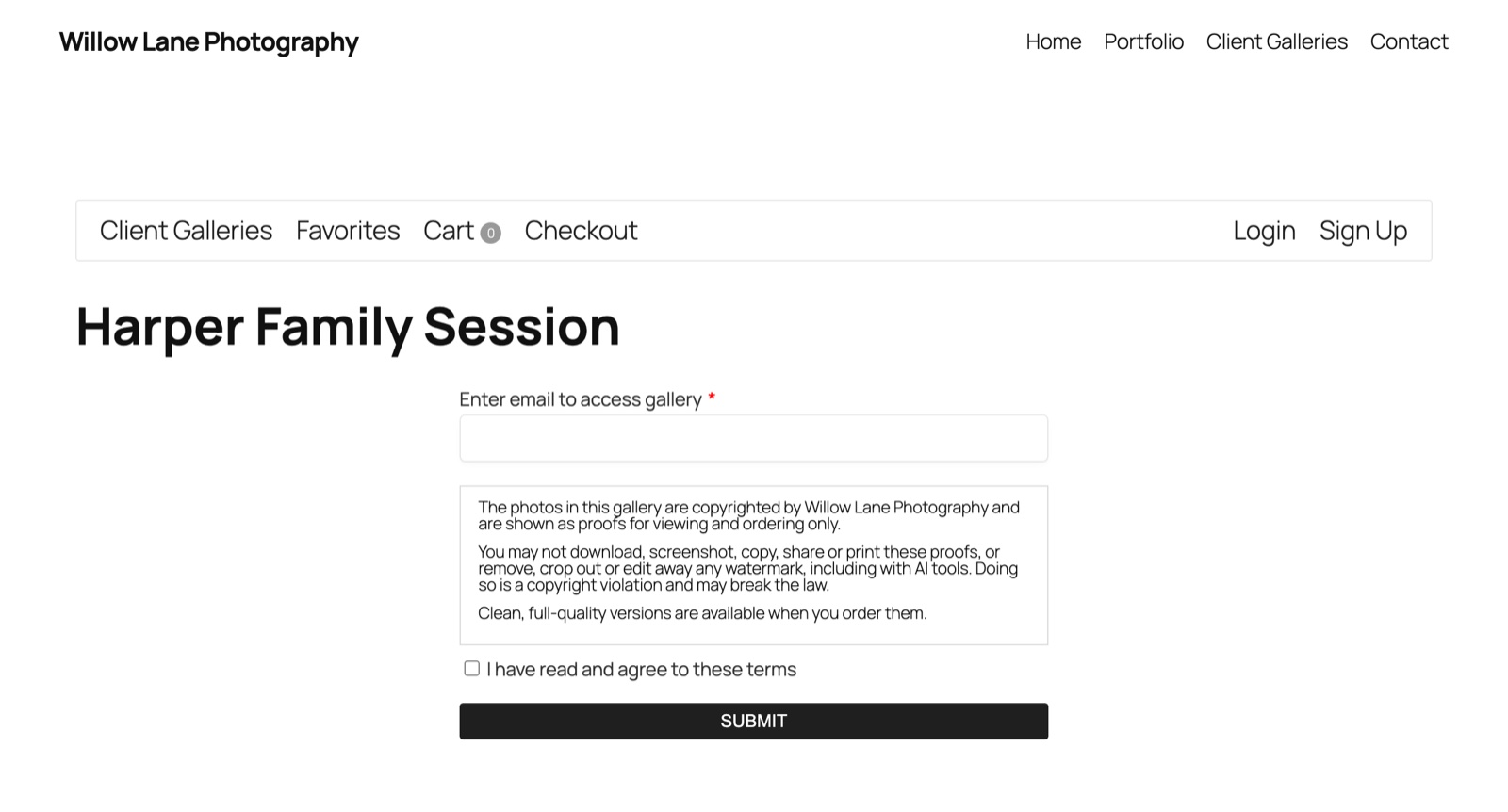
If the gallery also has a password or asks for an email, everything is on the same form, so the visitor fills it all in and submits once.
Visitors only agree once. After that, every gallery that asks for terms opens for them without asking again, as long as your wording hasn't changed.
- Logged-in customers have their agreement saved to their account, so they aren't asked again, even on another computer or phone.
- Guests are remembered in their browser session, the same way a gallery password is. If they come back after that session ends, or on another device, they're asked again.
Administrators are never asked, so you can check your galleries without agreeing to your own terms.
Guest Email Addresses
A guest who isn't logged in also enters their email address when they agree. This is what lets Sunshine record who each guest was. If they already gave their email earlier in the visit, like on a gallery that asks for an email, they aren't asked for it again.
If you check Don't ask guests for an email, guests can still agree and see the gallery, but Sunshine has no way to know who they are, so no record is saved for them. Agreements from logged-in customers are always recorded.
Changing Your Terms
When you change the wording in Terms, everyone is asked to agree again the next time they open a gallery, since they agreed to different wording before. Only changes to the words count. Changing formatting, like bold text or line breaks, doesn't ask anyone again.
Sunshine keeps a copy of every version of your terms that someone agreed to, so older records still show exactly what that person saw.
See Who Agreed
There are two places to see agreements.
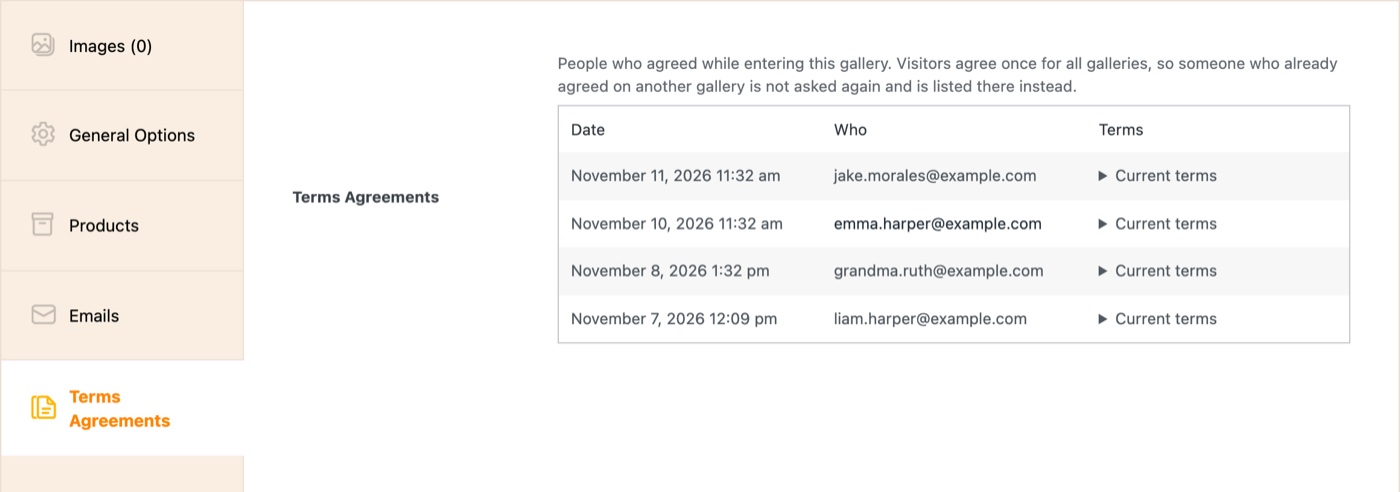
On a gallery: Edit the gallery and open the Terms Agreements tab. It lists everyone who agreed while entering that gallery, newest first, with the date, who it was, and which terms they agreed to. Since visitors only agree once for all galleries, someone who agreed on a different gallery is listed on that gallery instead.
On a customer: Go to Sunshine > Customers and open a customer. Their profile has a Gallery Terms Agreements table showing each agreement, the date, and the gallery they were entering at the time.

In both tables, the Terms column says Current terms or Earlier terms. Click it to see the exact wording that person agreed to.
Privacy Requests
Agreements are included in WordPress's own privacy tools. When you use Tools > Export Personal Data or Tools > Erase Personal Data for an email address, that person's gallery terms agreements are exported or erased along with their other Sunshine data.
What Gallery Terms Can and Can't Do
Gallery Terms makes the rules clear before anyone sees your photos and gives you a dated record of who agreed. That discourages people from saving proofs or removing watermarks. It can't stop someone from taking a screenshot or using an AI tool on what's on their screen, so it works best alongside your other image protection settings, like a watermark.
Hooks and Filters
sunshine_gallery_terms_agreed
Runs each time a visitor's agreement is recorded. It gets the agreement (time, terms version, gallery ID, user ID and email) and the gallery. This example adds the email of every guest who agrees to your site's log.
add_action( 'sunshine_gallery_terms_agreed', function( $agreement, $gallery ) {
    if ( empty( $agreement['user_id'] ) ) {
        error_log( 'Gallery terms agreed by guest ' . $agreement['email'] . ' on ' . $gallery->get_name() );
    }
}, 10, 2 );
Learn how to add this custom code to your WordPress website
sunshine_gallery_terms_before and sunshine_gallery_terms_after
Run just before and after the terms box on the gallery form, so you can add your own text around it.
add_action( 'sunshine_gallery_terms_before', function( $gallery ) {
    echo '<p>Questions about these terms? Email me before you continue.</p>';
} );
Learn how to add this custom code to your WordPress website
Still need help?
If you have not yet found your answer in the documentation articles, please contact support