
Favorites & Selection Tray
Sunshine Photo Cart includes a powerful favorites system that lets customers mark their favorite images while browsing galleries. The Selection Tray is a floating widget that displays these favorites, giving customers easy access to their selections without leaving the gallery. Customers can also share their favorites — submitting selections to the photographer or sending a shareable link to other people like family or friends.
No account required! Customers can use favorites whether they're logged in or browsing as a guest. This removes friction and lets customers start selecting their favorite images immediately.
How It Works
- As customers browse a gallery, each image has an "Add to favorites" option in its menu
- Clicking it adds the image to their favorites
- The Selection Tray appears as a floating widget at the bottom of the screen, showing thumbnail previews and a count (e.g., "Favorites (5)")
- Customers can click the tray title to go to their Favorites page, where they can review all selections and add them to cart
The Selection Tray stays visible as customers navigate between galleries, giving them a persistent view of what they've selected so far.

Guest Favorites
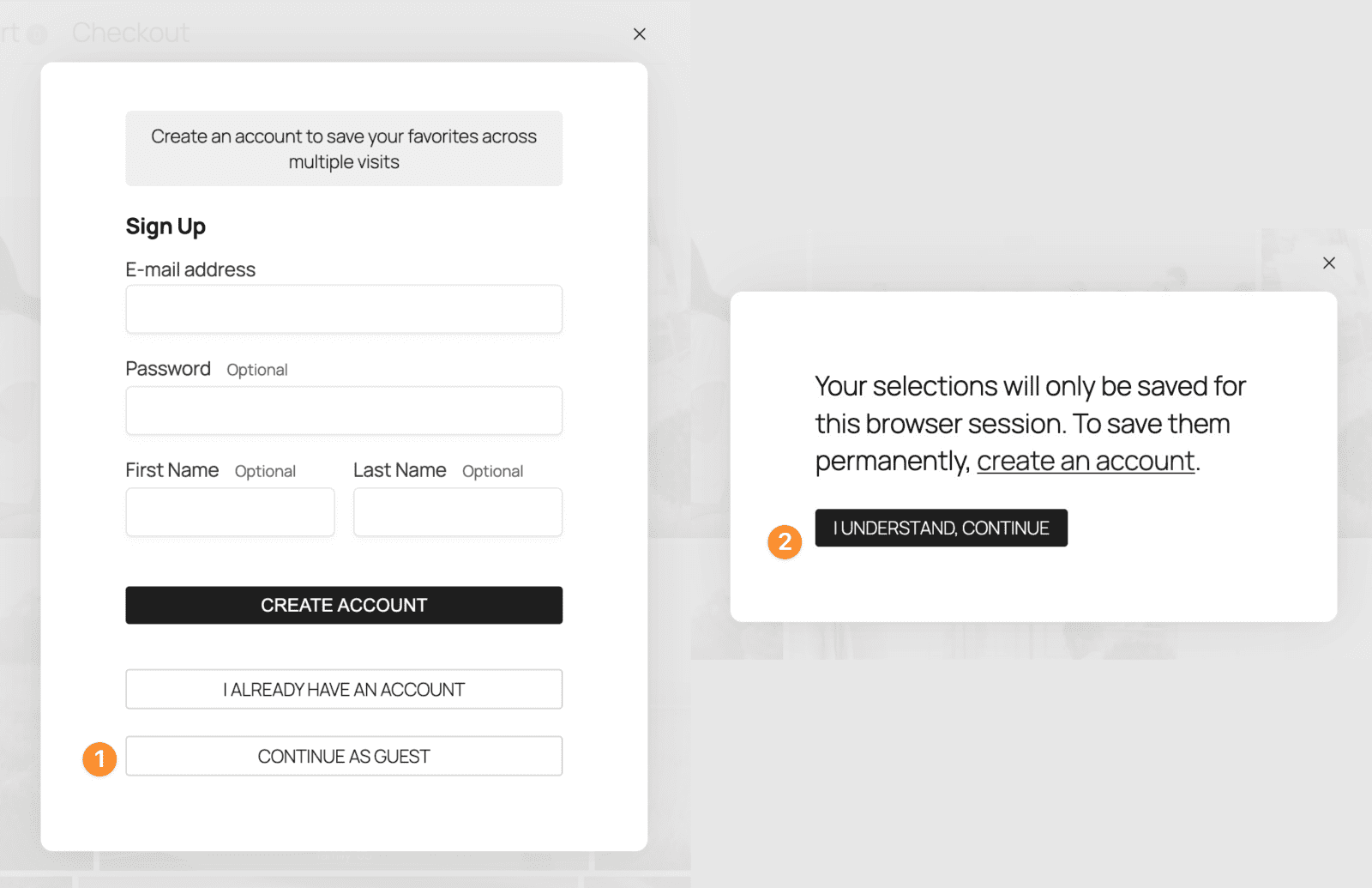
One of the most powerful features is that guests can use favorites without creating an account. When a guest clicks "Add to favorites" for the first time, they see a modal with options:
- Sign up — Create an account so favorites are saved permanently
- I already have an account — Log in to an existing account
- Continue as guest — Favorites are saved for the current browser session
If they choose "Continue as guest," their favorites work just like a logged-in user for that session. They can browse galleries, add favorites, view their Favorites page, and even add favorites to cart.
Automatic merging: If a guest later signs up or logs in, all their session favorites are automatically merged into their account — nothing is lost.
Minimizing the Selection Tray
If customers want more screen space while browsing, they can minimize the Selection Tray:
- Hover over the tray to reveal the minimize button (appears in the top-right corner)
- Click to minimize — the tray collapses to a small tab showing just the favorites count
- Click the minimized tab to expand the tray again
The minimized state is remembered in the browser, so it stays minimized as they navigate between pages.
Sharing Favorites
Once customers have selected their favorites, they can share them in two ways:
- Submit to the photographer — Send you an email with their selections so you can review their picks, pull up the images in Lightroom, or start preparing an order.
- Share with other people — Generate a unique link that gets emailed to anyone they choose (a spouse, family members, a wedding planner, etc.). Recipients can view the selected images through that link.
Both options can be used at the same time from the same form.
Enabling Sharing
Sharing needs to be turned on in your settings:
- Go to Sunshine Photo Cart > Settings > Galleries
- Check Allow Image Sharing
- Save your settings
Once enabled, a "Share your favorites" option appears in the action menu on the Favorites page (as long as the customer has at least one favorite selected).
How It Works
When a customer clicks "Share your favorites," a form appears with these options:
- Recipients — Two checkboxes:
- Your site name (checked by default) — sends the favorites to you, the photographer
- Custom recipients — when checked, a field appears where they can enter email addresses separated by commas
- Custom Note — An optional text field where they can include a message (e.g., "These are my top picks for the album!")
- Share Favorites button — Sends the emails
Guests who aren't logged in will also see Your Name and Your Email fields so you know who sent the selections.
What the Photographer Receives
When a customer shares favorites with you, you receive an email containing:
- The customer's custom note (if they included one)
- Thumbnail previews of up to 6 of their favorited images
- A "View all favorites" button linking to the customer's full favorites list
- A list of all favorited image file names — handy for searching in Lightroom or your file manager
You can customize this email's subject line and content under Sunshine Photo Cart > Emails > Favorites (Admin).
What Custom Recipients Receive
When a customer shares favorites with other people, each recipient gets an email with:
- The sender's custom note (if included)
- Thumbnail previews of up to 6 favorited images
- A "View all favorites" button with a unique shareable link
The link opens a read-only view of the favorites. Recipients can browse and view the images, but they cannot add items to cart, favorite images, or take any other actions. This makes it safe to share — recipients can see the photos without being able to modify anything.
You can customize this email under Sunshine Photo Cart > Emails > Favorites (Custom Recipient).
How Shared Links Work
The shareable link behaves differently depending on whether the customer is logged in or browsing as a guest:
- Logged-in customers — The link is permanent and always reflects their current favorites. If they add or remove images after sharing, anyone who visits the link will see the updated list.
- Guest customers — The link is a snapshot of their favorites at the moment they shared. It remains valid for 30 days and does not change if the guest modifies their session favorites afterward.
Shared links also grant view access to the images, even if the gallery is password-protected. Recipients don't need to enter a password or have an account — the link gives them access to just the favorited images.
Settings
Enabling Favorites & Selection Tray
Both features need to be enabled in settings:
- Go to Sunshine Photo Cart > Settings > Galleries
- Scroll to the Favorites / Selections section
- Check Enable Favorites to allow customers to favorite images
- Check Enable Selection Tray to show the floating tray widget
- Save your settings
Guest Favorites
To let visitors use favorites without creating an account:
- Go to Sunshine Photo Cart > Settings > Galleries
- Check Enable Guest Favorites (appears after enabling Favorites)
- Save your settings
Selection Tray Position
You can control where the Selection Tray appears:
- Go to Sunshine Photo Cart > Settings > Galleries
- Find the Position setting under "Favorites / Selections"
- Choose one of two options:
- Float bottom right (default) — The tray floats in the bottom-right corner
- Float bottom left — The tray floats in the bottom-left corner
Disabling Favorites for a Specific Gallery
If you want to turn off favorites for a particular gallery:
- Edit the gallery in Sunshine Photo Cart > Galleries
- Check Disable favorites for this gallery
- Update the gallery
Notes
- Guest session storage: Guest favorites are stored in the server-side session. If the session expires (typically after extended inactivity), the selections reset.
- Favorites page: The Selection Tray does not appear on the Favorites page itself — that page has its own interface for managing and adding favorites to cart.
- Automatic merging: If a guest signs up or logs in after selecting favorites, their session favorites are automatically merged into their new account.
- Guest sharing: Guests can share favorites too. The share form includes name and email fields so recipients know who sent the selections.
- Shared link access: Shared links grant view access to the favorited images only. Recipients cannot access the rest of a password-protected gallery through a shared favorites link.
Still need help?
If you have not yet found your answer in the documentation articles, please contact support